Proof-of-play reports: what played, when and where
Every time a screen plays an item, it tells the server. The Reports page adds those plays up, so you can see what your screens really showed: how often each slide or video played, on which screen, on which days and at what time of day. That is proof of play, the record an advertiser or a head office asks for.
This guide covers opening the report, choosing a screen and dates, reading each part of the page, what counts as a play, and how to leave some items out of the report.
Before you start
- Reports is in Advanced view. New accounts start in Simple view, which has no menu link to it. Switch with the Simple / Advanced buttons at the top of the menu.
- Everyone in the workspace can open it, Viewers included. It only shows numbers; nothing on the page changes your screens.
- It shows the workspace you are in. If you have several workspaces, switch workspace to see another one's report. Plays stay with the workspace a screen was in when it played them, so moving a screen to another workspace does not take its history with it.
Open Reports
In the sidebar, under Insights, choose Reports. The report for the last 30 days, for all your screens, loads by itself.
Choose a screen and dates
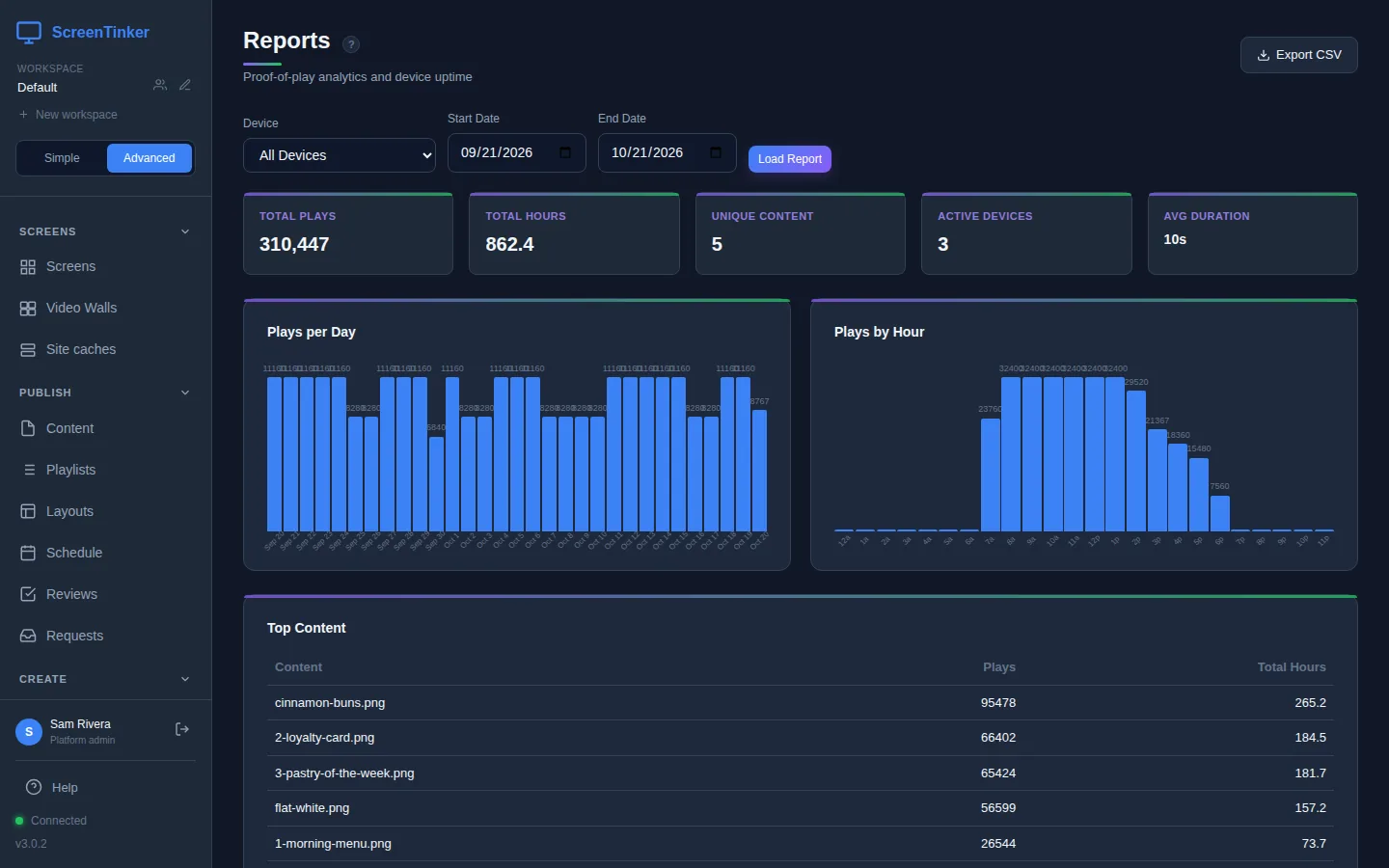
- Device: keep All Devices, or pick one screen from the list.
- Start Date and End Date: the report includes the whole of both days.
- Press Load Report. The page does not update until you do.
Read the report
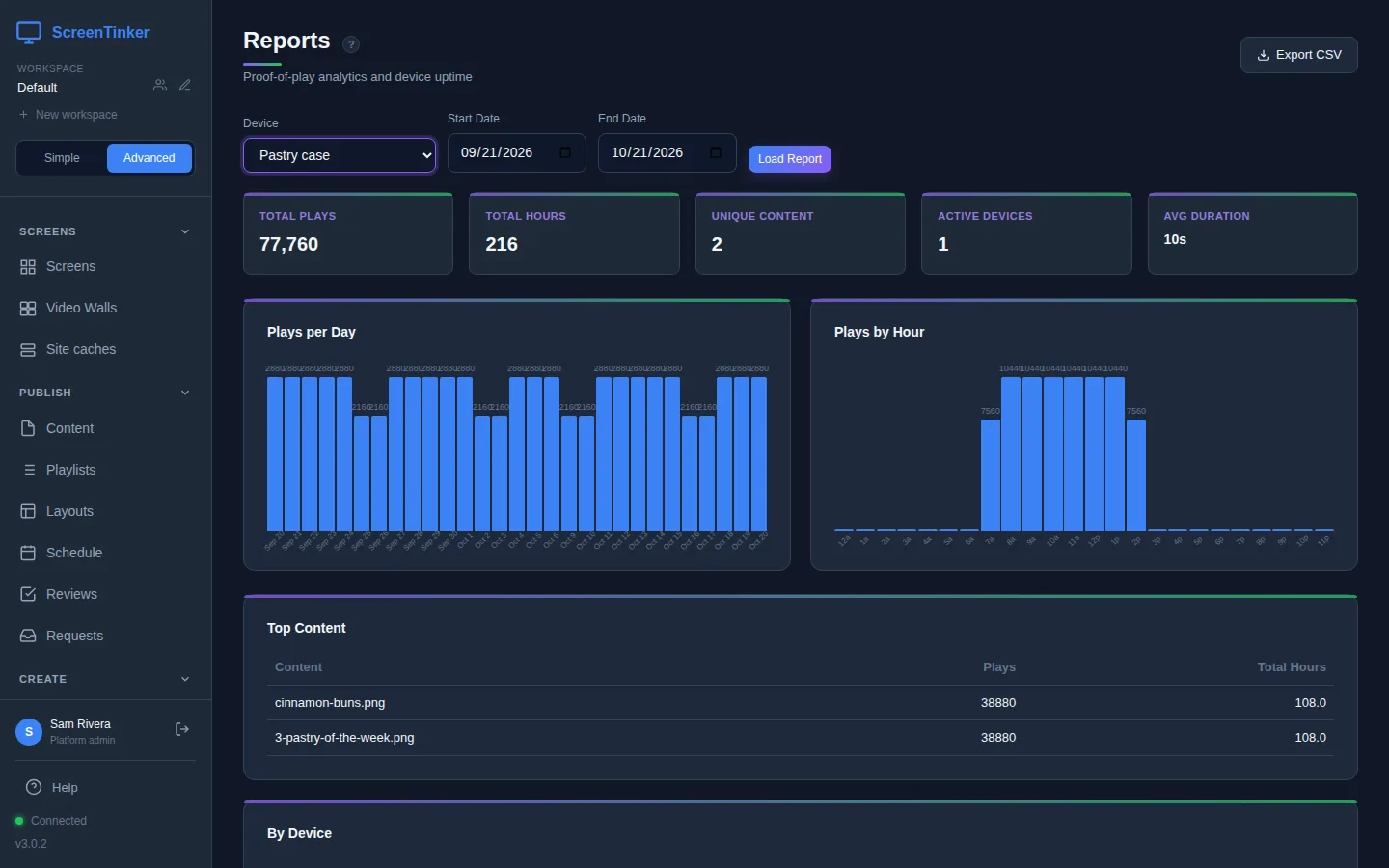
Five cards sit at the top:
- Total Plays: how many times items were played.
- Total Hours: all those plays added together, in hours.
- Unique Content: how many different items played.
- Active Devices: how many screens played at least one item in these dates.
- Avg Duration: how long one play lasted on average. An image set to 10 seconds shows 10s.
Then two charts. Plays per Day has a bar for each day with plays. A day when nothing played has no bar at all, so look at the dates under the bars if you are checking for a gap. Plays by Hour shows the time of day, from 12a (midnight) to 11p. Hold the pointer over a bar to see its exact number.
Days and hours are in each screen's own time zone, the one the device reports. So 9a means 9 in the morning where the screen is, even if you are somewhere else.
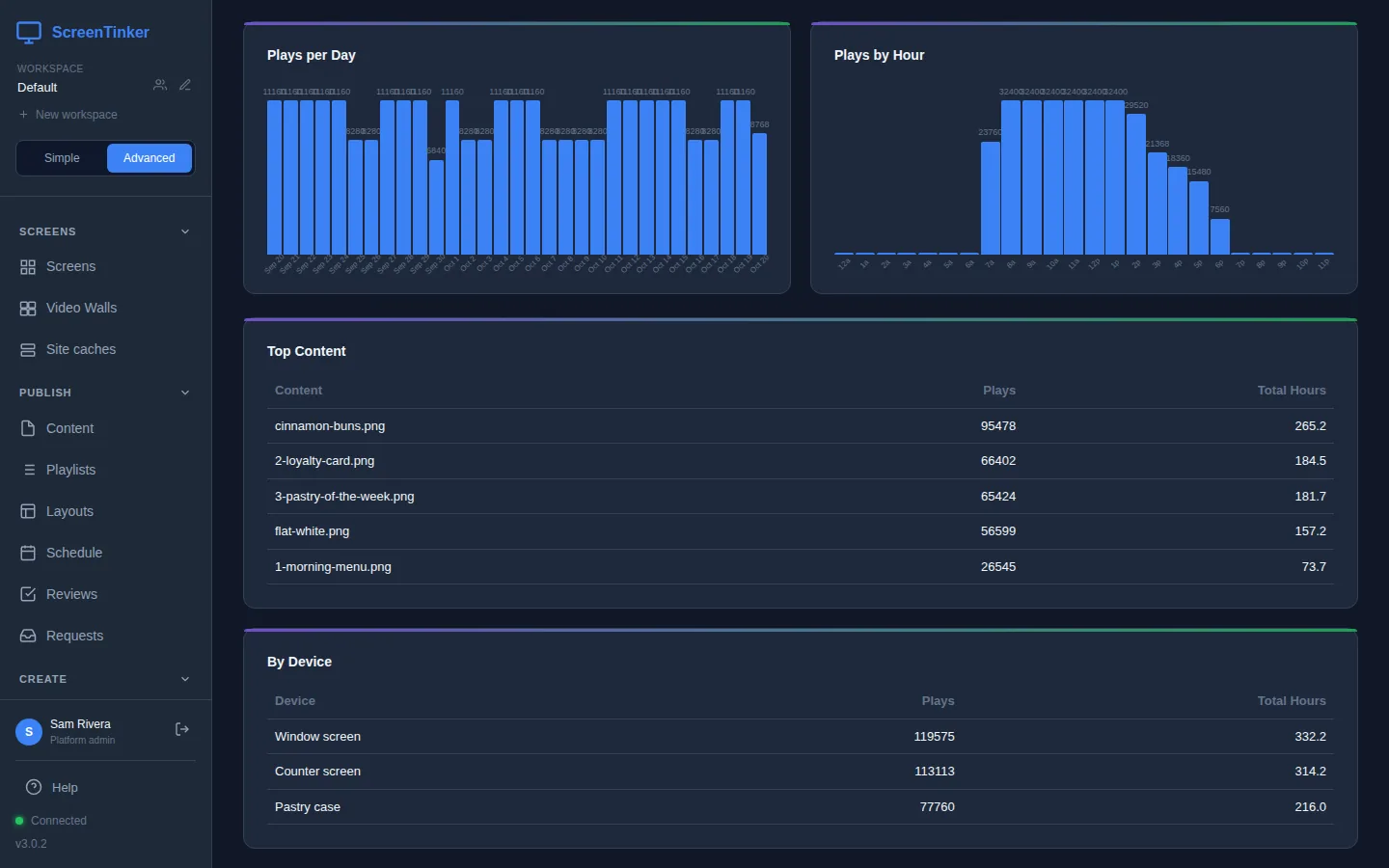
Lower down, two tables:
- Top Content: each item with its Plays and Total Hours, the most played first. It lists up to 50 items. An item shows the name it had when it played.
- By Device: the same for each screen.
If you use web pages set to Interactive (walk-up kiosk) on a touchscreen, an Interactive sessions part appears at the bottom: how many visitor Sessions there were, their Average length, Pages per session, and a table for each web page. It only appears when there were sessions in your dates.
What counts as a play
- Each time an item starts on a screen, that is one play. When it ends, its length is recorded.
- If a screen loses its internet connection, the ScreenTinker web player and the apps for Android and Fire TV, Samsung (Tizen), Raspberry Pi and Windows keep a list of what they played and send it when they reconnect. Those plays appear at the time they really happened.
- A screen that is switched off plays nothing, so it adds nothing. A report with fewer plays than usual is often a screen that was off or offline.
Leave some items out of the report
You may not want everything counted, for example a holding slide or your own logo. You can switch logging off item by item, in the playlist:
- Open the playlist in Playlists.
- Tick the box on each item you want to leave out.
- In the bar above the items, press Don't log.
- Press Publish.
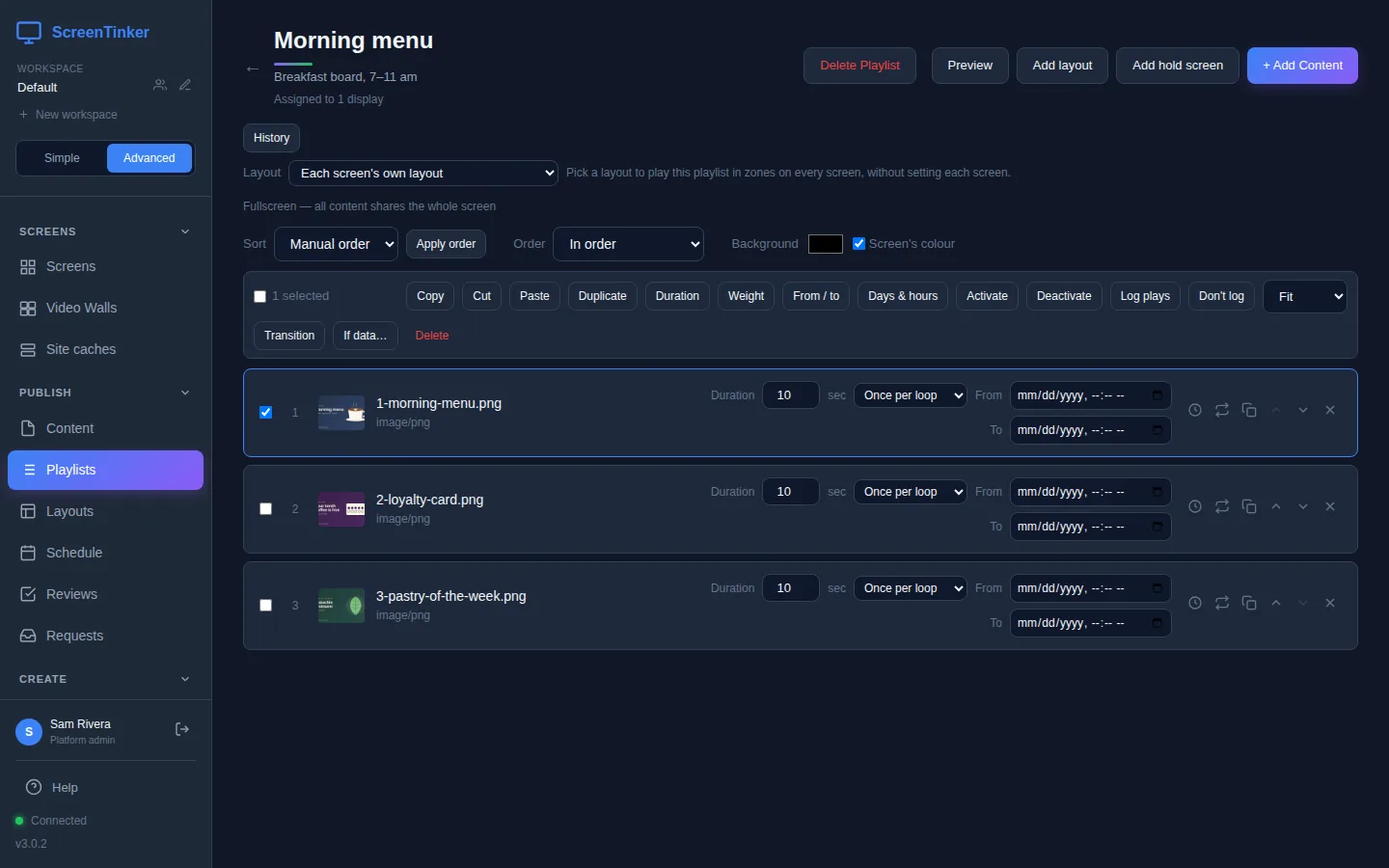
To count them again, tick them and press Log plays, then Publish. Plays from before the change stay in your reports.
Like every playlist change, Don't log and Log plays are saved as a draft. Screens keep logging the old way until you press Publish.
Export CSV
The Export CSV button downloads every play in your dates as a spreadsheet file, proof-of-play.csv, one row per play, with the Device, Content, Started, Ended, Duration (sec) and Completed columns. Times in the file are in UTC.
How far back you can look
On screentinker.com each play is kept in full for 7 days; on your own server the default is 90 days. After that, plays are kept as hourly totals, so the charts and tables still work for older dates: the numbers are the same, only the single-play detail is gone.
The 90 days is the PLAY_LOG_RETENTION_DAYS setting; older plays are kept as hourly totals whatever you set it to. If you run several connected servers, a workspace copied to a second server shows "Playback history lives on the primary server": open Reports on the main server instead. A server with connected client servers also shows a Screen uptime by client part at the top of the page.
FAQ
A screen is missing from By Device.
It played nothing in those dates. Check that it was switched on and online (on Screens), that it has a published playlist, and that its items are not all set to Don't log.
The hours look wrong for one screen.
Hours are in the screen's own time zone, which comes from the device's settings. If a screen's clock or time zone is wrong, its plays land in the wrong hours. Fix the time zone on the device itself.
Can I see a report for a group of screens?
The Device list has All Devices or one screen at a time. By Device shows every screen side by side.
Try it on your own screens
Start a 14-day Pro trial on hosted ScreenTinker: up to 15 screens, every feature, no credit card.
Or host it yourself, free and open source: self-hosting guide · GitHub