The Widgets page: clocks, weather, menus and more
A widget is a live part of a screen that ScreenTinker draws for you: a clock, today’s weather, a news ticker, a menu with prices. You make it once on the Widgets page and add it to any playlist. When you change it later, the screens showing it change too.
This guide walks through the Widgets page itself: making a widget, previewing it, copying it for another screen, going back to an older version, and deleting it. The example is a café menu board. To place widgets in parts of the screen next to your pictures, or to set up a transition, see Widgets, layouts and transitions.
Before you start
- The Widgets page is in Advanced view. New accounts start in Simple view. Switch with the Simple / Advanced buttons at the top of the menu.
- You need to be able to edit the workspace. A member with the Viewer role can see the widgets but cannot create, change, copy or delete them.
The Widgets page
Choose Widgets under Create in the sidebar. Each widget has a card with its name and type, and four buttons: Edit, then icons for Duplicate, History and Delete. The newest widget comes first.
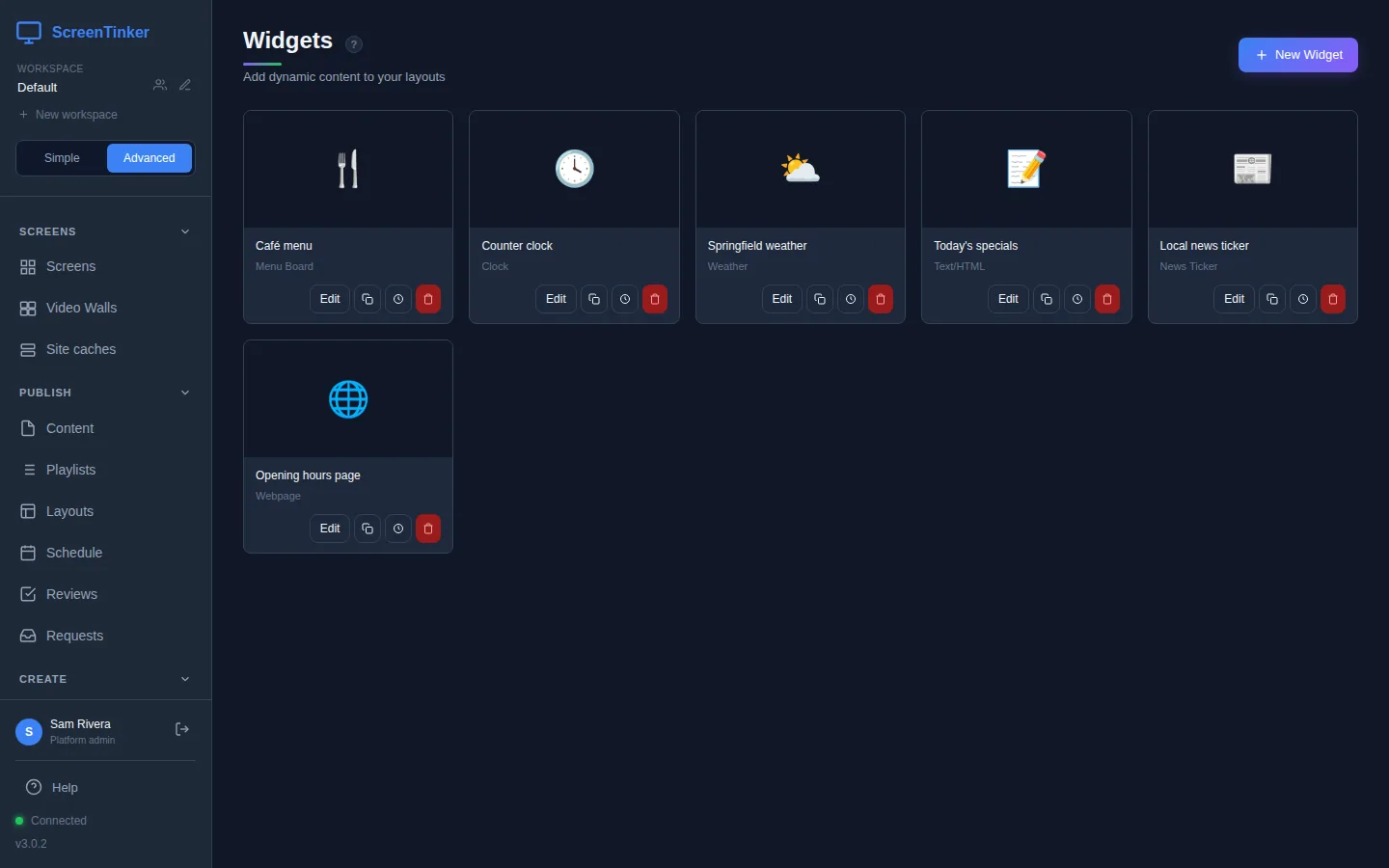
The widget types
Choose New Widget and a grid of types opens above your widgets. Click one to start. Choose New Widget again to close the grid.
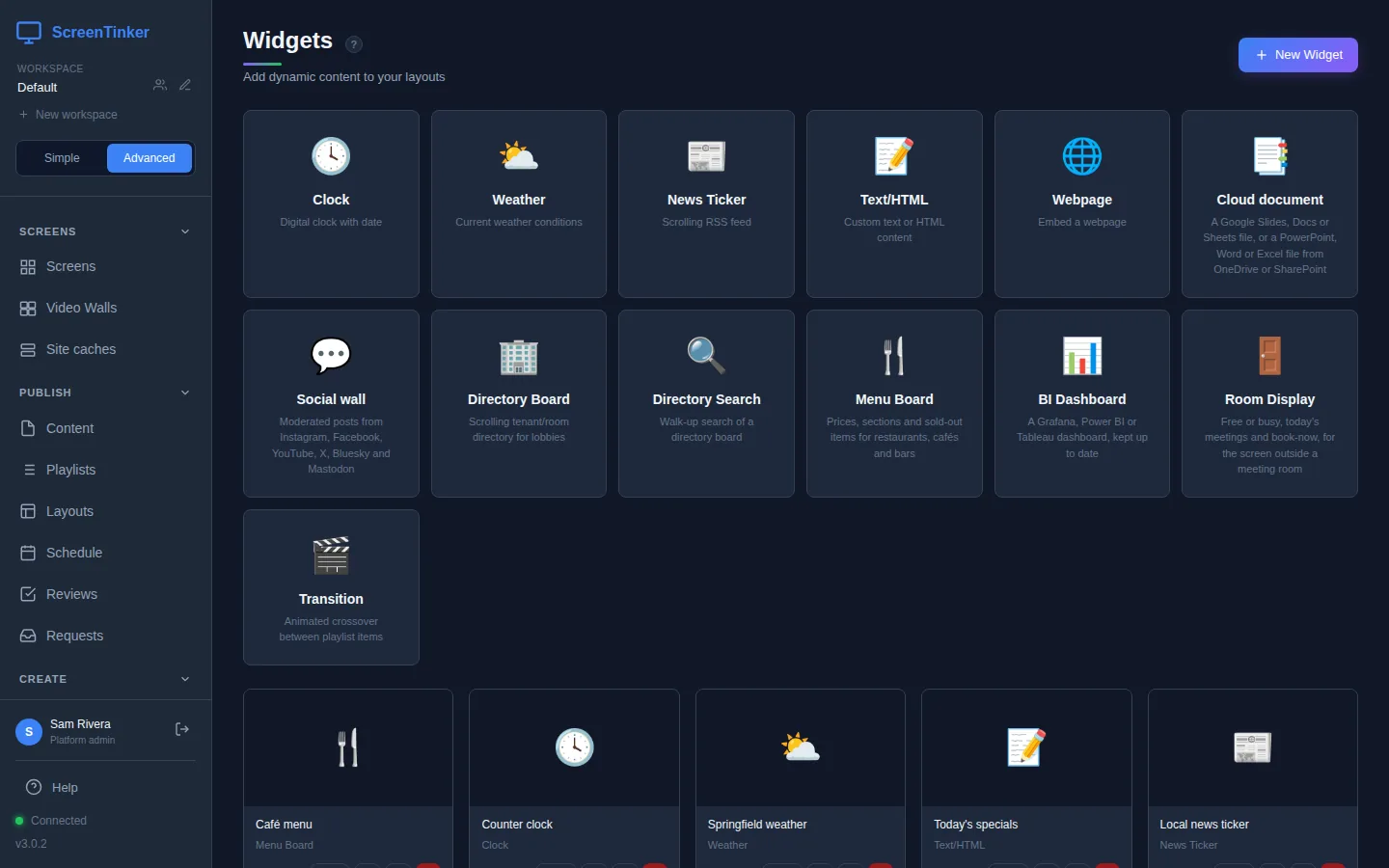
- Clock, Weather and News Ticker: the time and date, live conditions for a town, and headlines from a news site or feed. Widgets, layouts and transitions goes through their forms.
- Text/HTML: your own text, written as HTML with optional CSS. Webpage: a web page shown on the screen.
- Cloud document: a Google Slides, Docs or Sheets file, or a PowerPoint, Word or Excel file from OneDrive or SharePoint, from its share link.
- Menu Board: prices, sections and sold-out items. The example below.
- Social wall shows posts from a feed you set up first under Social feeds. Directory Board scrolls a list of tenants or rooms for a lobby, and Directory Search lets visitors search a directory board on a touch screen.
- BI Dashboard (Grafana, Power BI or Tableau) and Room Display (the screen outside a meeting room) use connections an organization admin sets up in Settings.
- Transition is not shown as an item of its own: it changes how the other items in a playlist give way to each other.
Make a widget: a menu board
- Choose New Widget, then Menu Board.
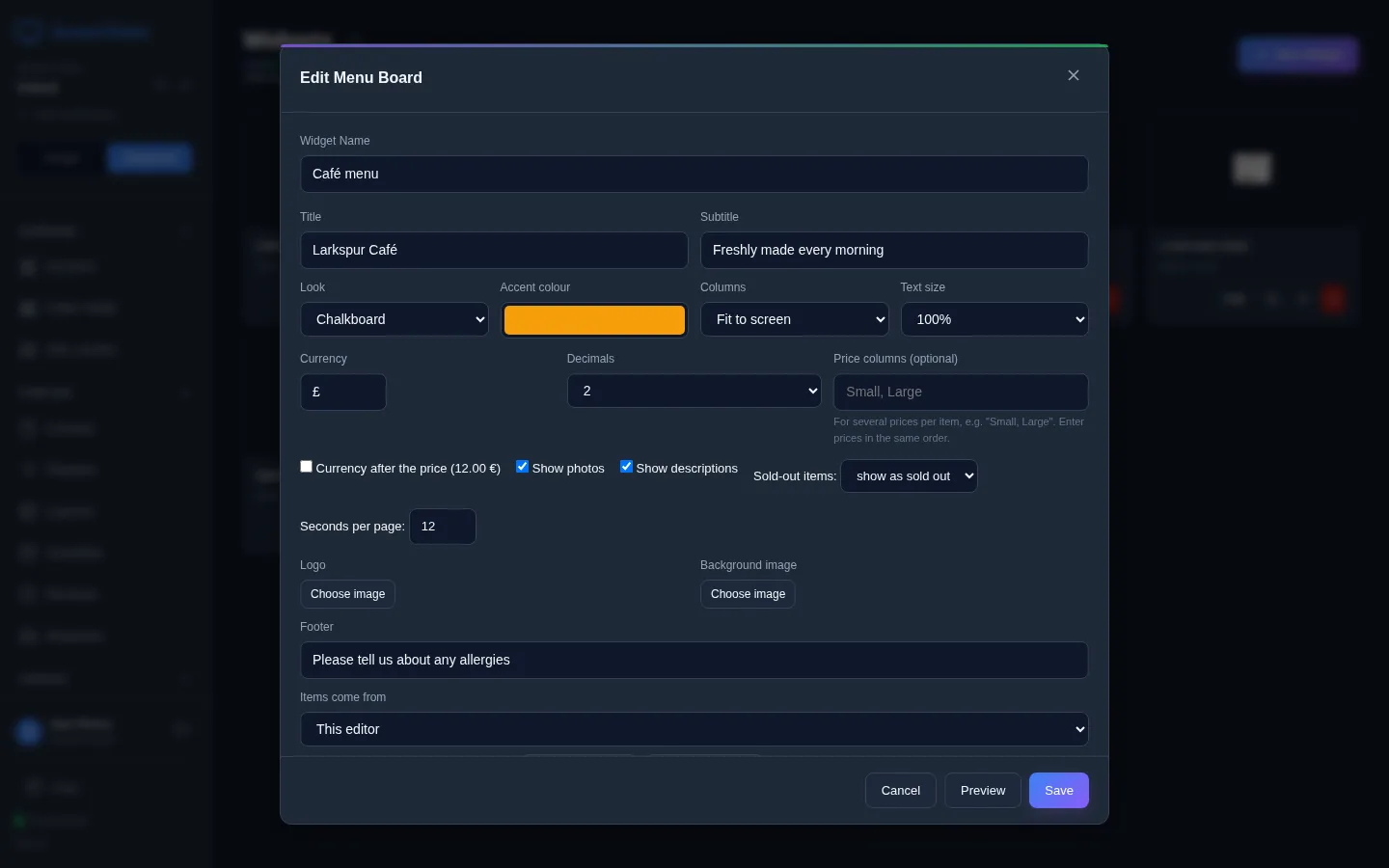
- Widget Name is the name on the card and in your playlists; screens don’t show it. It starts as the type name, so give it one you will recognise, such as “Café menu”.
- A new menu is empty, so the form offers to Start from an example, or build your own below:. Choose Café, Burger bar or Bar to fill it with sample sections you can change.
- Fill in Title and Subtitle, and pick a Look (Dark, Light, Chalkboard or Bold) and an Accent colour. Set Currency and Decimals. If items come in more than one size, type the sizes in Price columns (optional), such as “Small, Large”.
- Optional: a Footer line along the bottom, such as “Please tell us about any allergies”.
Sections and items
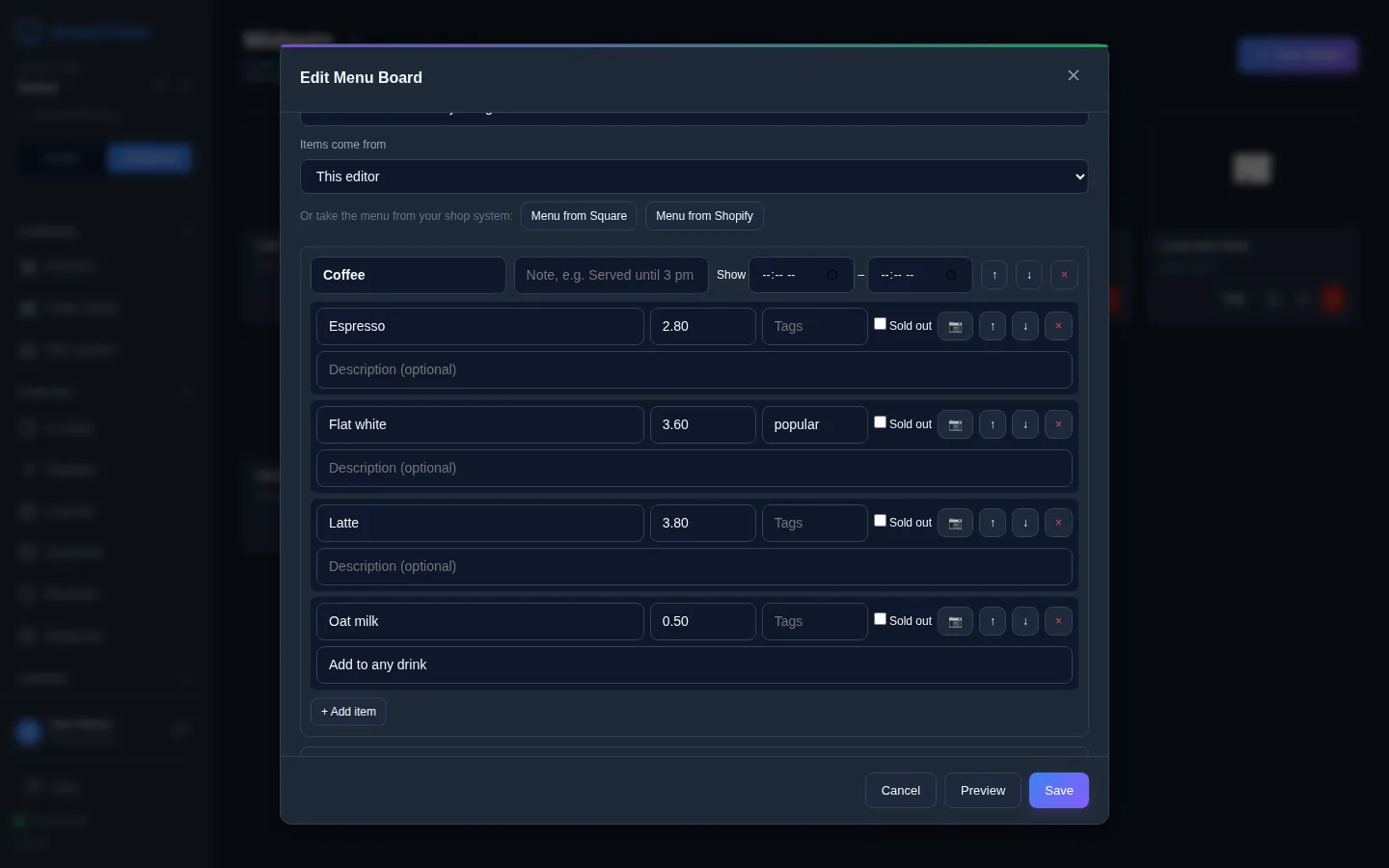
Scroll down to the sections. Each section has a name (“Coffee”), an optional note (“Until 11:30”), and its items. Each item has a name, its price (one per price column), Tags, a photo, a Description (optional) and a Sold out box.
- + Add section and + Add item add more. The arrows move a section or item up or down, and × deletes it.
- Tags become small badges and a key along the bottom of the screen: v, vg, gf, df, n, h, spicy, new, popular, or your own words.
- Show, next to a section’s name, takes two times. Outside them the section is hidden, by the screen’s own clock: breakfast disappears at 11:30 without anyone touching it.
- Tick Sold out when you run out. Sold-out items: at the top decides whether they are crossed out (show as sold out) or left off (hide).
A long menu does not get cut off: when it does not fit the screen, it shows one page at a time, for the Seconds per page: you set. A menu can have up to 40 sections, 120 items in each, and 4 prices per item.
Under Items come from, choose a data source (such as a Google Sheet) instead of This editor, or choose Menu from Square or Menu from Shopify to connect your shop system. Items, prices and sold-out marks then come from there, and changes reach the screens on the next sync.
Preview, then save
Choose Preview at any time to see the widget as a screen will draw it, with what is in the form now, even before you save. Close it to carry on editing. When it looks right, choose Save. You see “Widget saved” and the card appears on the page.
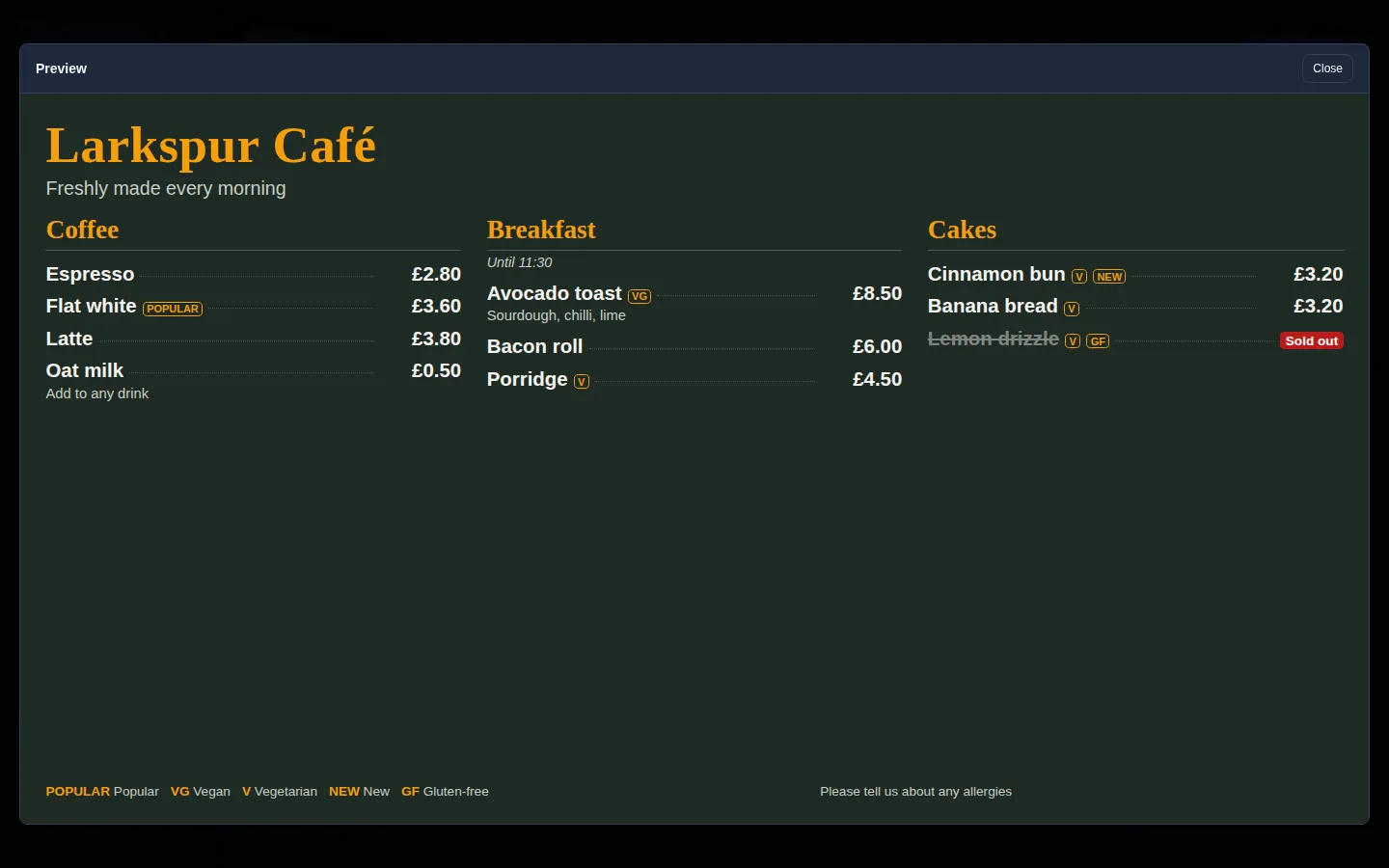
Two types have no Preview button: Transition has its own preview in the form, and Room Display needs to be saved with its room first.
For a Webpage or Cloud document, a blank preview usually means the site refuses to be shown inside another page. It will be blank on the screen too. Try a different page, or for a document, check that it is shared or published to the web.
Put it on a screen
A widget appears on a screen once it is in a playlist the screen plays:
- Open the playlist in Playlists.
- Choose + Add Content, open the Widgets tab and add your widget.
- If the playlist uses a layout, set the widget’s Zone on its row.
- Choose Publish. Screens keep showing the old version of the playlist until you do.
Before it publishes, ScreenTinker checks for text that will be hard to read from across the room. If it finds some, Before you publish lists it: choose Go back and fix to make it bigger, or Publish anyway.
More on this, with pictures, in Widgets, layouts and transitions.
Change a widget
Choose Edit on its card, change the form and Save. You don’t need to publish the playlist again: every screen that is showing the widget gets the change straight away. This is why a menu board is handy for prices and sold-out items.
- A text widget made in the Designer opens in the Designer again.
- A widget made from the Templates library opens in its template’s form.
- The exception to “straight away” is a Transition: its settings are copied into the playlist when you publish it, so publish the playlist again after changing one.
When changes must be reviewed first, Save keeps your change as a draft: “Saved as a draft. Screens keep the live version until it is reviewed and published.” The card then has a Submit for review button. Users and roles explains approval.
Make a copy for another screen
The Duplicate icon makes an independent copy called “… (copy)”, with the same type and settings, and opens it in the form so you can change it. Use it for a second menu at another counter, or a clock for a second time zone. Changing the copy never changes the original. If the original has an unpublished draft, the copy is made from the version the screens are showing.
Go back to an older version
Every save is kept. Choose the History icon on a card to see the list: #1 Created, #2 Saved, and so on, with who saved it and when.
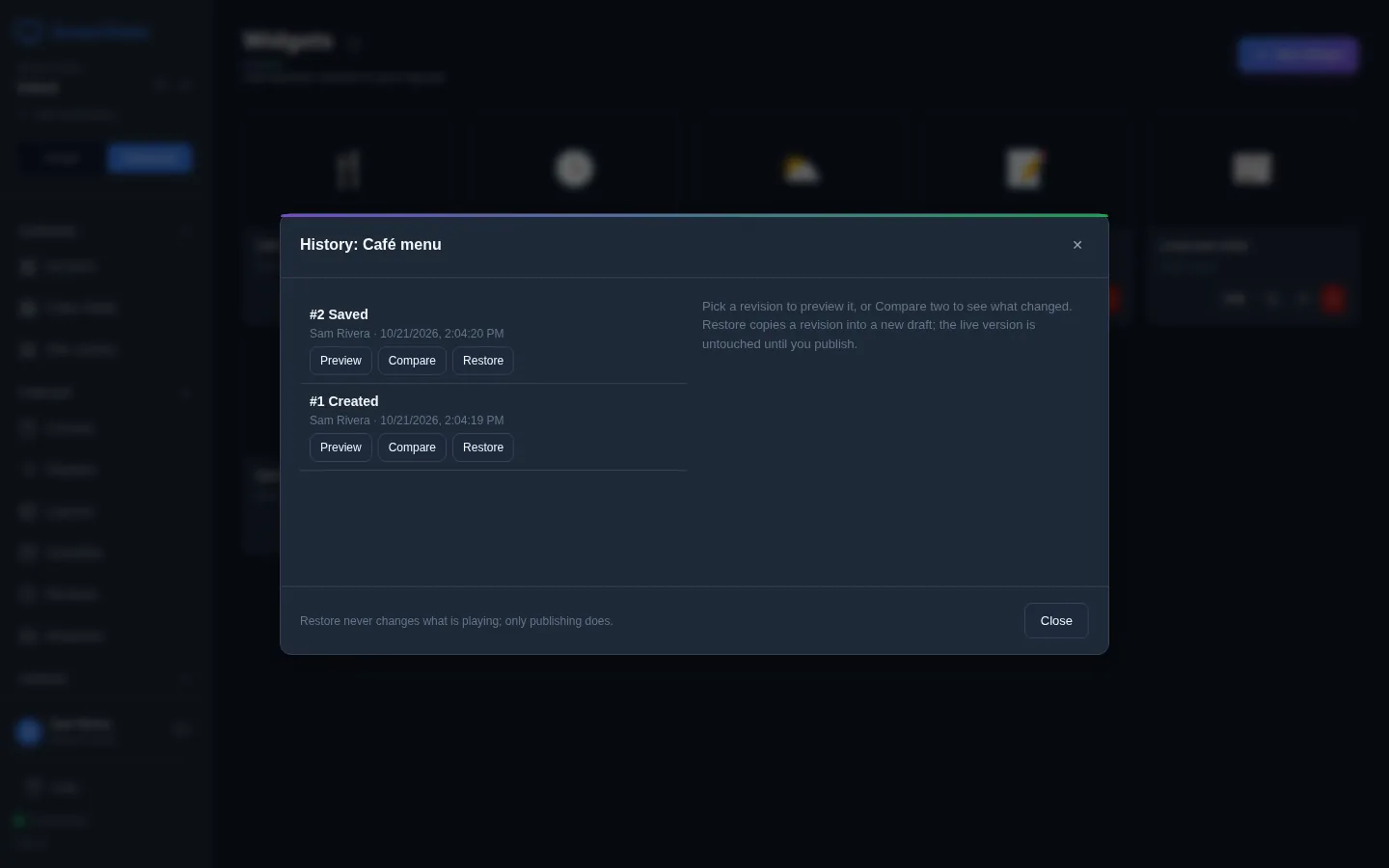
- Preview shows that version. Compare on one, then on another, lists what changed between them.
- Restore copies that version into a draft. The screens keep the current version. The card then says “Unpublished draft. Screens keep showing the live version.” Choose Publish draft to put it on the screens, or Discard draft to forget it.
Delete a widget
The red Delete icon asks Delete “Café menu”? This cannot be undone. Before you delete a widget, take it out of the playlists that use it and publish them, so you know what each screen will show instead.
The server can run plugins that add widget types of their own. They are off unless the person who runs the server turns them on. When they are on, plugin types appear in the New Widget grid after the built-in ones, and a Submit a plugin box under your widgets lets you send a plugin .zip to the server’s operator, who has to approve it before it runs. On the Clock, Use server timezone copies your server’s own time zone. Weather reads an online weather service, so your screens (and, for some players, your server) need internet access for it to fill in.
FAQ
I changed a widget but the screen still shows the old one.
Check that you chose Save, not just Preview. If your workspace requires approval, the change waits for review. If the screen was offline, it picks the change up when it reconnects. A Transition needs the playlist published again.
Can I use one widget on several screens?
Yes. Add it to every playlist that needs it, or put it in one playlist that several screens play. One edit then changes all of them. Use Duplicate when one screen needs something different.
Why can’t I see the Widgets page?
You are in Simple view. Choose Advanced at the top of the menu.
Try it on your own screens
Start a 14-day Pro trial on hosted ScreenTinker: up to 15 screens, every feature, no credit card.
Or host it yourself, free and open source: self-hosting guide · GitHub