Users, roles and workspaces
You don't have to run your screens alone. Invite the people who help: a manager who changes the menu, a colleague who only needs to see what is on, a second admin for when you are away. Each person gets a role that decides what they can change.
This guide explains organizations and workspaces, what each role can do, how to invite people (also on a server that cannot send email), how to change or remove someone, how to make changes wait for approval before they go live, and the sign-in options that keep accounts safe.
Before you start
- You need to be an Admin of the workspace to invite people or change roles. If you made the account, you are.
- The full members page is in Advanced view. New accounts start in Simple view. Switch with the Simple / Advanced buttons at the top of the menu. Simple view has a shorter version, Your team, on its home page.
Organizations and workspaces
Your account belongs to an organization. That is the business as a whole: it holds the subscription and everyone who works with you. Inside it are one or more workspaces. Each workspace has its own screens, media, playlists, layouts and schedules, and nothing is shared between them. A café with two sites can keep each site in its own workspace, so the staff at one site never see or change the other's screens.
You work in one workspace at a time. The workspace switcher at the top of the menu shows which one you are in; open it to switch. Organization owners and admins also see New workspace there. Give it a Name and choose Create workspace. An organization can have up to 25 workspaces.
People are invited to a workspace, not to the whole organization. Someone can be an Admin in one workspace and a Viewer in another.
What each role can do
Every member of a workspace has one of three roles: Viewer, Editor or Admin.
| What they can do | Viewer | Editor | Admin |
|---|---|---|---|
| See the screens, media, playlists and schedules | Yes | Yes | Yes |
| Upload media, edit playlists, layouts and schedules | No | Yes | Yes |
| Add screens and send them commands | No | Yes | Yes |
| Review other people's changes (when approval is on) | No | Yes | Yes |
| Invite, add and remove people, change roles | No | No | Yes |
| Workspace settings: content approval, screen sharing, branding, view-only links to screens | No | No | Yes |
The organization has two roles of its own on top of these. The Org owner is the person who created the organization. An Org admin has the same reach, without the subscription. Both can do everything in every workspace of the organization, even ones they were never invited to, and only they can create workspaces and set up single sign-on. Everyone else is an organization member and reaches only the workspaces they were invited to.
The server refuses every change from a Viewer, not just the buttons. That makes Viewer the right role for someone who only needs to check that the screens are working.
The members page
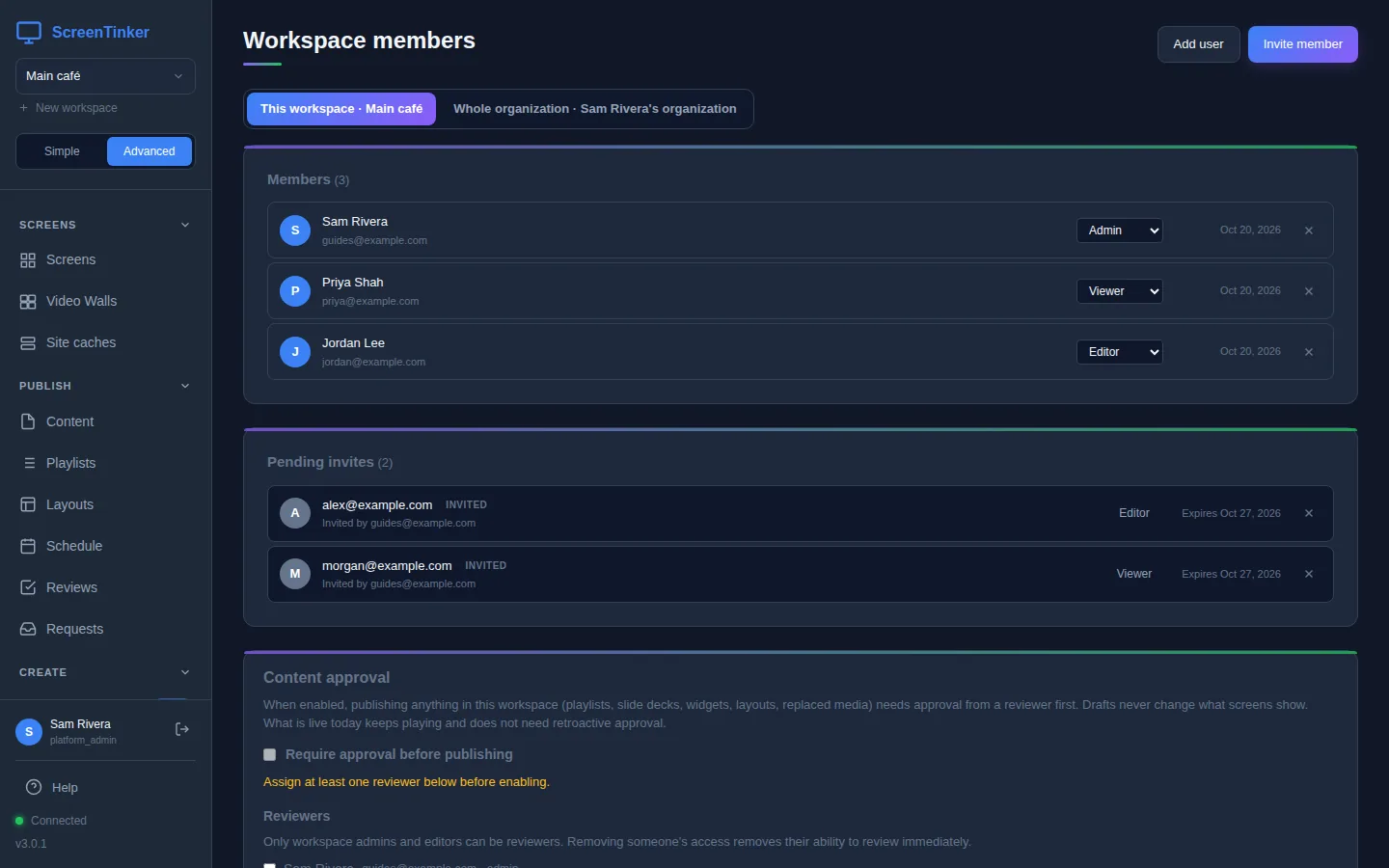
In Advanced view, choose Members under Workspace in the sidebar. The page lists the workspace's Members, with their role and the date they joined, and the Pending invites that nobody has accepted yet. Organization owners and admins who are not members themselves appear under Organization access, labelled "via organization".
Invite someone
- On the members page, choose Invite member.
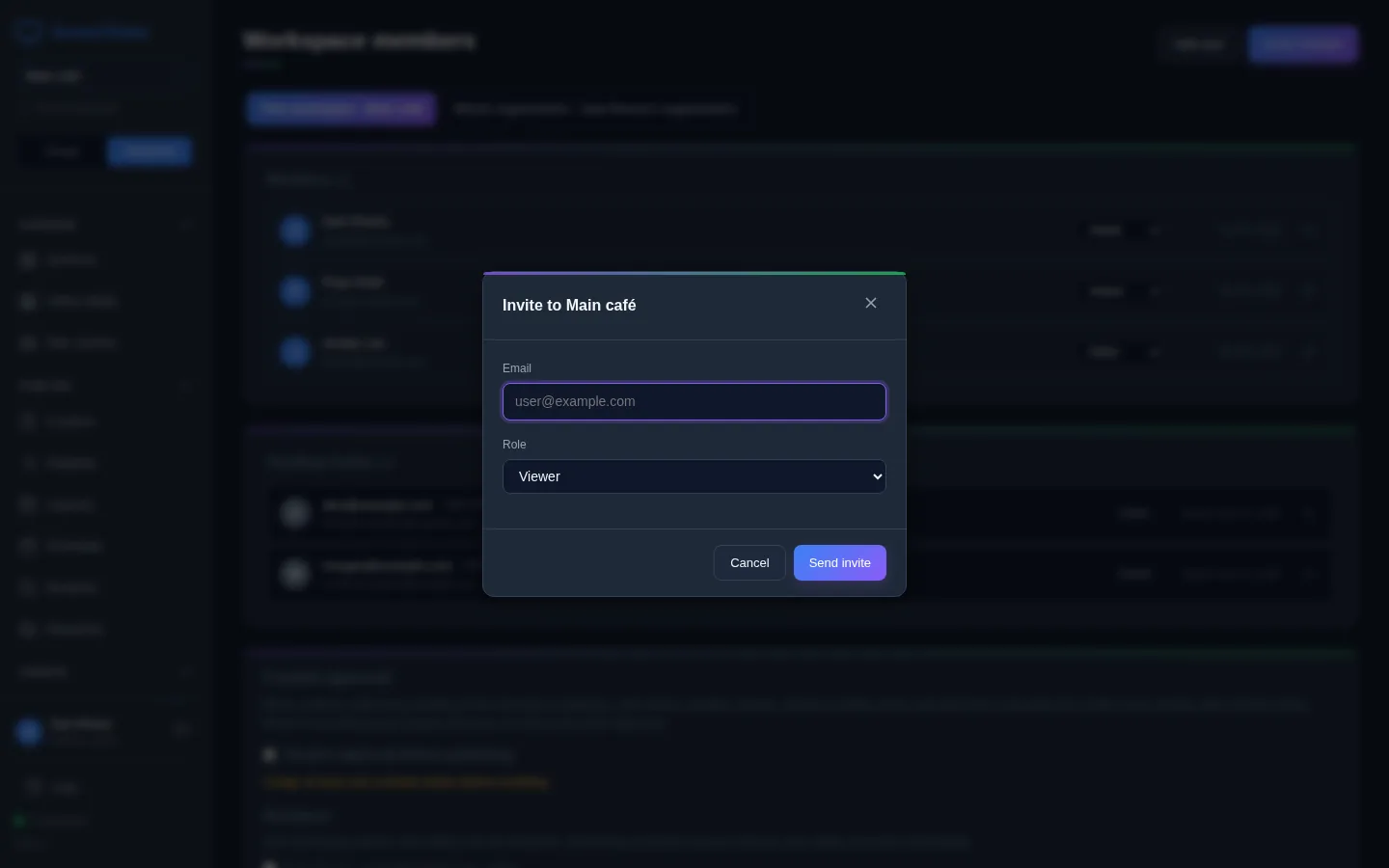
- Type their Email.
- Pick a Role. It starts on Viewer, so change it if they should be able to edit.
- Choose Send invite.
They get an email with a link. When they open it, they sign in, or create an account, with the same email address you invited, and the workspace opens for them. The link works for 7 days and only for that address. Until then the invite waits under Pending invites, where the cross on its row cancels it. If the link runs out, cancel the old invite and send a new one.
If your server has no email set up, the invite is still created, but no email goes out, and the members page in Advanced view does not show you the link. You have two ways round it:
Use Simple view. On the home page choose Your team and send the invite from there. It tells you the server cannot send email and gives you a Copy the invite link button, so you can pass the link on yourself.
Or use Add user (below) to create the account and give them the password. You need this one if new sign-ups are turned off on your server, because an invited person without an account could not create one.
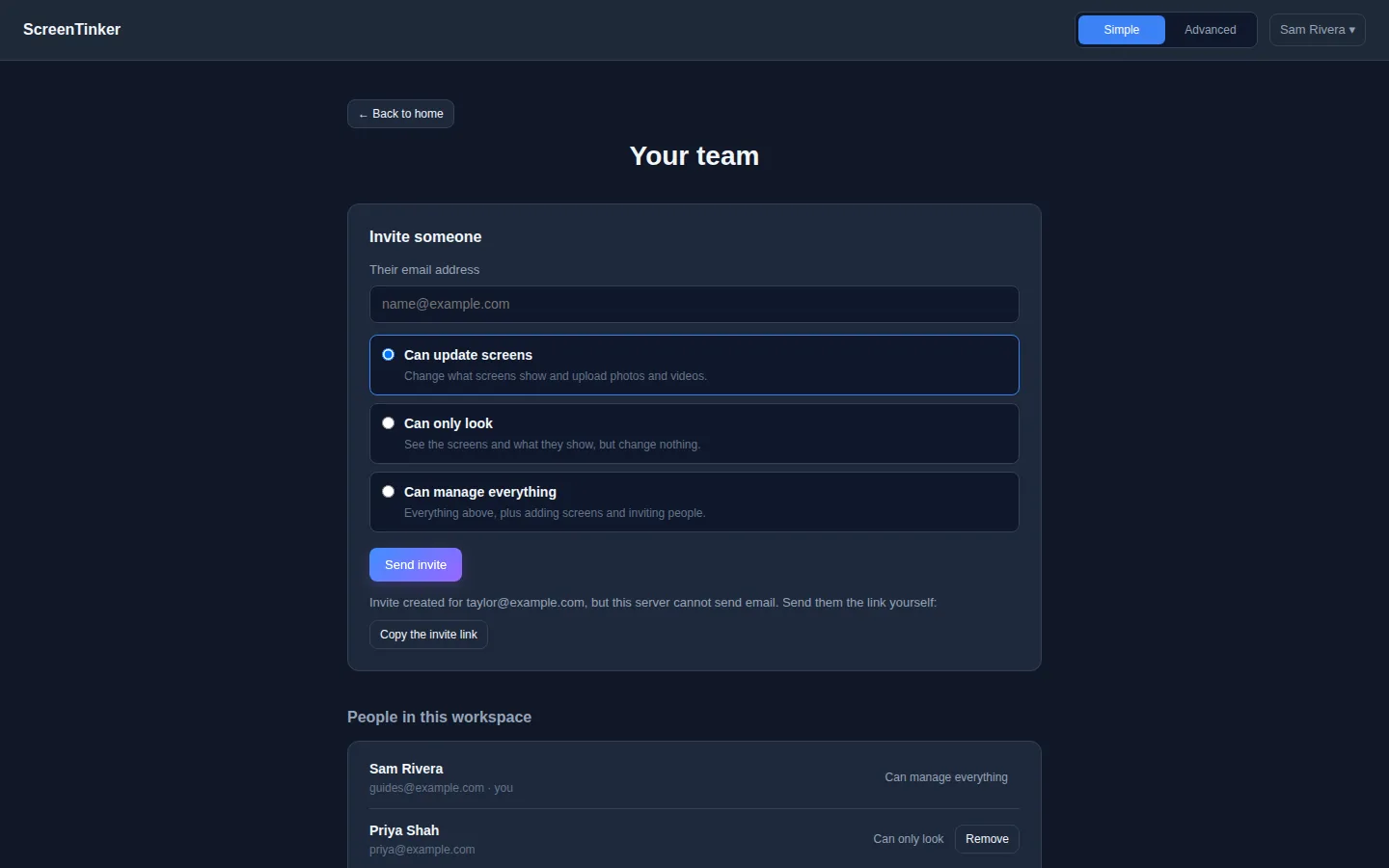
In Simple view the roles have plain names: Can update screens is Editor, Can only look is Viewer and Can manage everything is Admin. There the choice starts on Editor.
Create an account for someone
Add user skips the email: you make the account and choose its password. Choose Add user on the members page, fill in Email, an optional Name and a Password of at least 8 characters (or press Generate), pick a Role, and choose Create user. Tick Require a password change on first login so they set their own password the first time they sign in. Give them the password in person or by phone, not in the same message as their email address.
This only works for an email address that has no account yet. For someone who already uses ScreenTinker, send an invite instead.
Change a role or remove someone
To change someone's role, pick the new one in the menu on their row. It applies straight away and you see "Role updated". To take someone out of the workspace, press the cross at the end of their row and confirm.
There are two safety rules. A workspace always keeps at least one Admin, so you cannot demote or remove the last one: make someone else Admin first. And the organization owner cannot be removed from a workspace.
Removing someone takes away their access to this workspace only. Their account stays, along with any other workspaces they belong to.
See the whole organization
Organization owners and admins get two tabs at the top of the members page. Whole organization lists everyone in the organization, their Organization role, and which workspaces they can reach with which role. Type in Search people or workspaces… to find someone.
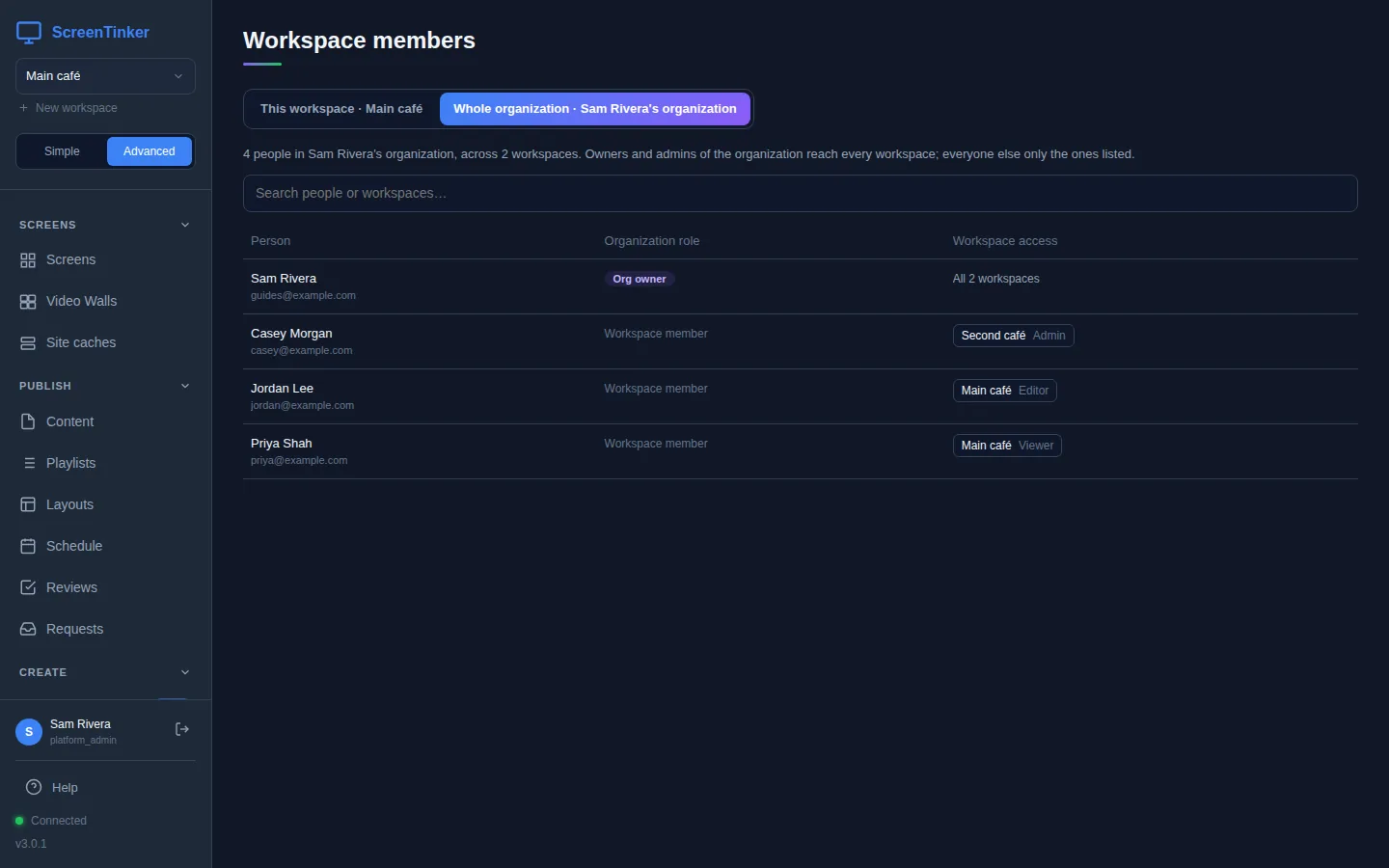
This list shows organization roles but has no way to change them. If someone needs to look after every workspace, make them Admin in each workspace from its own members page. Workspaces you create later need them added too.
Make changes wait for approval
If what appears on your screens has to be checked first, a workspace Admin can turn on Content approval, further down the members page. When it is on, publishing anything in the workspace (playlists, slide decks, widgets, layouts, replaced media) needs a reviewer's approval first. What is already on the screens keeps playing.
- Under Reviewers, tick the people who may approve. Only Admins and Editors can be reviewers.
- Choose Save.
- Tick Require approval before publishing and choose Save again.
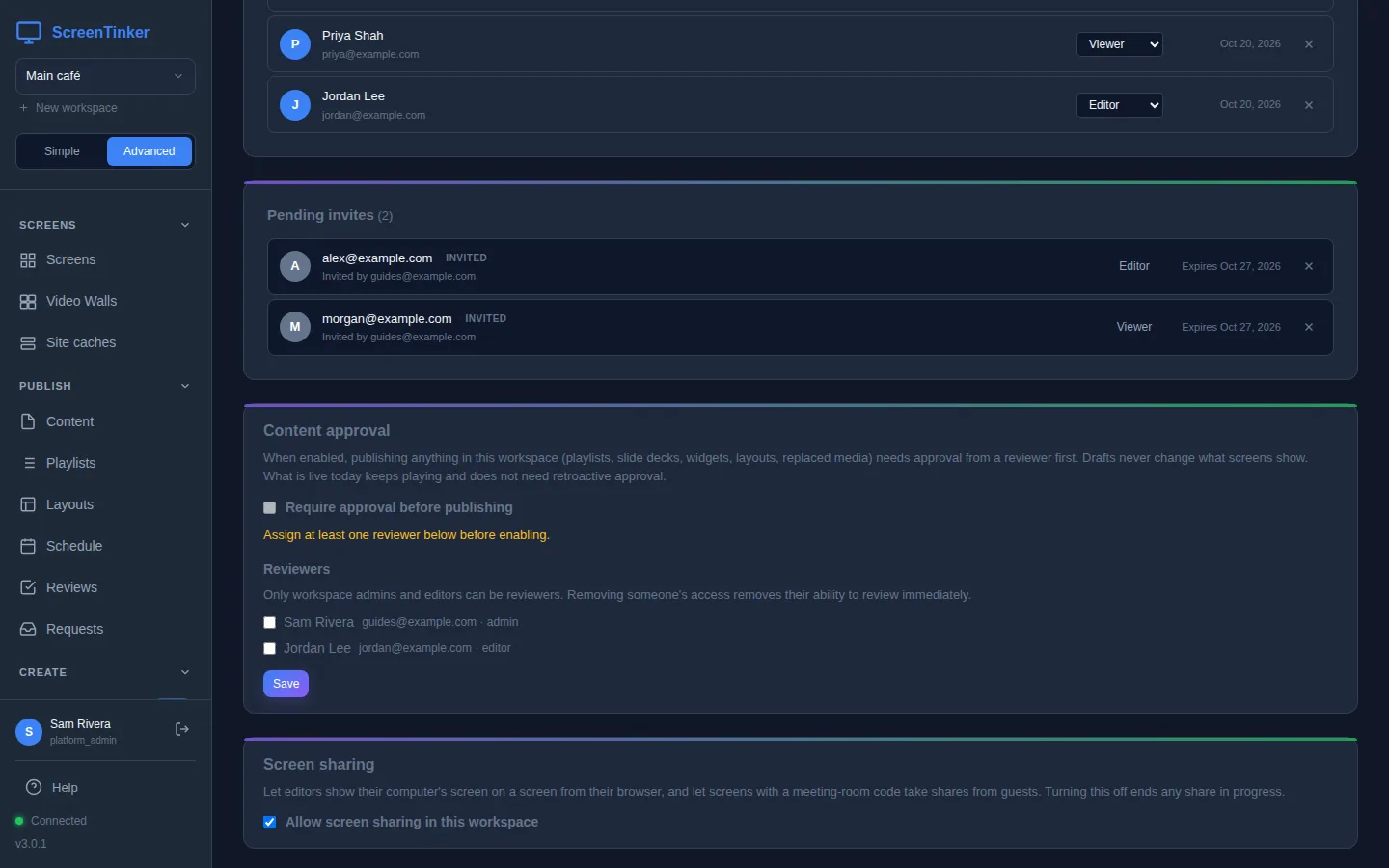
From then on, an editor's changes stay a draft. They choose Submit for review, and the submission appears under Reviews in the sidebar (Advanced view). A reviewer can Approve it or Request changes, and once it is approved, Publish approved version puts it on the screens. Nobody can approve their own work, so the workspace needs at least two Admins or Editors before approval can be turned on.
Sign-in security
Each person sets these up for their own account, in Advanced view under Settings:
- Two-factor authentication: choose Enable two-factor authentication, scan the QR code with an authenticator app, enter the 6-digit code and choose Verify & enable. Keep the recovery codes it shows you somewhere safe.
- Passkeys: choose Add a passkey to sign in with your fingerprint, face, device PIN or a security key instead of a password. A passkey also works in place of the two-factor code.
Organization owners and admins also see Single sign-on in Settings. It lets your team sign in with your company's own identity provider (OpenID Connect or SAML 2.0). Once a domain is verified, you can turn on Require single sign-on, and passwords stop working for everyone at that domain. Make sure sign-in through your provider works first: turning it back off needs the approval of the people who run the server. With single sign-on in place, User provisioning (SCIM) can create and remove people for you and give them workspace access from their groups in your provider.
Passkeys need the server to have a host name, be served over HTTPS and have APP_URL set to that address. Settings tells you what is missing. Sign-in with Google or Microsoft for the whole server is set up by whoever runs it, not in Settings.
FAQ
Someone says their invite link does not work.
Check that they signed in with the exact email address you invited, and that the invite is less than 7 days old. If it has expired, cancel it under Pending invites and send a new one.
How do I give someone access to only one site?
Keep each site in its own workspace and invite them to that workspace only. They will not see the other workspaces at all.
Can someone watch a screen without an account?
Yes. An Admin can open the screen's page and turn on Allow view-only access in the View-only access card. Anyone with the Share link can then watch what that screen shows from a browser, with no control over it.
Try it on your own screens
Start a 14-day Pro trial on hosted ScreenTinker: up to 15 screens, every feature, no credit card.
Or host it yourself, free and open source: self-hosting guide · GitHub