Troubleshooting your screens
Most screen problems come down to a few causes: the screen lost its connection, a change was never published, a schedule won, or the device itself has the wrong settings. This page goes through the problems people hit most often, what each one means and what to do about it.
Each section starts with what you see, then the cause, then the fix. If none of them helps, the last section says where to get help and what to send.
Before you start
- Most of the tools here are in Advanced view. A screen's own page, Preview at… and Alerts are all there. New accounts start in Simple view. Switch with the Simple / Advanced buttons at the top of the menu.
- Open the screen. Choose Screens in the sidebar and click the screen's card. Its page has tabs: Now Playing shows a screenshot of what it is showing, Device Info has its status, clock, incidents and buttons such as Reload Player, and Preview at… shows what it should be playing.
The screen is offline
Every screen card on the Screens page has a badge:
- Healthy: connected and checking in normally.
- Reconnecting: connected, but it keeps dropping and coming back, or it has gone quiet for more than about half a minute. This usually means a weak or busy network.
- Offline: not connected. The server marks a screen offline when it has not heard from it for 45 seconds. The badge may add how it went, for example "crashed", "clean exit" or "silent" when the screen simply stopped answering.
In Simple view the home page shows Playing or Offline instead.
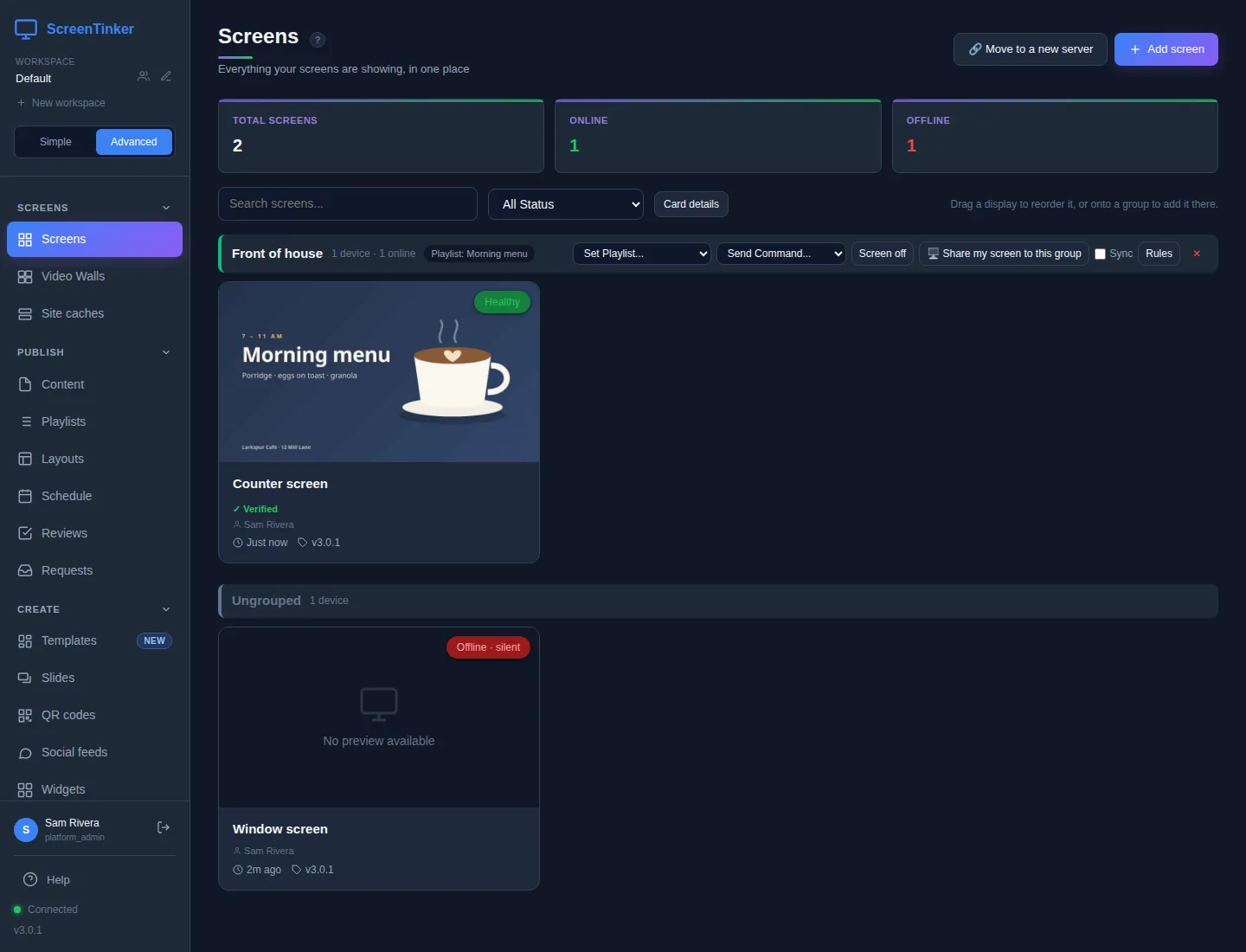
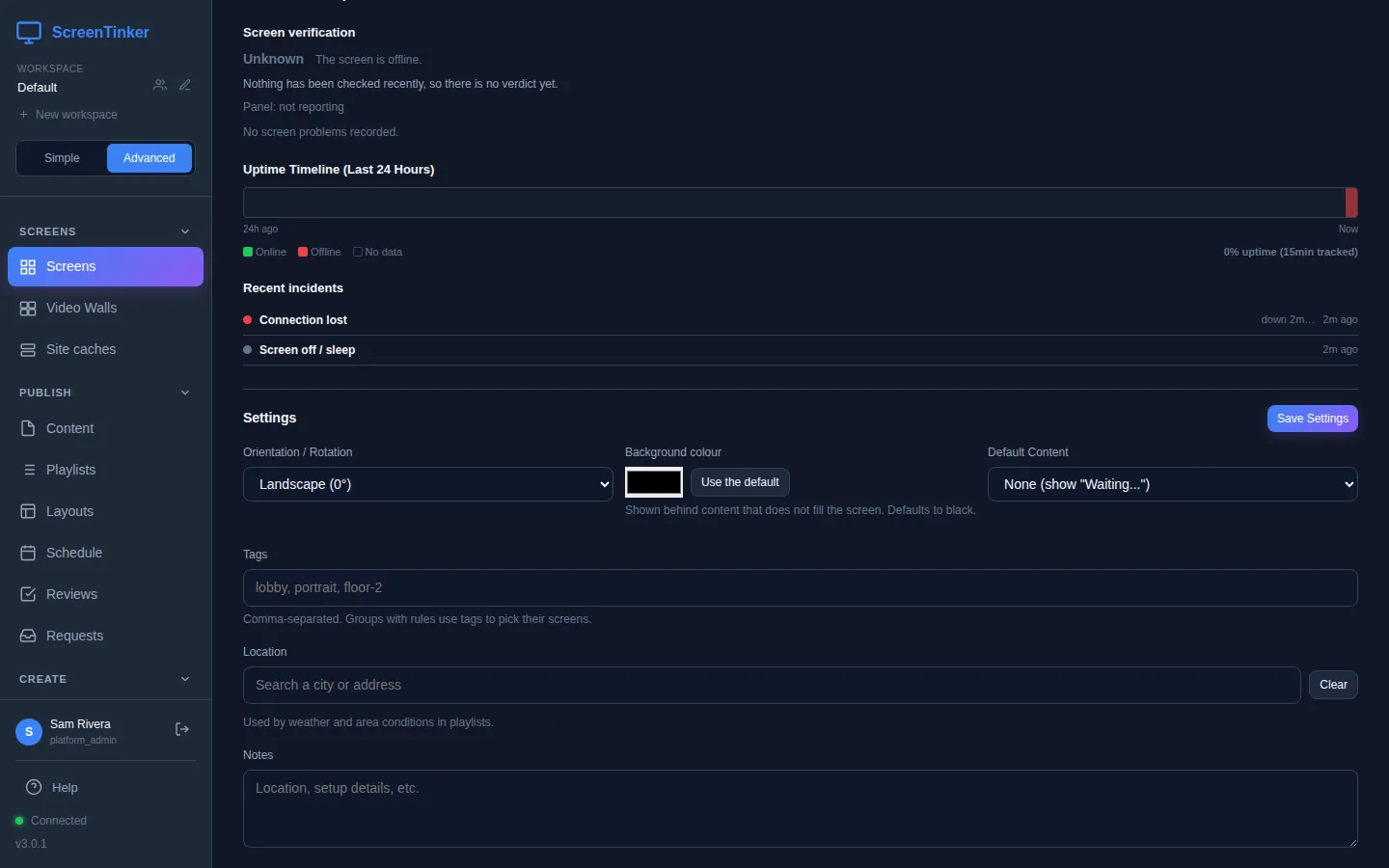
To see why a screen went offline, open it and choose Device Info. Further down, Uptime Timeline (Last 24 Hours) shows when it was online, and Recent incidents lists each time it dropped, with a cause such as Connection lost, No internet (router/ISP), Device restarted, App crashed or Screen off / sleep.
What to check, in this order:
- Is the device switched on, and is the player app open? A TV that went to sleep, or someone closing the app, takes the screen offline.
- Does the device have internet? Open a web page on it, or check the network settings. Screens need outgoing HTTPS (port 443), and the connection stays open all the time. Guest Wi-Fi and some office firewalls cut long connections; a wired connection or a different network helps.
- Restart the device. It reconnects by itself as soon as it starts.
While a screen is offline it keeps playing what it has already downloaded, and it picks up your changes as soon as it reconnects. Buttons you press for an offline screen are held for it: you see "device offline, will deliver on reconnect".
The owner of a screen gets an email when it goes offline, unless they turned email alerts off in Settings. To tell a team, open Alerts and press Add alert channel: email, Slack, Microsoft Teams, Telegram, PagerDuty or a webhook, after the number of minutes you choose.
The pairing code is refused
When you type a screen's 6-digit code under Add screen, you may get one of these messages:
- "No device found with that pairing code": the code is not one the server knows. Check every digit against the screen. Also check that the screen is connected to the same server as your dashboard: a player set up for a different server shows a code that this one has never seen.
- "Pairing code expired": the screen has not checked in for more than 15 minutes. A code stays valid for as long as the screen showing it is connected. Make sure the device is on and online, restart the player app so it reconnects, then type the code again.
- "Too many failed pairing attempts. Try again in a few minutes.": after 5 wrong codes, pairing is blocked from your network for 15 minutes. Wait, then type the code carefully.
- "Enter a valid 6-digit pairing code": the code must be exactly 6 digits.
If you removed a screen from the dashboard and want it back, it shows a pairing code again; pair it as if it were new. The getting started guide walks through pairing step by step.
My changes are not showing
There are two usual reasons: the change is not published, or the screen is meant to be playing something else right now.
1. The playlist has unpublished changes. In Advanced view, edits to a playlist are a draft. Screens keep showing the last published version until you press Publish. A playlist with a draft shows a banner across the top:
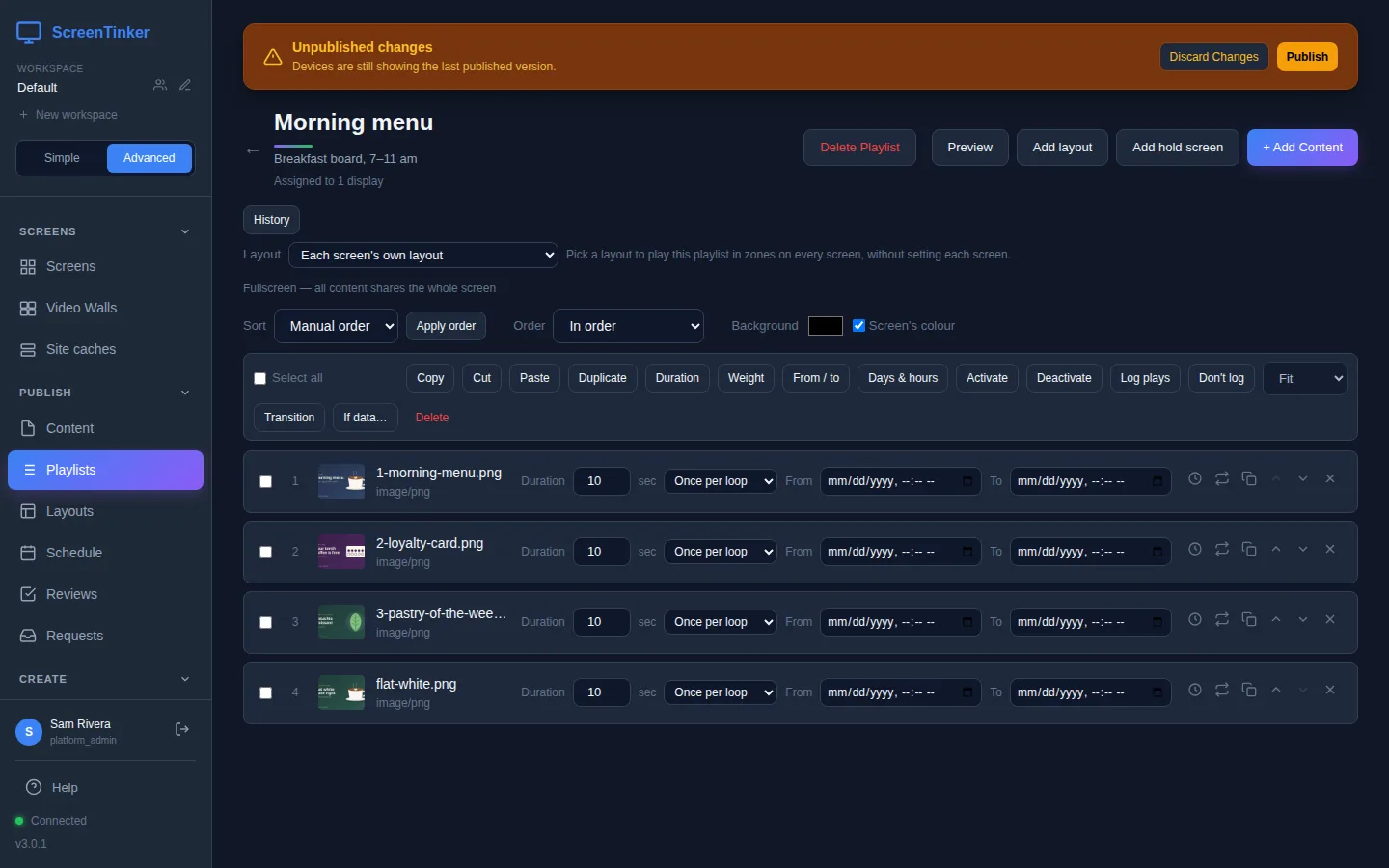
Press Publish. You see "Playlist published — devices updated". Simple view publishes for you, so this only happens with edits made in Advanced view. A playlist that has never been published shows nothing on screens at all.
2. Another playlist is meant to play. A schedule can swap in a different playlist for part of the day, and a schedule for the screen itself beats one for its group. Open the screen and choose Preview at…, then press Now. You see what the screen should be showing at this moment and, under Why, every schedule that applies and why it won or lost.
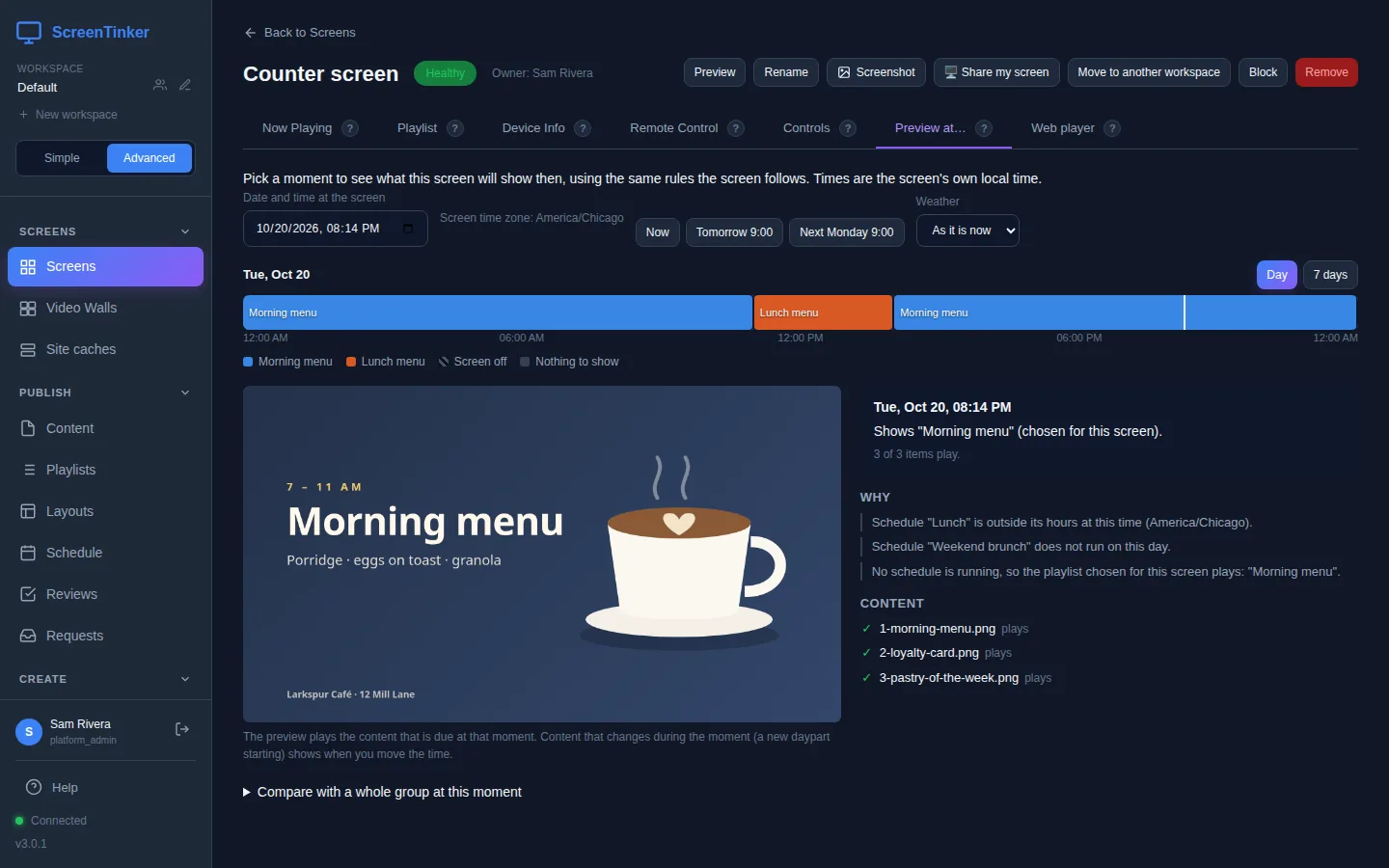
If the preview says the right thing but the screen does not, see a black or frozen screen. The scheduling guide explains in detail which schedule wins.
Schedules start at the wrong time
Schedules run in each screen's own time zone, and that time zone comes from the device's own settings. There is no field in the dashboard to change it. To see what the screen reported, open it, choose Device Info and look at Device clock: it shows the time zone and the time the device last reported. If the device's clock is more than two minutes out, it adds a warning: "clock off by … — schedules may fire at the wrong local time".
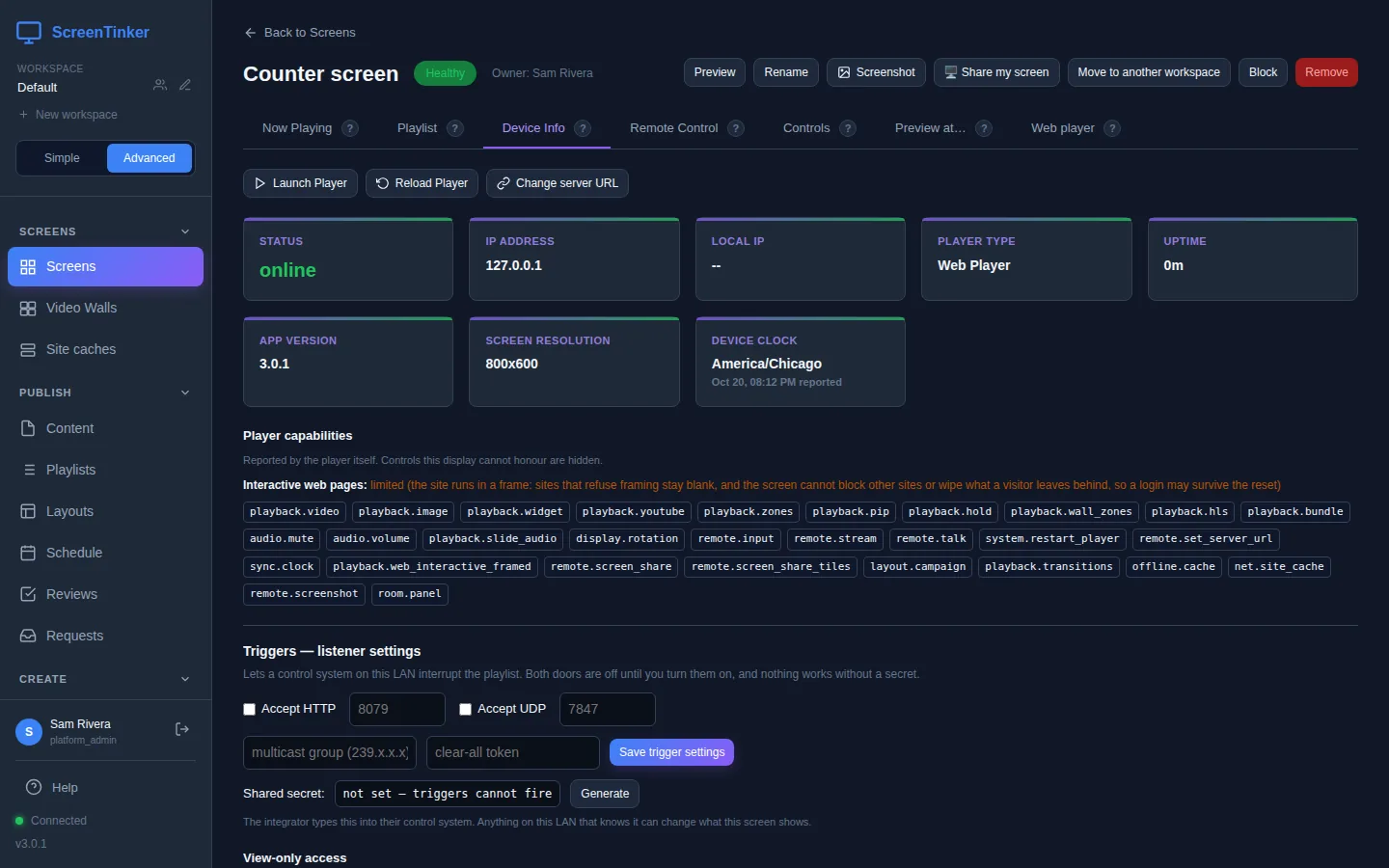
To fix it, set the right time zone and automatic time on the device itself (the TV, player box, Raspberry Pi or computer), then restart the player app so it reports again. The schedule form also tells you which time zone its times are in, for example "Times are in America/Chicago".
Raspberry Pi OS starts out set to London time. If a Pi was set up without choosing a locale, its schedules run on UK time wherever it is. Set the time zone in the Pi's settings.
A video will not play
- Use MP4 (H.264 video, AAC sound), 1080p or smaller. The upload accepts other formats such as MKV, AVI and WebM, but many TVs and player boxes cannot decode them, or cannot decode 4K or HEVC. A video a screen cannot play is skipped, so the playlist moves on and it looks as if the video is missing. Export it again from your editor as MP4 and upload it as new content.
- Samsung TVs and tall videos. A portrait video (1080 wide, 1920 tall) is too big for a Samsung signage TV's video decoder. The server makes a TV-friendly copy, and the TV says on screen that it is preparing it, then switches to it by itself.
- No sound in the web player. Browsers do not play sound until someone touches the page. The web player shows "Tap anywhere to start" and, if nobody does, carries on muted after 5 seconds.
- The screenshot is black but the video plays. Some players show video on a separate hardware layer that screenshots cannot see. If people in the room can see the video, nothing is wrong.
The screen is black or frozen
First check what the screen is showing: open it and look at Now Playing, or press Screenshot at the top of its page. Players that cannot take screenshots say "This display's player can't take screenshots".
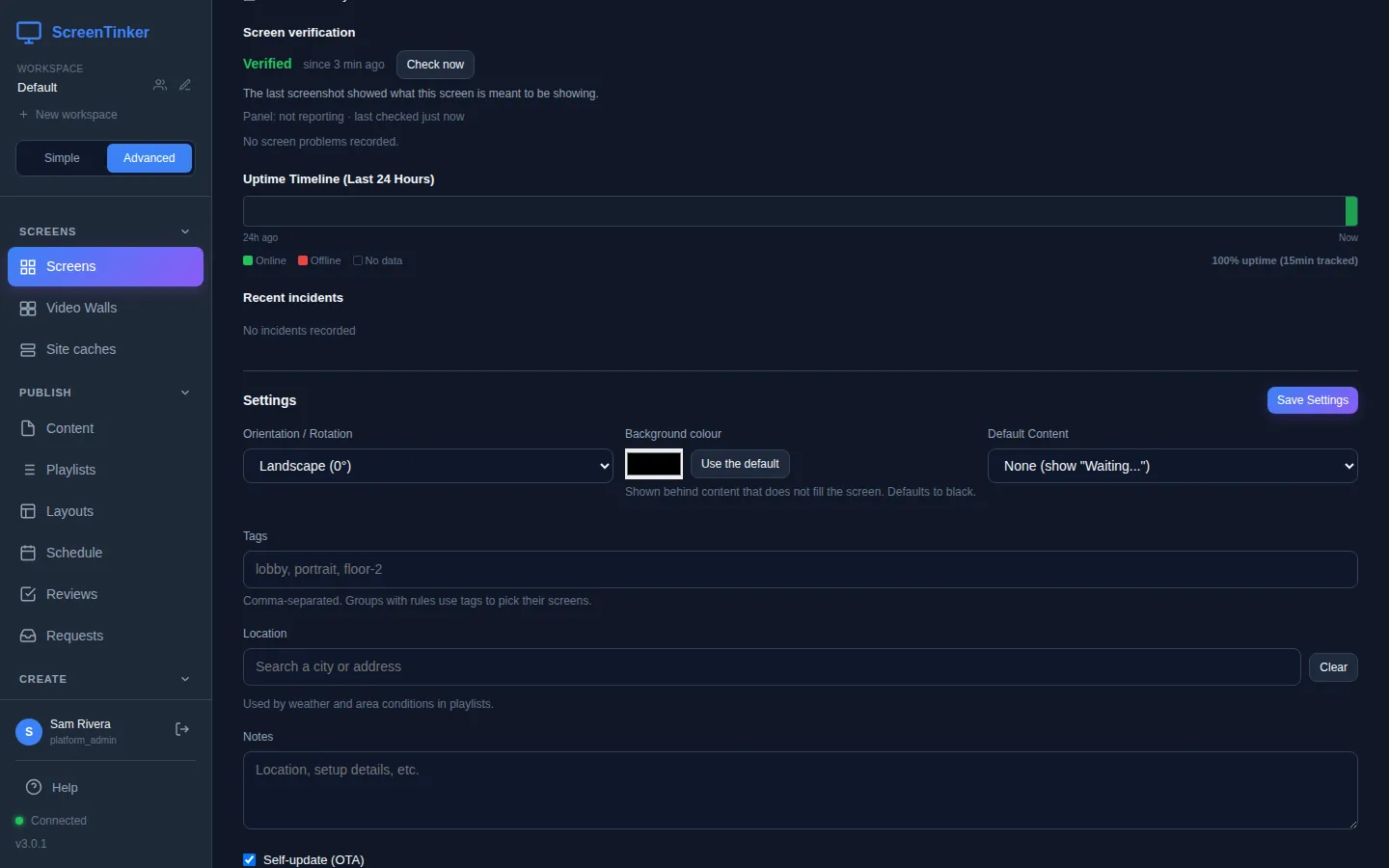
ScreenTinker also checks this for you. Screen verification takes a screenshot every 30 minutes and compares it with what the screen should be playing. It is on Device Info, and a problem also shows under the screen's name on its card: Blank, Frozen, Unexpected content or Panel off. Press Check now to test it straight away.
Then try these, one at a time:
- Check the TV itself. Panel off means the player reports the display is off or in standby. Check the power, the input (HDMI) setting and any sleep timer on the TV.
- Press Reload Player on the Device Info tab. It restarts the player, fetches the published playlist again and redraws the screen.
- Restart the device, from the device itself or with Reboot Device if the screen's page offers it (click twice to confirm). Only players that can restart themselves have that button.
- A web page shows blank? Some websites do not allow being shown inside another page. The preview warns about this, and such a page stays blank on the screen too. Try a different page.
If a screen often freezes after running for days, set Nightly reboot in the Settings section of Device Info. The time is the screen's local time; leave it blank to switch it off.
A workspace admin can change how often screenshots are taken, how sensitive the check is and how long a problem must last before it counts, in Alerts. To get a message about a blank or frozen screen, edit an alert channel and tick "a screen is online but showing a problem".
The screen says "Waiting for content..."
The screen is connected and paired, but it has nothing to play. That happens when:
- no playlist has been chosen for the screen;
- its playlist is empty, or has never been published;
- an item cannot be played on this player, and nothing else is left.
Give the screen a playlist with at least one item, and publish it. In Simple view, use Change what a screen shows. To show something better than this message whenever a screen has nothing else to play, pick a file from your library under Default Content in the screen's Device Info settings and press Save Settings.
A similar message, "Nothing scheduled right now", means every item in the playlist is limited to other days or hours. It goes away when one of them is due again.
The plan limit is reached
Each plan includes a number of screens and an amount of storage.
- Too many screens. When you try to add one more, you see "You've connected … screens — the most the … plan includes". Every screen you already have keeps playing. Every screen in the account counts, offline or not, so Remove screens you no longer use, or move to a bigger plan under Subscription. A screen over the limit shows "Device Limit Reached" instead of its content.
- Library full. "Your library is full" means uploads are refused until you free up space. Everything already uploaded keeps playing. Delete content you no longer need under Content, or move to a plan with more storage.
- After the free trial. When the 14-day trial ends you move to the Free plan. Nothing is deleted, but screens beyond the Free plan pause and show "Trial Expired" until you choose a plan. Then they come back exactly as you left them.
Server URL. Every player app must be pointed at your server's address (for example https://signage.example.com), not at screentinker.com. A pairing code shown by a player that talks to a different server is never found by yours. To move a paired screen to a new address, use Change server URL on its Device Info tab: it only switches if the new address answers.
Behind a reverse proxy. Screens keep a WebSocket connection open to the server all the time. The proxy must pass the Upgrade and Connection headers and allow long-lived connections (nginx: proxy_read_timeout 86400). Without that, screens may connect slowly, drop often or show as Reconnecting. The proxy's upload size limit (nginx client_max_body_size) also caps how big a video you can upload.
Slow or busy networks. If screens show offline when they are not, the server's HEARTBEAT_TIMEOUT (45 seconds by default) can be raised. Plan limits do not normally apply: self-hosted accounts get every feature and no screen limit. See the self-hosted guide for setup.
Getting help
- On screentinker.com: email [email protected].
- On your own server: open an issue on GitHub.
Say which screen it is and what you expected to see, and copy in what the screen's Device Info tab shows: the Player Type, the App Version and the Recent incidents. A photo of the screen helps too.
FAQ
Does a screen keep playing if the internet goes down?
Yes. It plays what it has already downloaded and picks up your changes when the connection comes back. The dashboard shows it as Offline in the meantime.
Can I set a screen's time zone in the dashboard?
No. The time zone comes from the device. Change it in the device's own settings and restart the player app.
How long does a change take to reach a screen?
Once you press Publish, a connected screen gets it straight away. The item on screen finishes first. A schedule can take up to a minute to start.
Try it on your own screens
Start a 14-day Pro trial on hosted ScreenTinker: up to 15 screens, every feature, no credit card.
Or host it yourself, free and open source: self-hosting guide · GitHub