Automation: let other systems control your screens
Sometimes the thing that should change your screens isn't a person at the dashboard. The fire panel goes off and every screen should say "Leave the building". The till starts happy hour and the bar screens should switch to the drinks menu. A Zap updates today's specials. The Automation page gives each of these a secret web address, called a hook. When the other system calls it, your screens react.
This guide covers the five kinds of hook, how to make one, the address that is shown only once, how to test a hook and read its calls, and the Zapier, Make and n8n section at the bottom of the page.
Before you start
- The page is in Advanced view. New accounts start in Simple view. Switch with the Simple / Advanced buttons at the top of the menu, then choose Automation under Automate.
- Only a workspace admin can make changes. Everyone in the workspace can open the page and read the calls, but making, editing, testing and deleting hooks needs the Admin role. Editors and viewers don't get those buttons; a note at the top says only a workspace admin can change this.
- Have the thing to show ready. A playlist switch needs a playlist that has been published. A table update needs a Manual table made on the Data Sources page. A trigger hook needs a trigger.
The Automation page
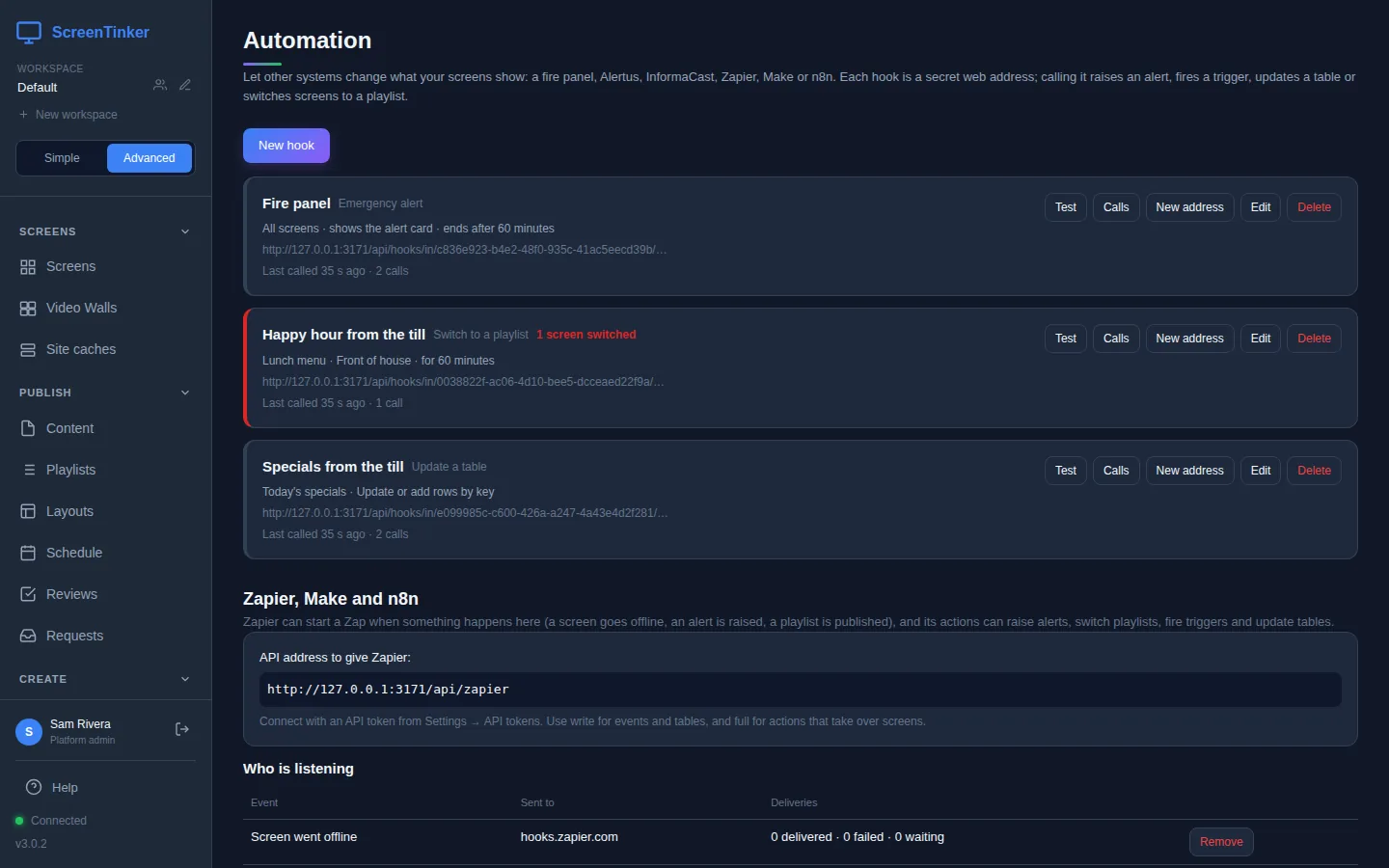
Each hook is a card. It shows the hook's name and what kind it is, a one-line summary (which screens, which playlist, how long), the start of its address, and when it was last called. A red edge and a red note such as 1 screen switched mean the hook is changing screens right now.
What a hook can do
When you make a hook, What it does offers five kinds. You can't change the kind later; make a new hook instead.
- Emergency alert: shows an alert on screens, the same way an emergency feed does. It can raise the alert, clear it, or do either depending on a field in the request.
- Mass notification (Alertus, InformaCast, CAP): the same, for mass notification systems. It reads CAP 1.2 alerts and the JSON that Alertus, InformaCast and similar systems send, and finds the headline and message by itself.
- Fire a trigger: fires or clears one of your triggers on the screens it is assigned to.
- Update a table: writes the rows it receives into a Manual table data source, so the slides and menu boards that use it update.
- Switch to a playlist: switches screens to a playlist for a number of minutes. Then they go back by themselves.
Make a hook
- Press New hook.
- Name: something you'll recognise in the list, such as "Fire panel".
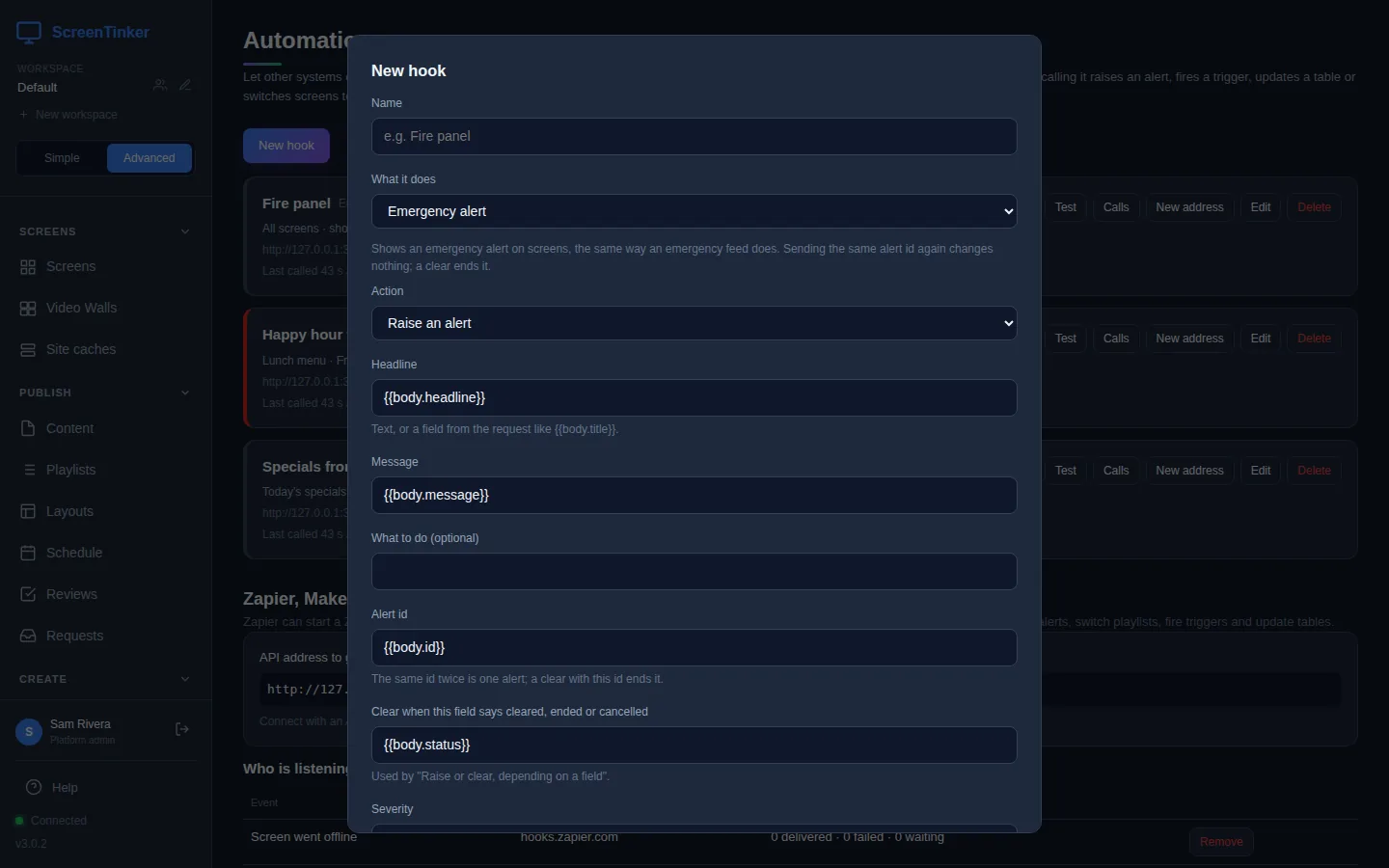
- What it does: pick one of the five kinds. The form below changes to match.
- Fill in the kind's fields (see the fields for each kind).
- Show on: All screens in this workspace, Screens in these groups, These screens or Screens with a tag. Tick the groups or screens, or type the tag.
- Leave Enabled ticked and press Save.
Text from the request
Fields like Headline can hold plain text, or a field from the request in double curly brackets. If the fire panel sends {"headline": "Fire alarm", "message": "Please leave now"}, then {{body.headline}} becomes "Fire alarm". A field that isn't in the request becomes empty text. You can mix both: Alarm in {{body.zone}}.
Copy the address: it is shown only once
When you save a new hook, a box called Web address for (and the hook's name) opens with the full address. Press Copy, paste it into the system that will call it, then press Done.
ScreenTinker keeps only a fingerprint of the address, so the card shows just its start, ending in "…". If you lose it, press New address on the card. That makes a new address and the old one stops working straight away, so update the other system too.
Treat the address like a key: anyone who has it can call the hook. A wrong or old address gets the same "Not found" answer as a hook that doesn't exist. Each hook takes at most 30 calls a minute.
The fields for each kind
Emergency alert
- Action: Raise an alert, Clear alerts, or Raise or clear, depending on a field. The last one lets a single address do both: it clears when the field named in Clear when this field says cleared, ended or cancelled says so, and raises otherwise.
- Headline, Message and What to do (optional): the text on the alert card.
- Alert id: the same id sent twice is still one alert, and a clear with that id ends it. A clear with no id ends every alert this hook raised.
- Severity and End automatically after (minutes): 60 minutes unless you change it, so a forgotten alert doesn't stay up forever.
- What screens show: The alert card (headline, area, what to do, until when), or one of your playlists.
Mass notification (Alertus, InformaCast, CAP)
Point your mass notification system at the address. The headline, message, alert id and "cleared" status are found by themselves. If your sender uses other field names, open Field mapping (optional) and fill in Alert id field, Headline field, Message field or Clear / status field. Severity when the sender does not say and End automatically after (minutes) (120 unless you change it) fill the gaps. CAP test and exercise messages never take over a screen.
Fire a trigger
Pick the Trigger and the Action, Fire or Clear. Over the internet this reaches the Raspberry Pi, Windows and Mac apps, screens that play in a web browser, and BrightSign, LG (webOS), Fire TV Vega and iPhone or iPad players. It doesn't reach Android TV, Fire TV (Android), Samsung (Tizen) or Roku screens; those that support triggers can still get them from a sender on their own network.
Update a table
- Table: one of your Manual table data sources.
- How rows are written: Replace all rows, Update or add rows by key (fill in Key column, such as "Item"), or Add rows.
- Rows: where the rows are in the request, such as
{{body.items}}. Each row's fields are matched to the table's columns by name, so{"item": "Flat white", "price": "3.60"}fills the Item and Price columns.
Switch to a playlist
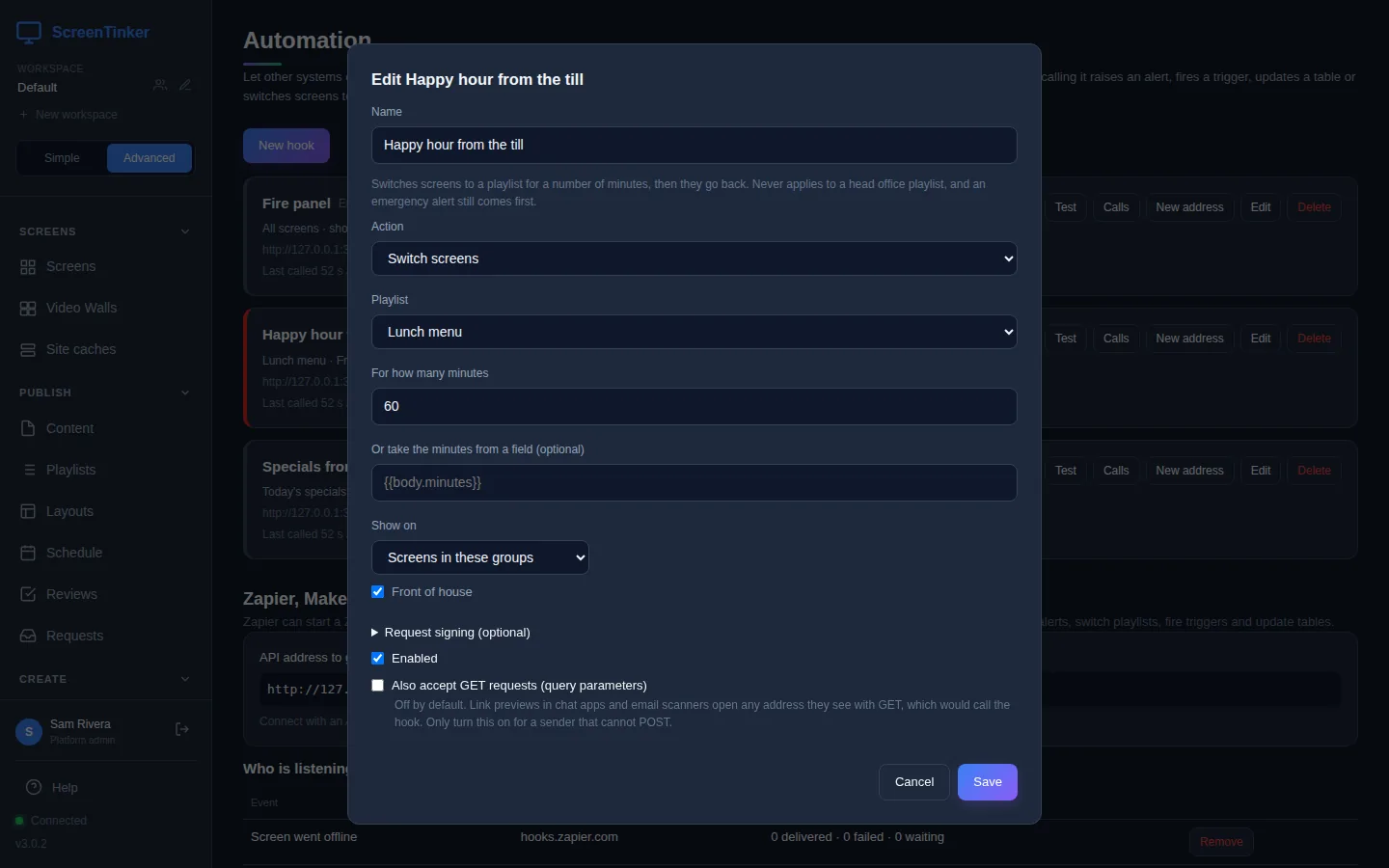
- Playlist: it must be published. A draft that has never been published is refused.
- For how many minutes (1 to 1440), or Or take the minutes from a field (optional), such as
{{body.minutes}}. - Calling the hook again starts the time again from that call; it doesn't add up.
- It never changes a screen that is on a head office playlist, and an emergency alert still comes first.
While a hook is switching screens, its card has an End now button: press it to send the screens back. A sender can do the same: make a second hook with the Action set to Switch screens back. When it is called, every screen it covers goes back to what it normally plays, whichever hook switched it.
Signing and GET requests
- Request signing (optional): if the sending system can sign its requests with a shared secret (HMAC-SHA256), enter the secret here (16 characters or more). Unsigned requests are then refused, and the card shows signed.
- Also accept GET requests (query parameters) is off on purpose. Chat apps that preview links and email scanners open any address they see, which would call the hook. Turn it on only for a sender that can't send a POST request.
Test a hook and read its calls
Test runs the hook with a sample request and shows the result in a message. It is not a rehearsal: an emergency test puts a "Test alert" on your screens, a playlist test switches them, and a trigger test fires the trigger. The page asks first for those kinds. A test of an Update a table hook is the exception: it changes nothing and only says what it would have done to the table.
A test alert or a test switch stays on your screens until it ends by itself. To take it down sooner, press End now on the hook's card. Unticking Enabled and pressing Save also ends everything the hook is showing.
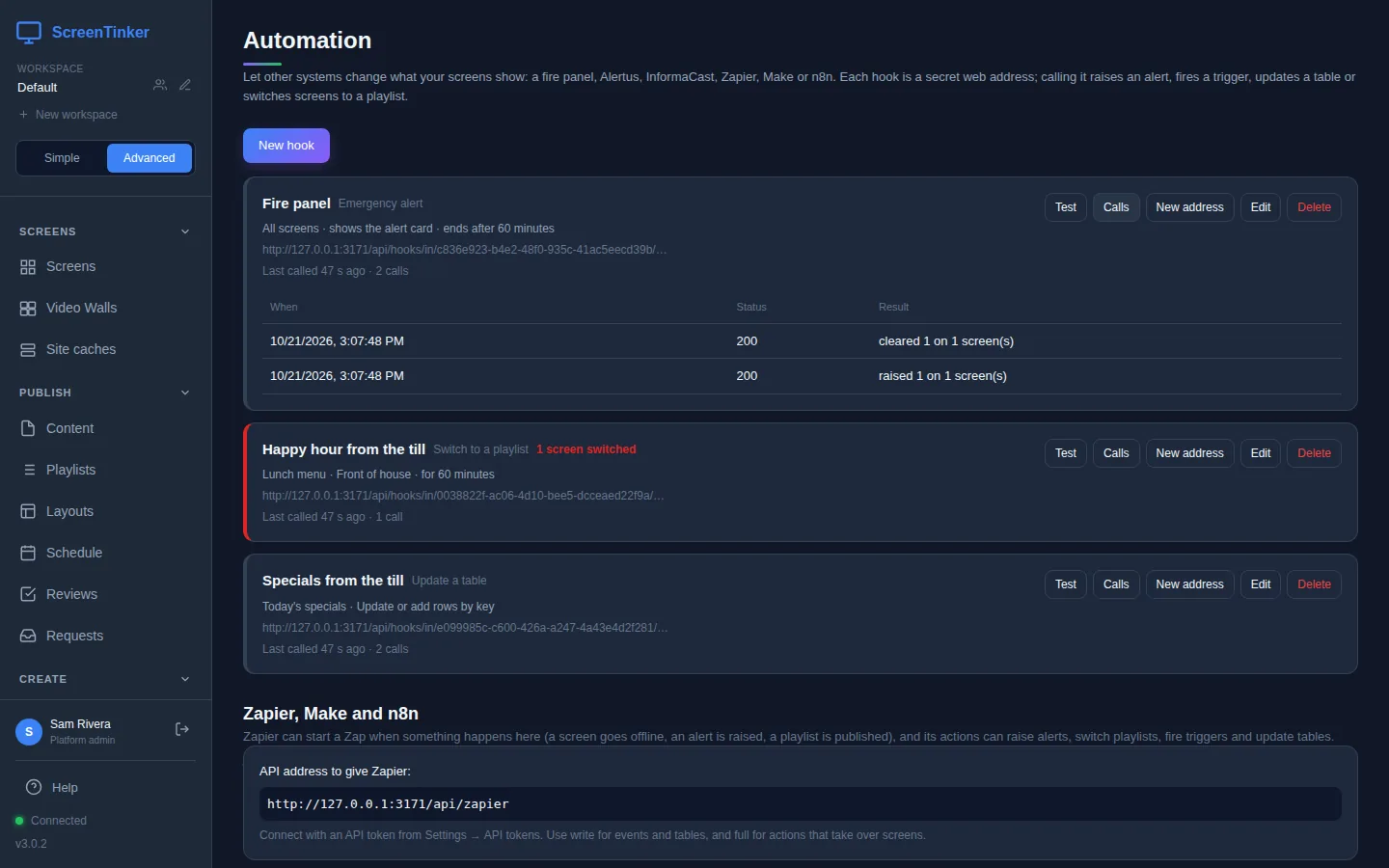
Calls opens the hook's recent calls: When, Status (200 means it worked) and Result, such as "raised 1 on 1 screen(s)" or "switched 1 screen(s) for 60 minute(s)". Tests are marked "(test)". A refused call says why, for example a missing signature or too many calls.
Delete removes a hook. Anything it is showing on screens ends, and its address stops working.
Zapier, Make and n8n
At the bottom of the page, Zapier, Make and n8n gives the API address to give Zapier:. These tools connect with an API token, which you make in Settings under API Tokens: Read & write for events and tables, Full (incl. device commands) for actions that take over screens. For a single action, a Make or n8n scenario can also just call a hook's address, which needs no token.
Who is listening lists every outside service that has asked to be told about events here, such as Screen went offline or Playlist published, with how many messages were delivered, failed or are waiting. Press Remove to stop sending one. The services sign up from their side; there is nothing to add on this page.
The ScreenTinker integration for Zapier is a private Zapier app that you add to your own Zapier account; it is not in Zapier's public app list. Make, n8n and your own scripts can call the API address or a hook directly.
The address a hook gets starts with your server's public address if one is set (APP_URL), or else with the address you opened the dashboard at. If you opened it as localhost or a local network address, that is what the hook address says, and outside services such as Zapier can't reach it. A fire panel on the same network can. Event messages to Zapier, Make or n8n only go to public https addresses. Hooks aren't available in a workspace that is copied to other servers over the mesh.
FAQ
I lost a hook's address. Can I see it again?
No. Press New address on the card, copy the new one, and give it to the other system. The old address stops working at once.
The fire panel sent the same alarm three times. Will screens show three alerts?
No. Calls with the same Alert id are one alert. Without an id, an exact repeat of the same request also counts as one.
What happens when a hook's time runs out?
An alert ends after its End automatically after (minutes), and a playlist switch after its minutes. The screens go back to what they would normally show, including any schedule.
Can an editor make hooks?
No. A hook can take over every screen in the workspace, so only an admin of the workspace can make, change, test or delete one.
Try it on your own screens
Start a 14-day Pro trial on hosted ScreenTinker: up to 15 screens, every feature, no credit card.
Or host it yourself, free and open source: self-hosting guide · GitHub