Live data on your screens: Data Sources
A data source keeps a value on your screens up to date without anyone editing a slide. Put your prices in a Google Sheet or a table, connect it once, and the price on every screen changes when you change the sheet. The same works for the weather, a calendar, a news feed or your own system.
This guide shows how to connect a source, test it, copy one of its values, and put that value on a slide. It also covers key columns (so a price stays on the right line after you sort the sheet), how often sources refresh, and what screens show when something goes wrong.
Before you start
- Data Sources is in Advanced view. New accounts start in Simple view. Switch with the Simple / Advanced buttons at the top of the menu.
- You need to be an Editor or an Admin of the workspace to connect, change or delete a source. A Viewer can open the page and see the values, but not the addresses or keys behind them.
- Values appear on slides. You type a tag like
{{ds:specials.latte}}into a slide's text, and the screen shows the current value in its place. There is no plan limit on data sources.
Open Data Sources
Choose Data Sources in the sidebar, under Automate. The page is called Data Sources & Integrations. Each source you have connected gets a card. If you have none yet, the page shows the list of connectors straight away.
Connect a source
- Press Connect data at the top right.
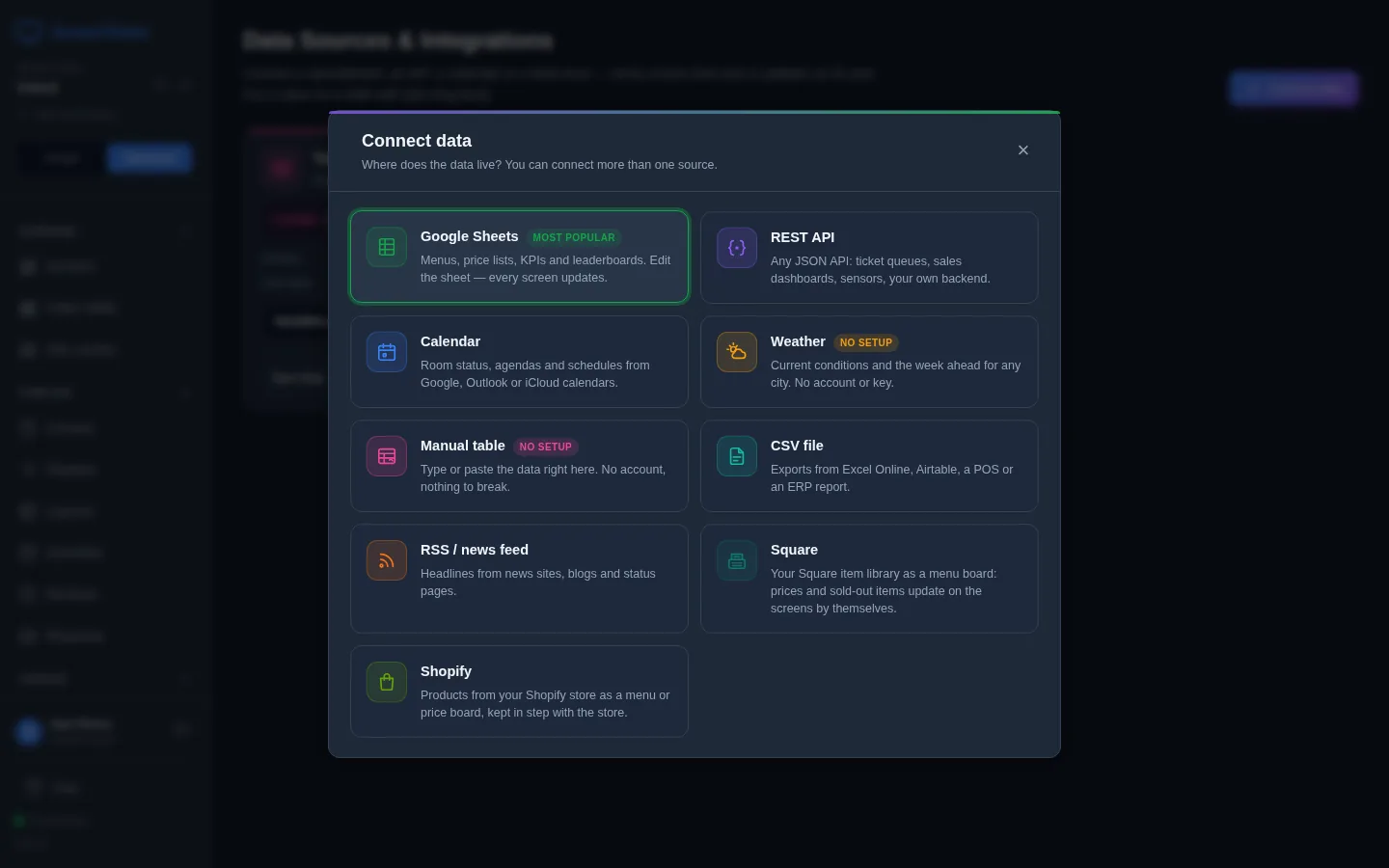
- Pick where the data lives. Manual table and Weather need no account at all. Google Sheets is the usual choice for menus and price lists.
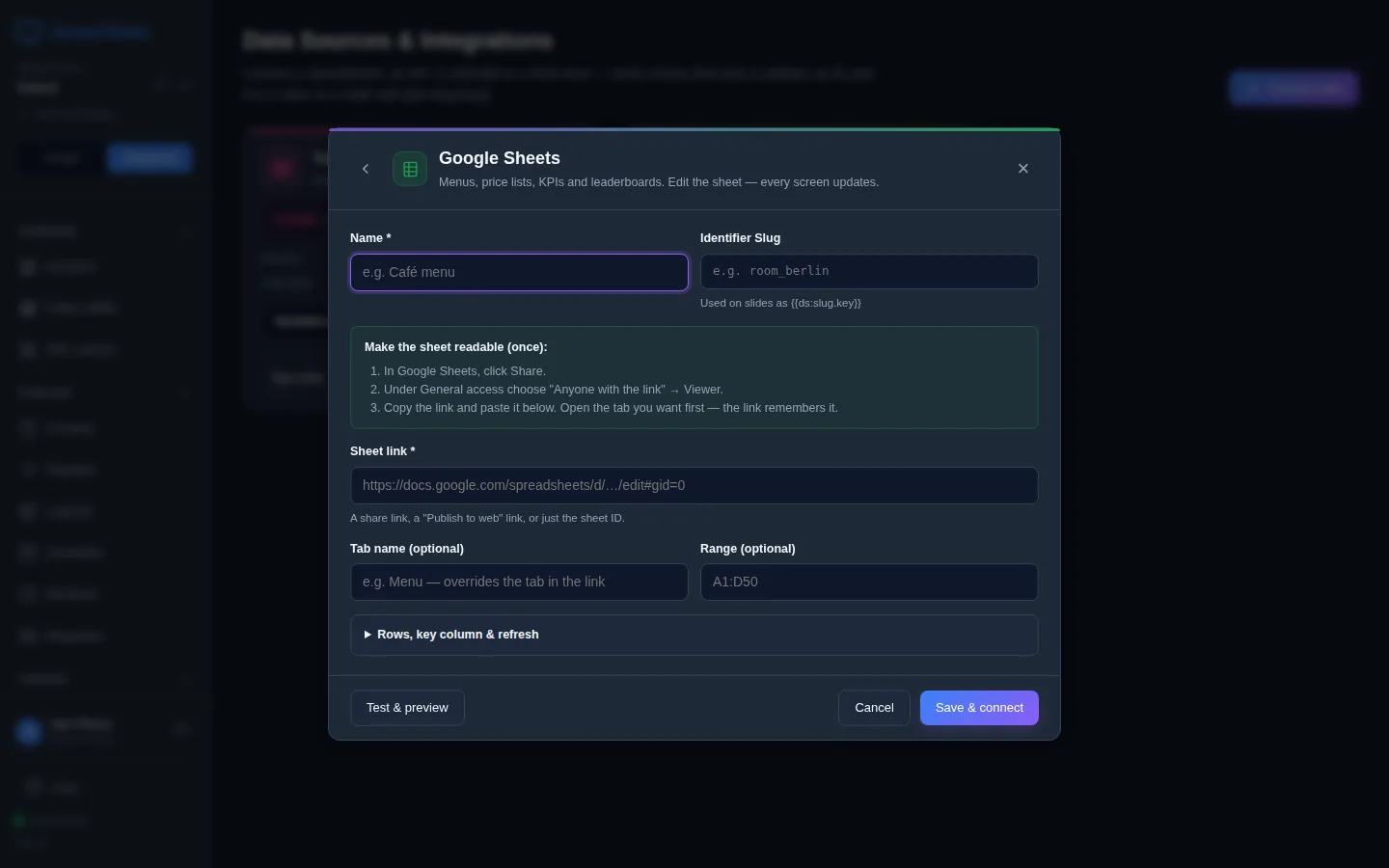
- Give it a Name. The Identifier Slug fills itself in from the name; it is the short word you will use on slides, shown under the box as "Used on slides as {{ds:slug.key}}". Keep it short, like
specialsorweather. - Fill in the form for that kind of source (see below).
- Press Test & preview. You see whether it connected, the first rows, and every value it found under Variables — click to copy. Nothing is saved yet.
- Press Save & connect. The card appears and the first sync runs in the background.
A Google Sheet
The form shows three steps to make the sheet readable, which you do once in Google Sheets: click Share, set General access to "Anyone with the link" as Viewer, and copy the link. Paste it into Sheet link. Open the tab you want before you copy the link and the link remembers it, or type the tab in Tab name (optional). Range (optional) reads only part of the sheet, for example A1:D50.
That test result means the sheet is not shared publicly. Go back to Share in Google Sheets and choose "Anyone with the link". Anyone who has the link can read the sheet, so keep only what belongs on the screens in it.
A manual table
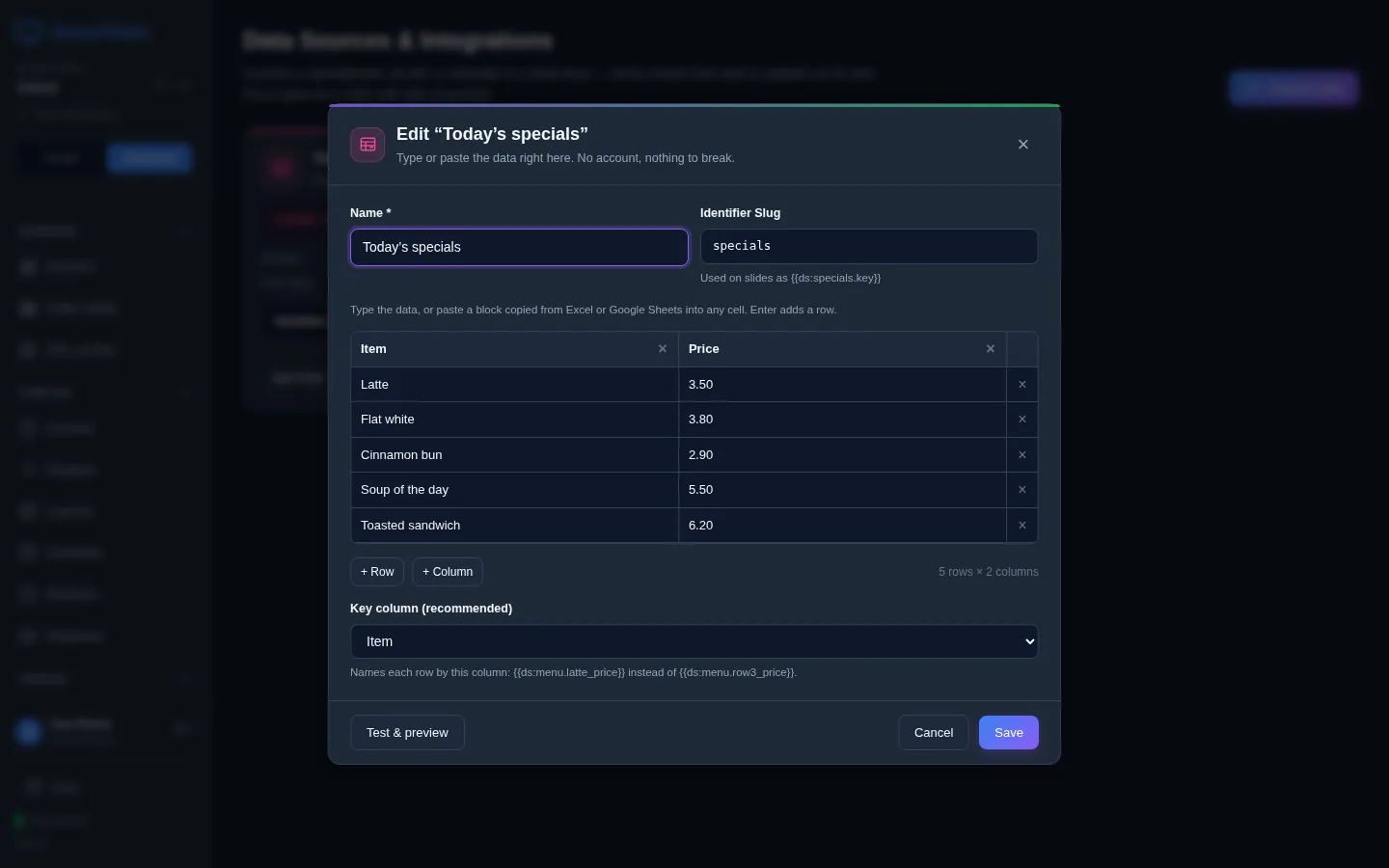
No account, nothing to break: you type the data into ScreenTinker itself. Type into the grid, or copy a block of cells from Excel or Google Sheets and paste it into any cell. Enter adds a row; + Row and + Column do the same, and the × removes one. A table holds up to 200 rows and 20 columns. It changes only when you edit it and press Save.
The weather
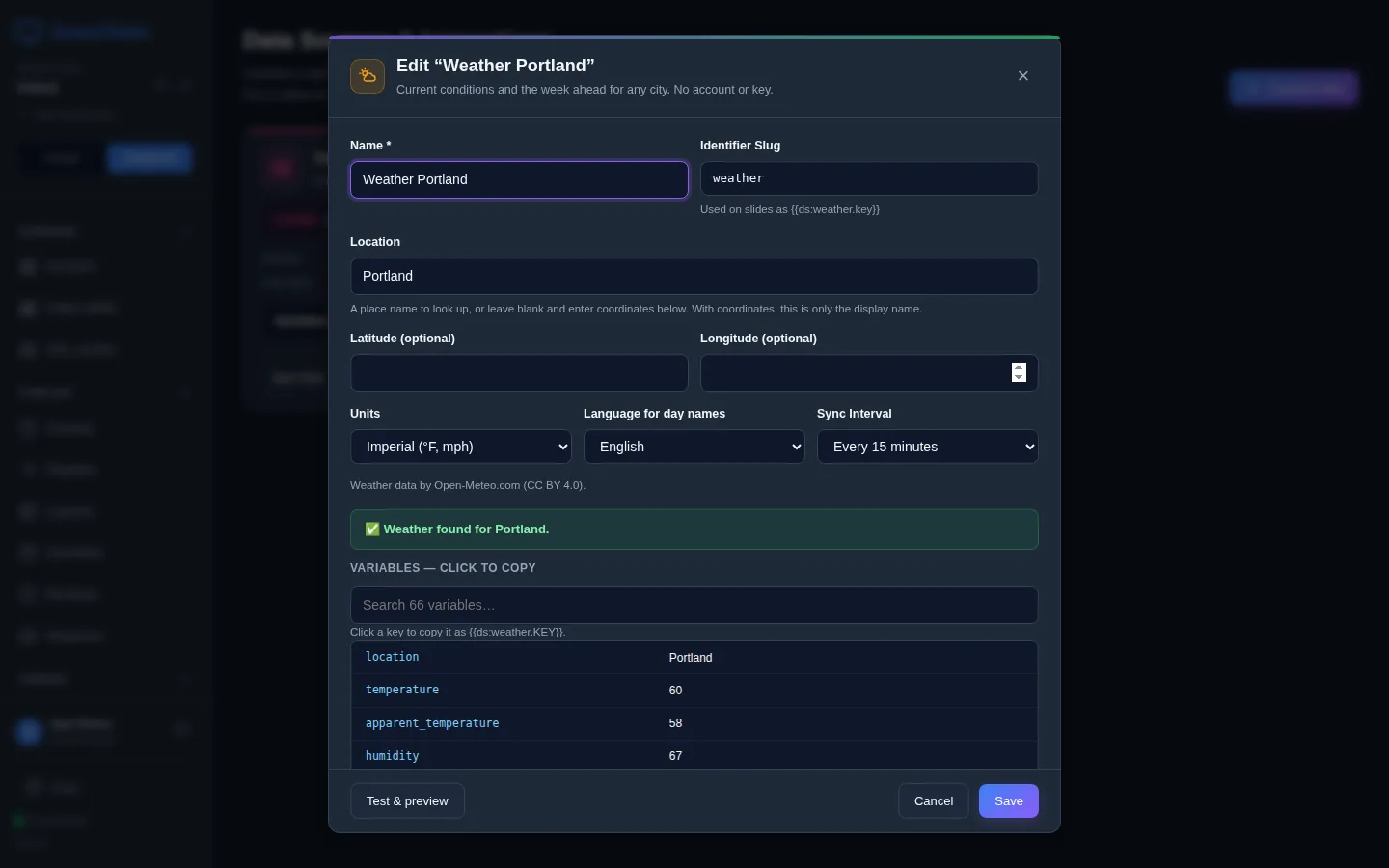
Type a town into Location, or leave it empty and enter Latitude (optional) and Longitude (optional). Choose the Units (°C or °F), the Language for day names and the Sync Interval (every 15 minutes, 30 minutes or hour). It needs no account or key. You get the current temperature, condition and humidity, and a forecast for the coming days.
The other connectors
- Calendar: paste a public or secret iCal link from Google Calendar, Outlook, iCloud or Nextcloud. Good for a meeting-room sign ("Free until 14:00", the next meeting). Under ⚙️ Advanced Options you can filter by keyword, set the Timezone and turn on Privacy Mode, which shows only "Busy" instead of meeting titles.
- CSV file: a direct download link to a CSV file, for example an export from a till or a report. For OneDrive or SharePoint, add
?download=1to the link. - RSS / news feed: headlines from a news site, a blog or a status page.
- REST API: any address that answers with JSON or CSV, with optional sign-in (Bearer token, API key header or Username & password). Keys you enter are stored encrypted, are never shown again and are never sent to the screens.
- Square and Shopify: your shop's items and prices for a menu board, with sold-out items left out if you want.
Find and copy a value
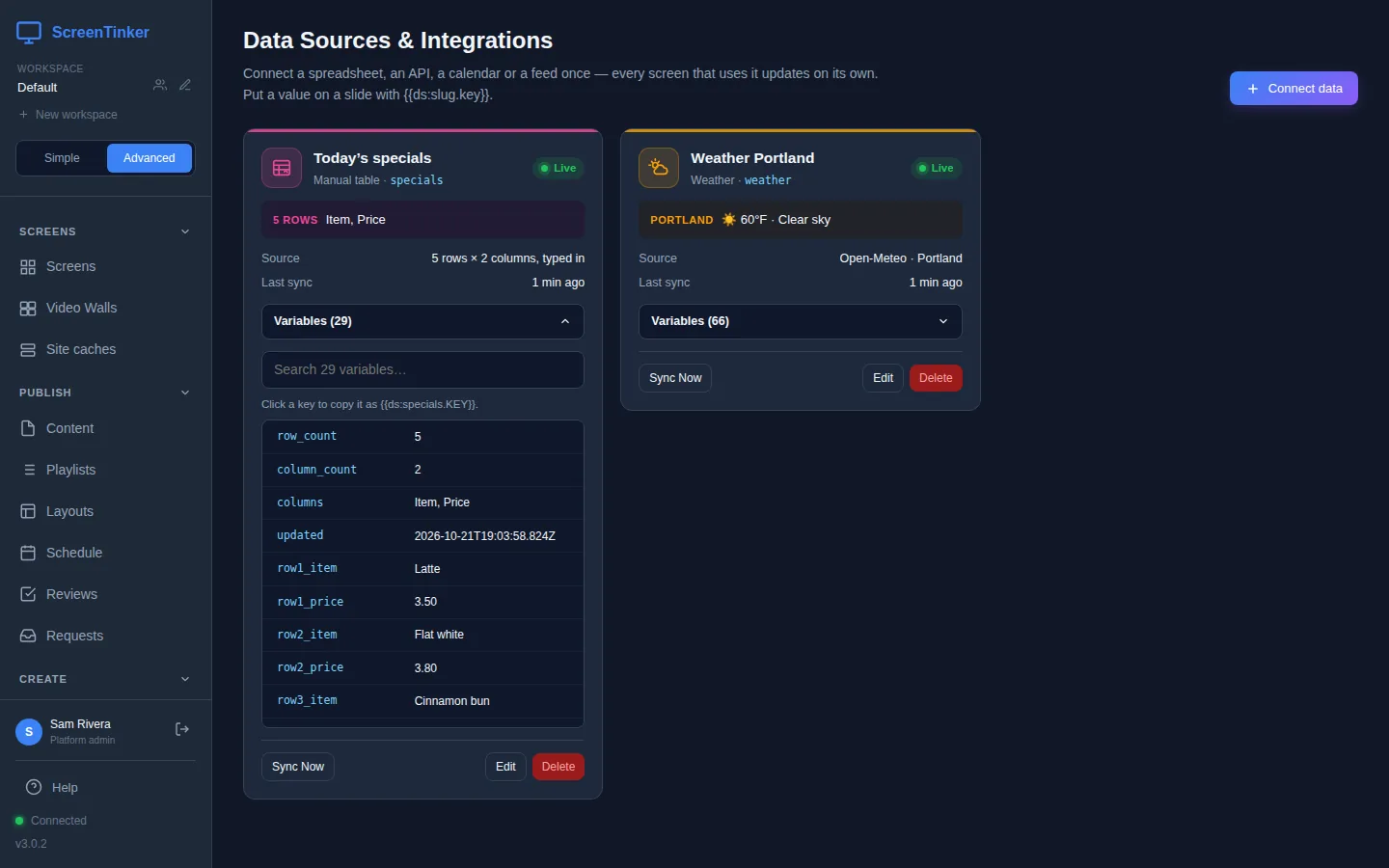
Every value a source has is a variable. Open Variables on the source's card to see them all, with what each one holds right now. Click a variable's name and it is copied as a tag, ready to paste: clicking row1_price on the specials source copies {{ds:specials.row1_price}}. When a source has more than 12 variables, a search box helps you find one.
Use a key column for tables
Rows are numbered by default: row3_price is the price on the third row. If someone sorts the sheet or adds a row at the top, row 3 becomes a different item and the screen shows the wrong price. A Key column (recommended) fixes that: each row is named after the value in that column instead. With Item as the key column, the latte's price is {{ds:specials.latte_price}} wherever the latte moves. When the table has only two columns, {{ds:specials.latte}} works too.
For a manual table, pick the key column under the grid. For a Google Sheet, a CSV file or a REST API, open Rows, key column & refresh, or press Test & preview and click a column's heading in First rows.
Number columns also get totals and averages, such as avg_price and max_price, which is handy for a sales or KPI board.
Put the value on a slide
- Open Slides in the sidebar and open a deck (or make one).
- Select a text box and paste the tag into its Text. Mix it with your own words, for example
Latte · ${{ds:specials.latte}}. The editor shows the current value on the slide straight away. - Press Publish. The deck becomes a playlist, which you put on a screen like any other.
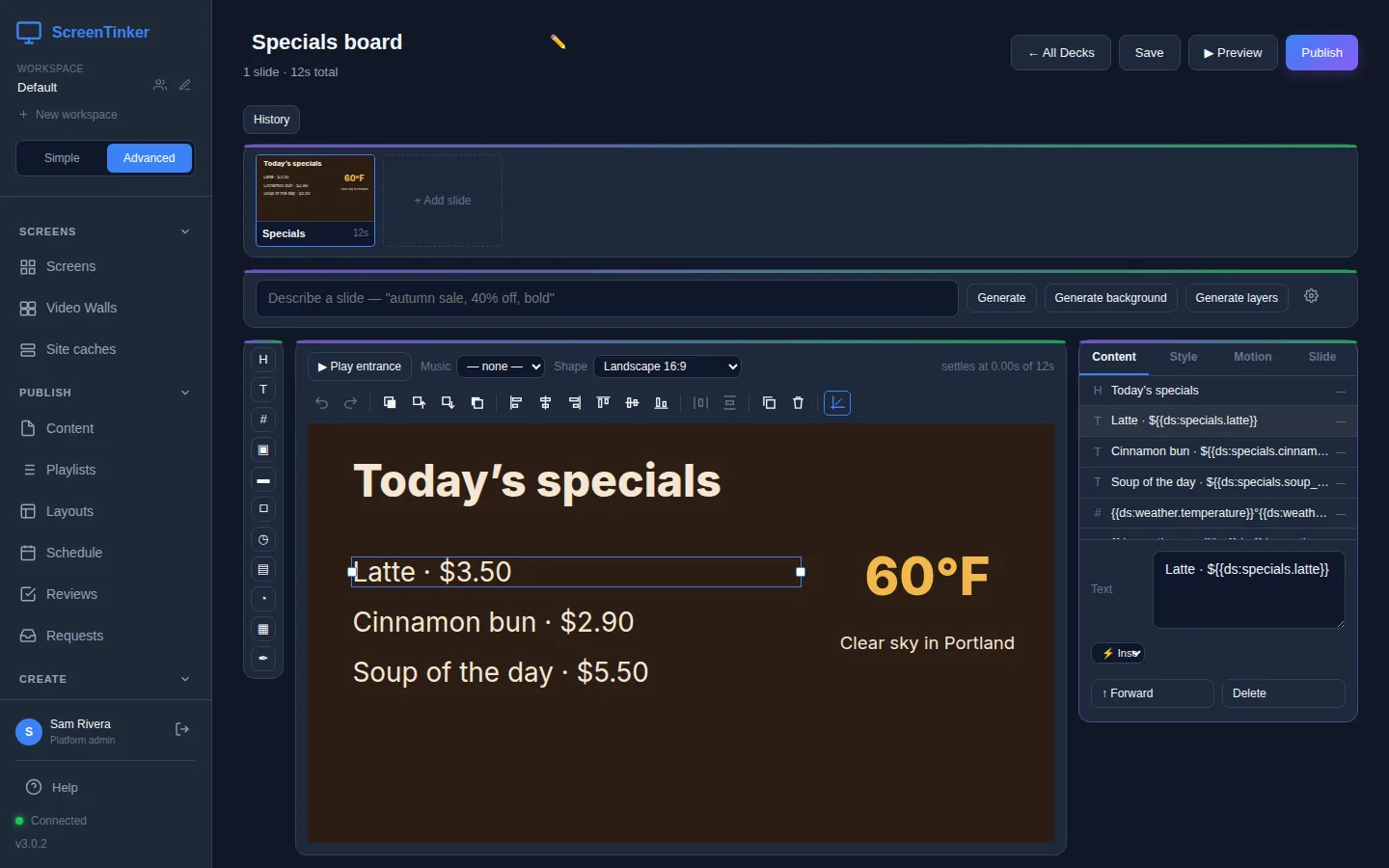
You publish once. After that, when the data changes, the screens playing that slide update on their own: no re-publishing.
Under a text box's Text, the ⚡ Insert Variable... list shows each source with the values it had at its last sync, the same ones as its Variables. Pick one to add its tag. A source that has never synced says "No data yet: sync this source first". A tag whose source or variable does not exist shows as empty text on the screen.
How often it updates, and when it fails
- Each source refreshes on its own Sync Interval: every 5 minutes, 15 minutes or hour for a Google Sheet (never faster than every 2 minutes), every 15 minutes to an hour for the weather. A manual table changes only when you save it.
- Press Sync Now on a card to fetch it straight away. Screens update when the values actually change.
- The card's dot says Live when the last sync worked. If it failed, the dot says Failed and the card shows the reason in red, for example that the sheet is not shared. Hold the pointer over Failed to see the reason there too. Screens keep showing the last values that worked until the next good sync.
- Edit opens the form again. Press Test & preview, then Save.
Slides find a source by its slug. If you press Delete, every tag that used it shows nothing until you fix the slides. If you change the Identifier Slug and slides or widgets use it, ScreenTinker asks first and then updates their tags to the new slug, and screens pick up the change. Cancel that question to keep the old slug. Rename the source's Name freely.
Your server fetches the data, so it needs internet access for every connector except Manual table. It refuses addresses on your own network (such as 192.168.x.x or a calendar server in the office) with "The address is not allowed. It is on a private network." To allow them, the server's administrator sets OUTBOUND_ALLOW_HOSTS (a list of names or address ranges) or OUTBOUND_ALLOW_PRIVATE=1 (every private address; only for a server you alone use) and restarts it. If plugins are turned on (PLUGINS_ENABLED=1), connectors from installed plugins appear in Connect data marked Plugin.
FAQ
I changed the price in the sheet. When does the screen change?
At the next sync of that source, by default within 15 minutes for a sheet. Press Sync Now on its card to do it at once. You don't need to publish anything again.
Can a Viewer see my API keys or the sheet link?
No. Keys are never shown to anyone after you save them, and Viewers see the addresses with the private parts hidden. They can still see the values that are on the screens.
Do I need a Google account or an API key for the weather?
No. The weather comes from Open-Meteo and needs no account or key. A manual table needs nothing at all.
Try it on your own screens
Start a 14-day Pro trial on hosted ScreenTinker: up to 15 screens, every feature, no credit card.
Or host it yourself, free and open source: self-hosting guide · GitHub