Alerts when a screen goes offline
A screen that has gone dark doesn't tell anyone. Alerts do: when a screen has been offline for a few minutes, ScreenTinker posts a message to your team's Slack, Microsoft Teams, Telegram or PagerDuty, or sends an email. When the screen comes back, it says so. It can also tell you when a screen is on but showing a blank or frozen picture.
This guide covers adding an alert channel, choosing which screens it watches, testing it, and the screen verification settings on the same page.
Before you start
- Alerts is in Advanced view. New accounts start in Simple view. Switch with the Simple / Advanced buttons at the top of the menu.
- Only a workspace Admin can add or change channels. Everyone in the workspace can see the page. Editors and Viewers don't get the Add alert channel, Send test, Edit or Delete buttons; a note at the top says "Only a workspace admin can change this. You can look at it." See Users and roles.
- Have the address ready that the messages should go to: a Slack or Teams webhook, a PagerDuty integration key, a Telegram bot, or some email addresses. The form tells you where to find each one.
The Alerts page
Choose Alerts in the Automate part of the sidebar. At the top are the Screen verification settings and Recent screen problems (see below). Under them is the Add alert channel button and your channels.
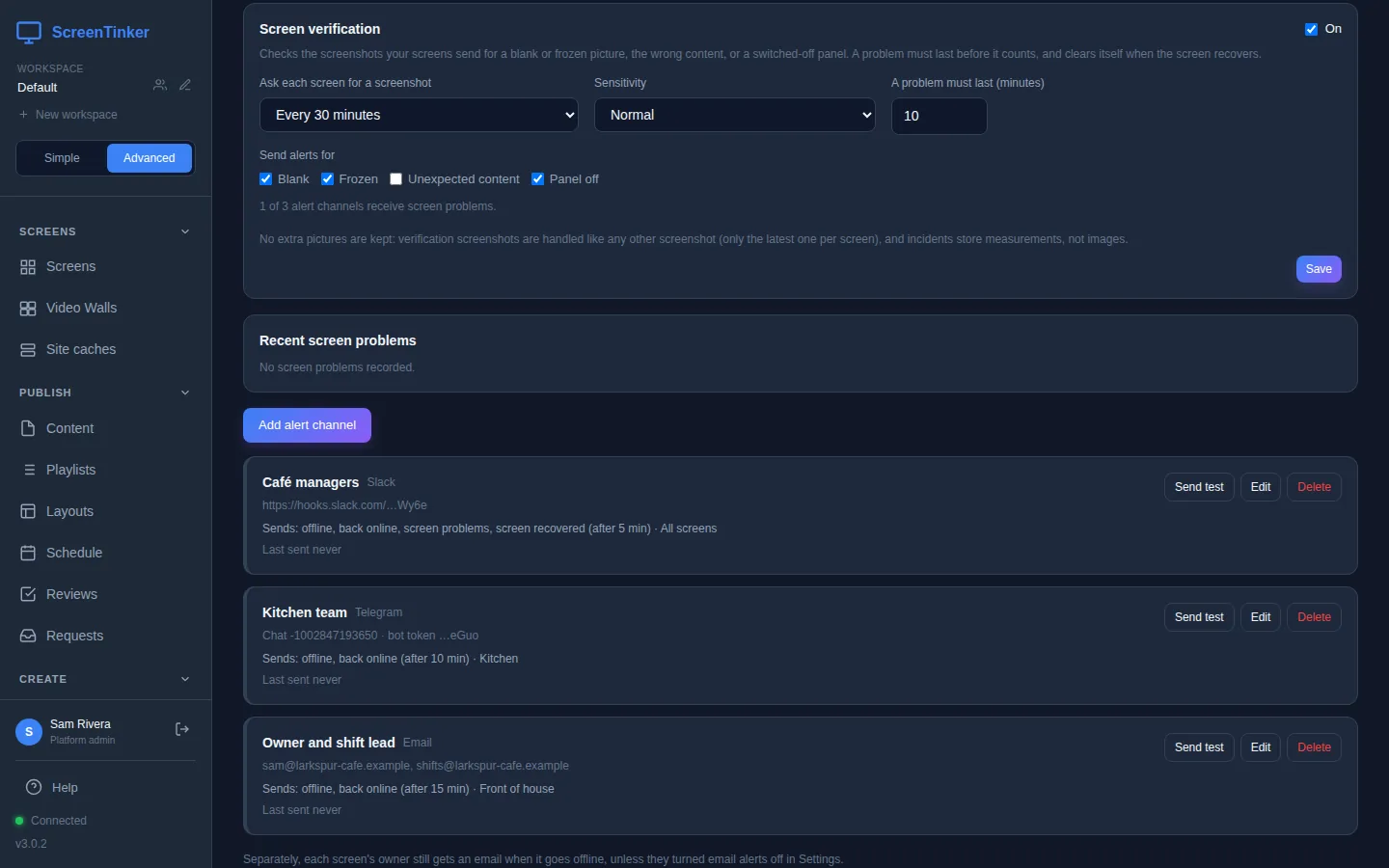
Each channel card shows where it sends (the address is shortened, for example https://hooks.slack.com/…Wy6e), a Sends: line with what it sends, after how many minutes and for which screens, and when it Last sent a message. If the last message failed, the reason appears in amber next to it.
Add an alert channel
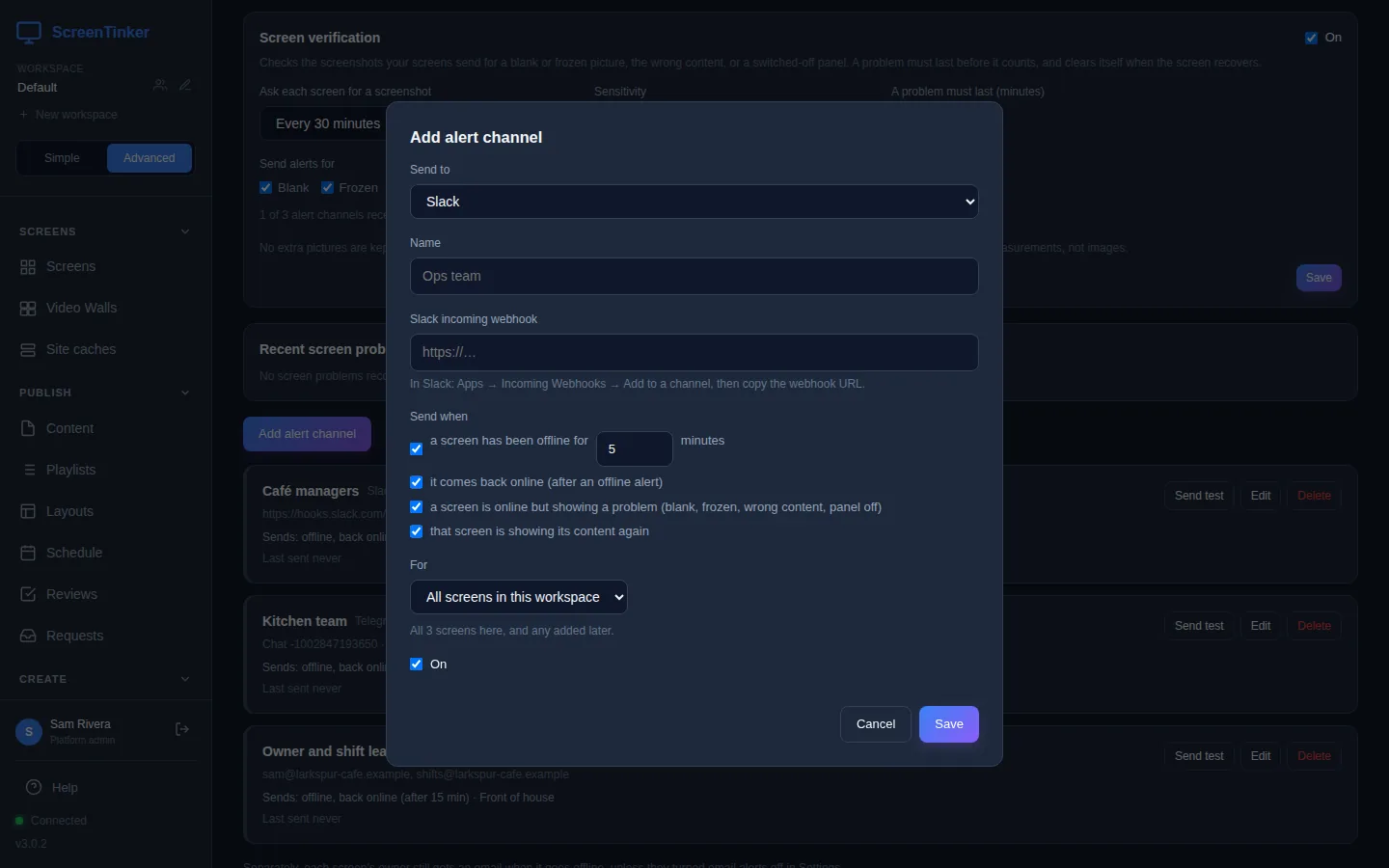
- Press Add alert channel.
- Send to: Slack, Microsoft Teams, Email, PagerDuty, Telegram or Webhook. You can't change this later; make a new channel instead.
- Name: anything that tells you who it reaches, such as "Café managers".
- Fill in where it goes. The hint under each box says where to find it:
- Slack incoming webhook: in Slack, Apps → Incoming Webhooks → Add to a channel, then copy the webhook URL.
- Teams workflow webhook: in Teams, the channel's ⋯ → Workflows → "Post to a channel when a webhook request is received", then copy its URL.
- Email addresses: up to 20, separated by commas.
- PagerDuty integration key: from a PagerDuty service, Integrations → Events API v2.
- Telegram bot token and Chat ID: make a bot with @BotFather, add it to your group, and follow the hint to find the chat ID.
- Webhook URL (and an optional Signing secret) if your own system should receive the alert.
- Send when: tick the messages you want. All four are ticked on a new channel:
- a screen has been offline for 5 minutes (any number from 2 to 1440).
- it comes back online (after an offline alert).
- a screen is online but showing a problem (blank, frozen, wrong content, panel off).
- that screen is showing its content again.
- For: All screens in this workspace (screens you add later are included), Screens in these groups or These screens, then tick them.
- Leave On ticked and press Save.
Screens drop off for a moment when the Wi-Fi blinks or the player restarts. Waiting 5 to 15 minutes before an alert means you only hear about screens that are really down. Each channel sends one message per outage, however long it lasts.
Test it
Press Send test on the channel. You see "Test message sent", and a message titled "ScreenTinker test alert" arrives where you sent it. If something is wrong, the error appears instead, for example "The service answered HTTP 404." for a mistyped webhook. A PagerDuty test opens an incident and closes it again straight away, so nobody stays paged.
Change or switch off a channel
Press Edit. The webhook, key or bot token is never shown again in full: its box shows only the last few characters. Leave empty to keep the current one, or paste a new one to replace it.
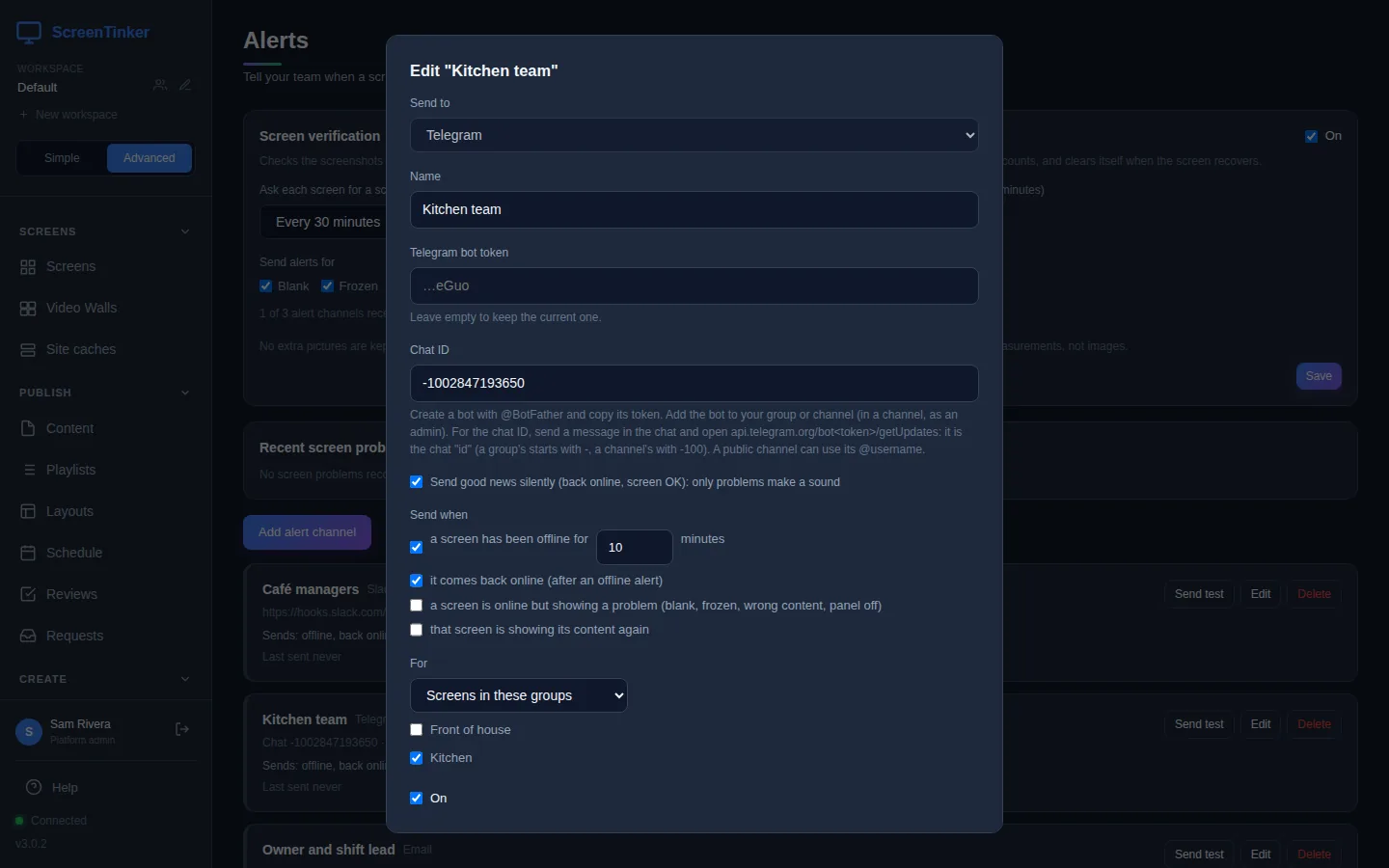
For Telegram, Send good news silently (back online, screen OK): only problems make a sound keeps the group's phones quiet for the good news. To pause a channel, untick On and save: its card is marked Off. Delete removes it for good.
Blank, frozen or switched-off screens
A screen can be online and still show nothing useful: a black picture, a picture that stopped moving, or a TV someone switched off. Screen verification checks the screenshots your screens send and spots these. The settings are at the top of the Alerts page:
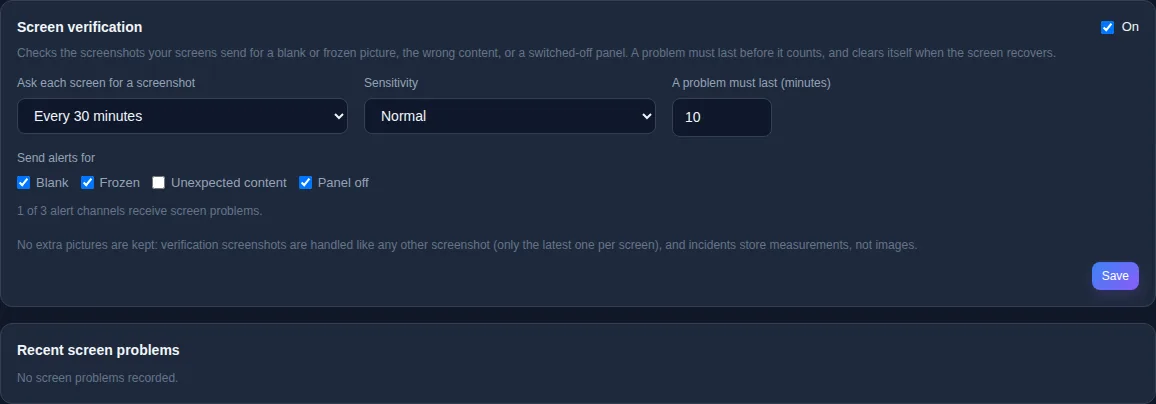
- Ask each screen for a screenshot: every 30 minutes to start with. Choose a different time, or "Never (only check screenshots already taken)".
- Sensitivity: Normal; "Low (only when certain)" or "High (catches more, more false alarms)".
- A problem must last (minutes): 10 to start with. A problem shorter than this is ignored, and it clears itself when the screen recovers.
- Send alerts for: Blank, Frozen, Unexpected content, Panel off. All but Unexpected content are ticked at first.
Press Save after a change. Only a workspace Admin can change these; everyone else sees "Only a workspace admin can change these settings." Recent screen problems lists the last problems found, which screen, how long they lasted, and how they ended. A screen with a planned power-off time is not reported as switched off during it.
For a message about these problems, a channel needs a screen is online but showing a problem ticked. The line under Send alerts for tells you how many of your channels have it. To check one screen by hand, see Troubleshooting.
The owner's own email
Apart from your channels, each screen's owner gets an email after a screen has been offline for 5 minutes. To stop it, they untick Email me when devices go offline in their Settings. Alert channels are for everyone else who needs to know.
Email channels, and the owner's email, need the server's email set up (SMTP or Microsoft 365). Without it, Send test says "Email is not set up on this server." Webhook, Teams and Slack messages only go to public internet addresses: a webhook on your own network is refused unless the server's operator allows it (the OUTBOUND_ALLOW_HOSTS setting). Messages carry an "Open in ScreenTinker" link only when the server's APP_URL is set.
FAQ
A screen went offline but no alert came.
Check that the channel is On, that the screen is covered under For (a group channel only covers screens in that group), and that the screen has been offline for longer than the channel's minutes. Then press Send test: a delivery problem shows its reason on the card. No alert goes out for a screen that has already been offline for more than a day, for example when you add the channel later.
Why didn't I get a "back online" message?
A channel only says a screen is back after it has said that screen went offline. A short drop that never reached the alert time sends neither message.
Can different people hear about different screens?
Yes. Make one channel per team and set For on each, for example the kitchen's Telegram group for the kitchen screens and the managers' Slack for all screens.
Try it on your own screens
Start a 14-day Pro trial on hosted ScreenTinker: up to 15 screens, every feature, no credit card.
Or host it yourself, free and open source: self-hosting guide · GitHub