Triggers: let a button or alarm take over your screens
A trigger lets something outside ScreenTinker put a playlist over whatever a screen is showing. A fire alarm panel can cover every screen with "Please leave by the nearest exit". A button behind the counter can show "Cinnamon buns are ready" for 30 seconds. When the trigger ends, the screen goes back to what it was playing.
The screen decides for itself, from a copy it already holds, so a trigger still works when the internet is down. This guide covers the Triggers page, the settings on each screen that let it listen, and what your installer needs to send.
Before you start
- The Triggers page is in Advanced view. New accounts start in Simple view. Switch with the Simple / Advanced buttons at the top of the menu. Triggers is under Automate in the sidebar.
- Make the playlist first, and press Publish. A trigger shows a published playlist. The playlist may only hold pictures and videos you uploaded: no widgets, YouTube videos or web addresses, because the screen must be able to play it with no network. If you pick one that doesn't fit, Save shows an error naming the item.
- You need a screen that can listen. The Android TV and Fire TV app, the Raspberry Pi and Windows apps, and BrightSign players can. A screen that is just a browser tab can't open a network port by itself, and Roku and e-ink screens don't support triggers.
- You need someone to send the message. Usually that is a control system such as Crestron, Extron, AMX or Q-SYS, a PLC, or a small network button. ScreenTinker does not include the sender.
- Anyone in the workspace except a Viewer can create and change triggers. Viewers can look at the page, but they don't get the buttons to add, edit or delete triggers.
The Triggers page
Choose Triggers in the sidebar. Each row is one trigger: its Name, the words that set it off and end it (Fire / clear), the playlist it Plays, its Mode, which kinds of message it Accepts (HTTP, UDP or both), its Priority, and the Screens it is on. The highest priority is at the top.
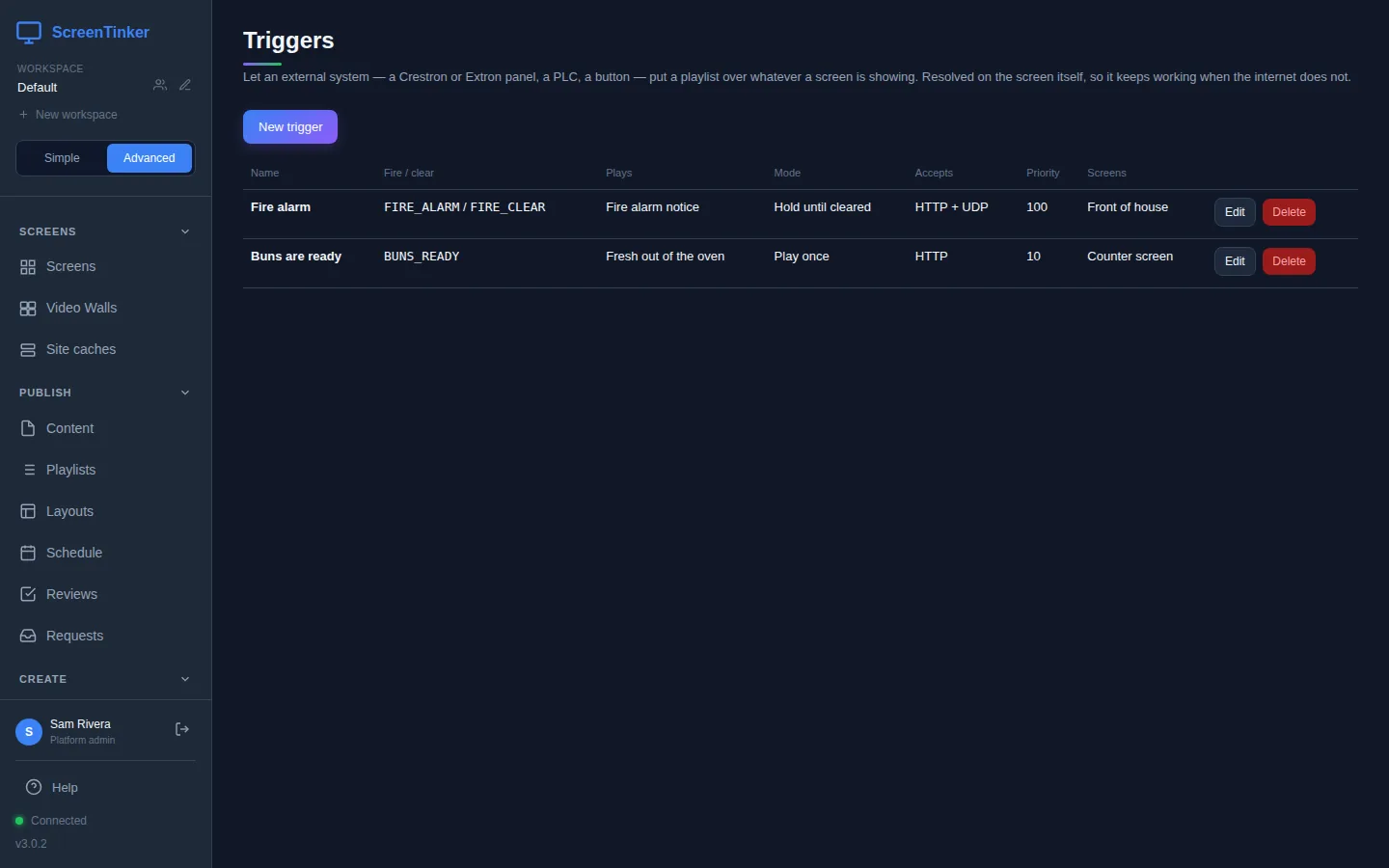
Watch for two labels. Not assigned means the trigger is on no screen, so it can never fire. no auto-clear marks a trigger that holds over UDP with no time limit: if the "clear" message gets lost, those screens stay covered until someone clears them by hand. An orange note at the top of the page says the same.
Create a trigger
- Press New trigger.
- Name: what you'll recognise it by, for example "Fire alarm".
- Fire token: the exact word the sender will send, for example
FIRE_ALARM. Letters, digits and punctuation, up to 64 characters, no spaces. Capitals count:fire_alarmis a different token. - Clear token (optional): a second word that ends the trigger, for example
FIRE_CLEAR. It must differ from the fire token. - Tick HTTP, UDP or both: the kind of message your sender uses. Ask your installer if you are not sure. HTTP is ticked to start with.
- Plays: pick the playlist to show.
- Fill in How it behaves and tick the Screens, then press Save.
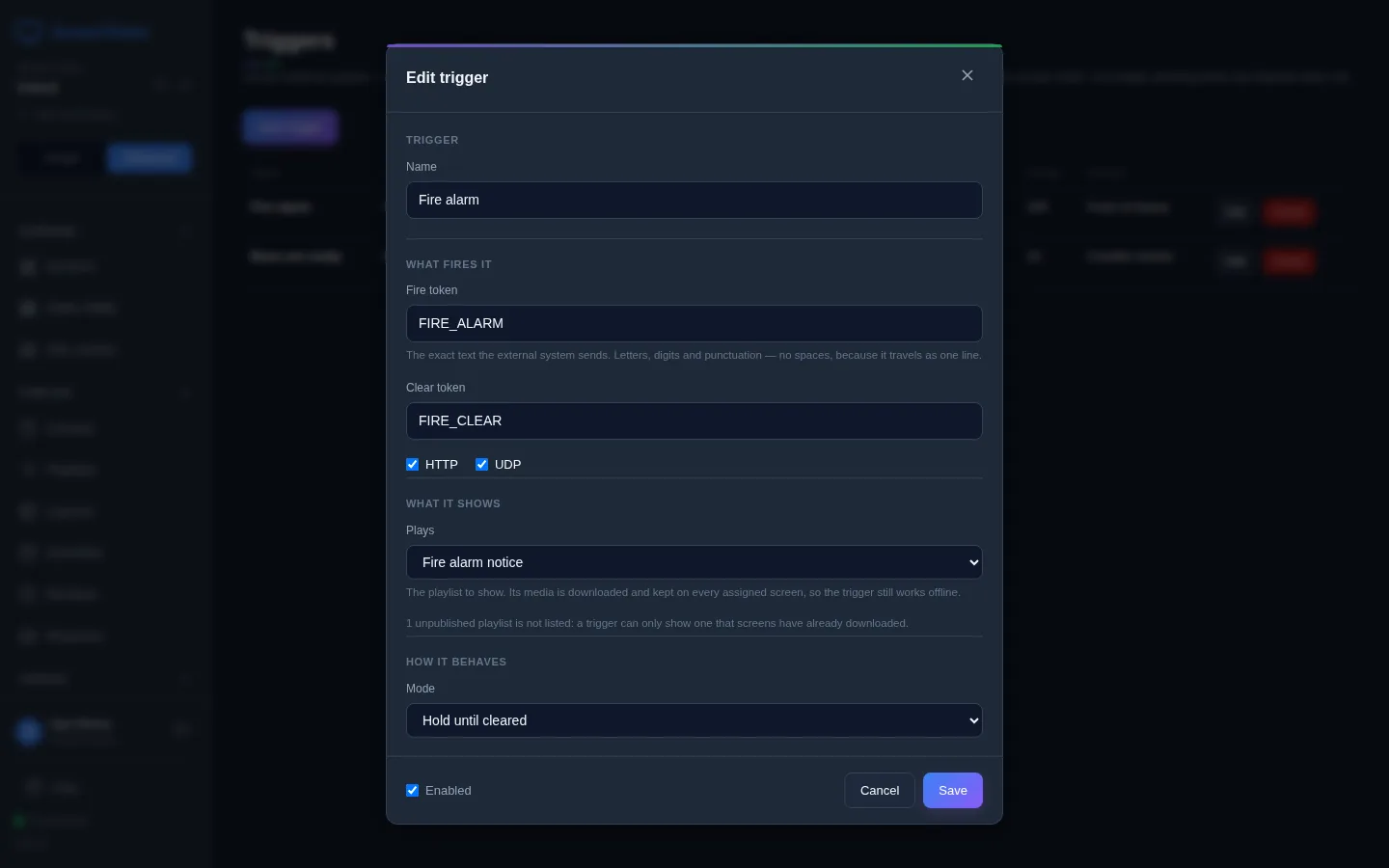
Only published playlists are in the Plays list. If you have playlists that were never published, a note under the list says how many are hidden. If none of your playlists is published, the form says so and Save stays greyed out.
Every fire and clear token must be different from every other trigger's tokens in the workspace. If one is already used, Save tells you which.
How it behaves
- Mode: Play once plays the playlist through one time, then the screen goes back to normal. Use it for short news, like "buns are ready". Hold until cleared stays until the clear token arrives. Use it for anything that lasts, like an alarm.
- Maximum length (seconds): a safety limit for Play once. 0 means play the whole playlist. If the playlist is longer than the limit, the limit wins and the trigger ends early.
- Auto-clear after (seconds): only for Hold until cleared. Most alarm panels repeat their message every few seconds while the alarm is on. Each repeat restarts this timer, so if the sender stops (the alarm panel loses power, or the clear message never arrives), the screen clears itself. When you tick UDP on a new hold trigger, it is filled in with 90 for you. You can empty it, but then a lost clear message leaves the screen covered.
- Priority: from -1000 to 1000. If two triggers arrive, the higher number wins. A lower one that arrives while a higher one is showing is ignored. A held trigger that was covered by a higher one comes back when the higher one clears. Give alarms a high number.
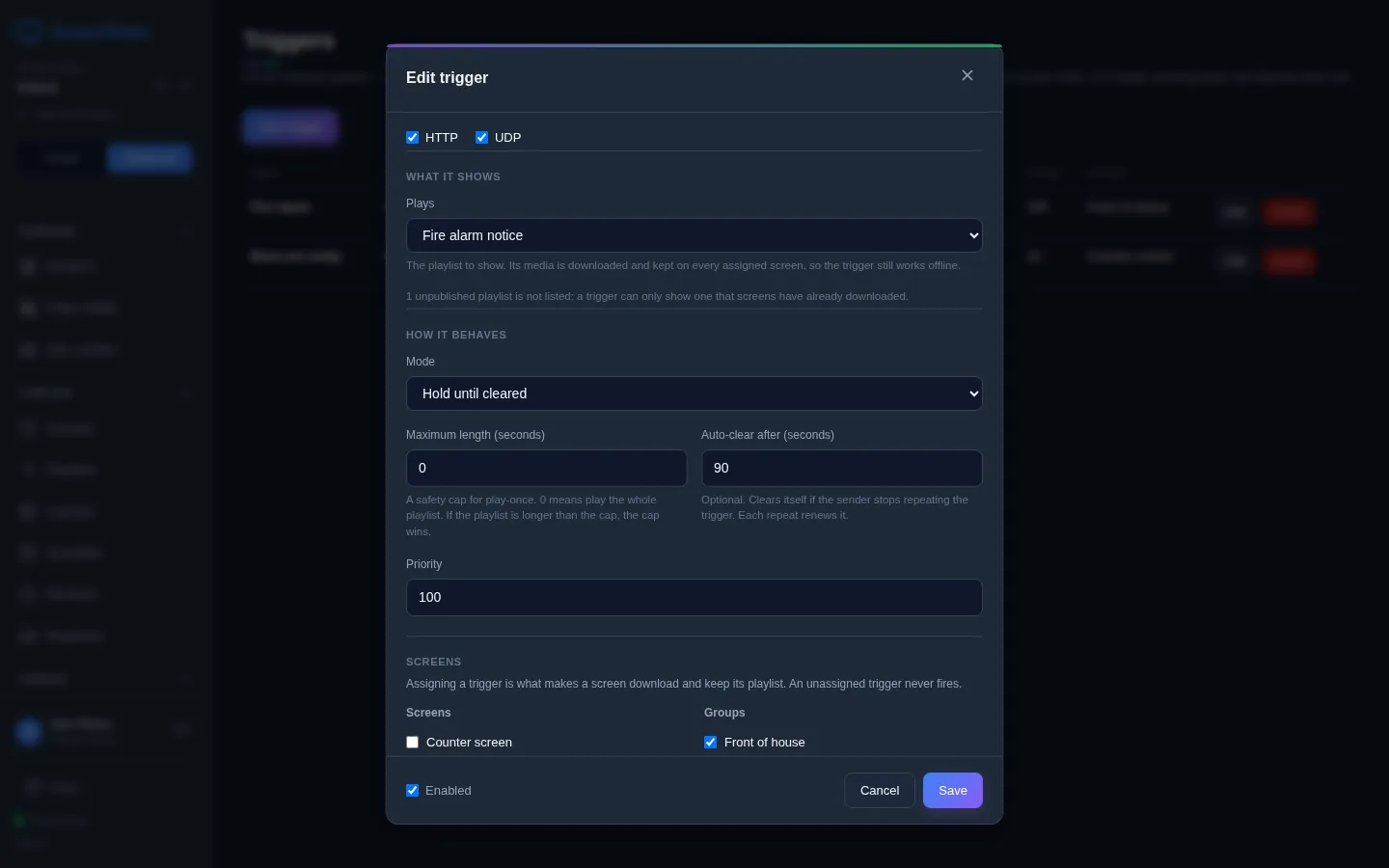
Sending the same fire token again while the trigger is already showing does not restart it from the first item. It only renews the auto-clear timer.
Pick the screens
Under Screens, tick single screens on the left and whole Groups on the right. This is the step that matters most. As soon as you press Save, ScreenTinker sends the trigger to every ticked screen, and each one downloads the playlist and keeps it. That is what lets it play with the network down. A trigger with nothing ticked never fires.
A screen that is switched off when you save gets the trigger the next time it connects. If you change the playlist later, press Publish on it again, and the screens holding the trigger get the new version.
To pause a trigger without deleting it, untick Enabled at the bottom of the form. The list then shows it as Disabled.
Let the screen listen
The trigger is half of it. Each screen also has to be told to listen, and it needs a password the sender must know. Both are off until you turn them on.
- Open the screen from Screens and choose the Device Info tab.
- Find Triggers — listener settings. Tick Accept HTTP, Accept UDP or both. The boxes next to them hold the port numbers: leave them empty to use 8079 for HTTP and 7847 for UDP, or type another number from 1024 to 65534.
- Press Save trigger settings.
- Next to Shared secret, press Generate. A long code appears. Until there is one, the screen says "not set — triggers cannot fire".
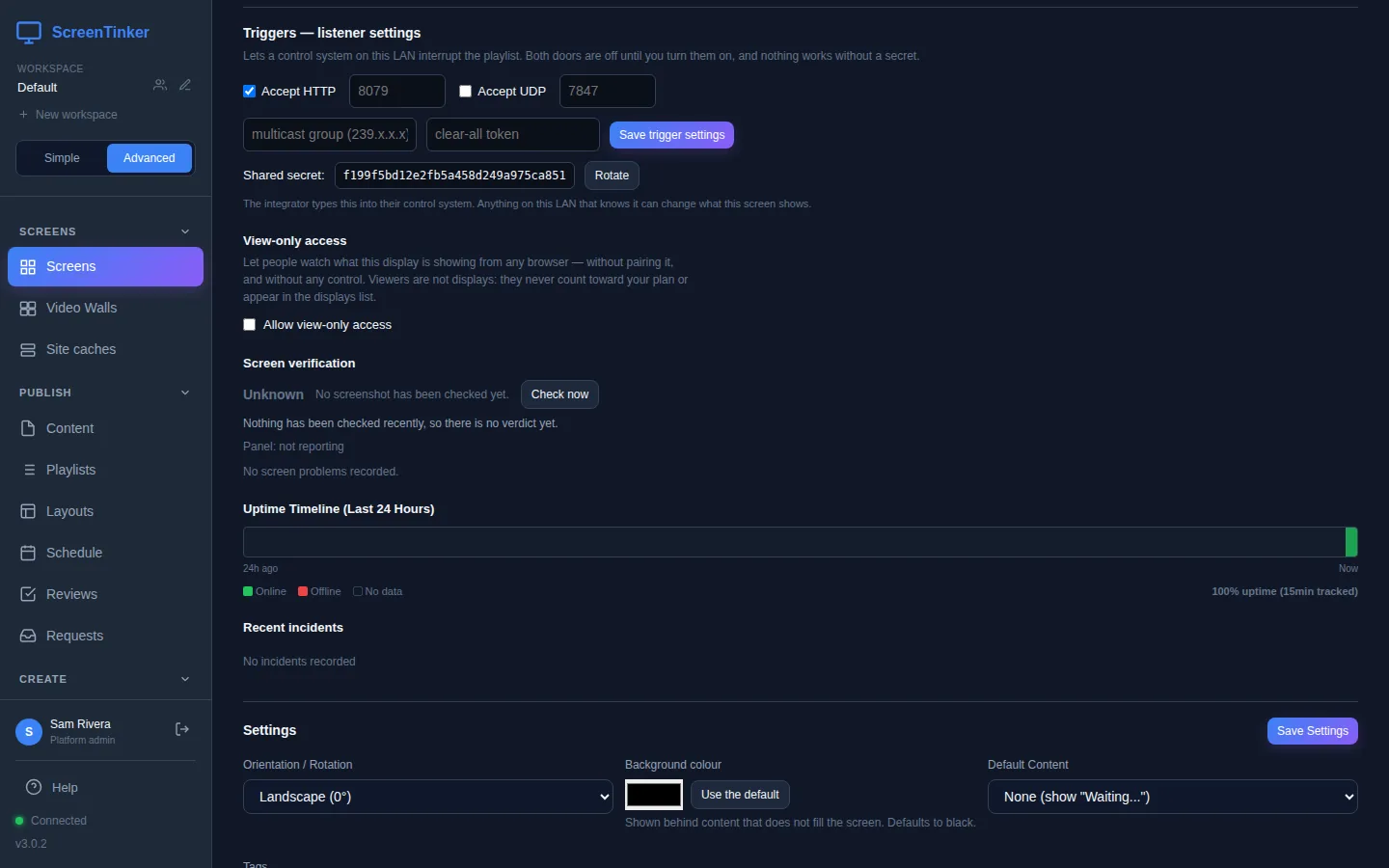
A toast tells you whether the screen got the change right away or will pick it up when it reconnects. The screen starts listening the next time its player starts.
Anything on your network that knows a screen's secret and a token can put that trigger's playlist on it. Give the secret only to whoever sets up the sender. If it gets out, press Rotate: the old secret stops working at once, so the sender has to be updated too.
Two optional boxes are for installers. A multicast group (an address from 224.0.0.0 to 239.255.255.255) lets one UDP message reach many screens at once. A clear-all token ends whatever trigger is showing on that screen. It must not be the same as any trigger's token.
What the sender sends
Give your installer, for each screen: its network address, the port, its shared secret, and the trigger's fire and clear tokens. The message is one line: ST1, the secret, and the token, with a space between each.
- UDP: send
ST1 <secret> FIRE_ALARMto port 7847. - HTTP: open
http://<screen address>:8079/trigger?secret=<secret>&token=FIRE_ALARM. A POST with the same line, or with JSON{"secret": "…", "token": "…"}, works too.
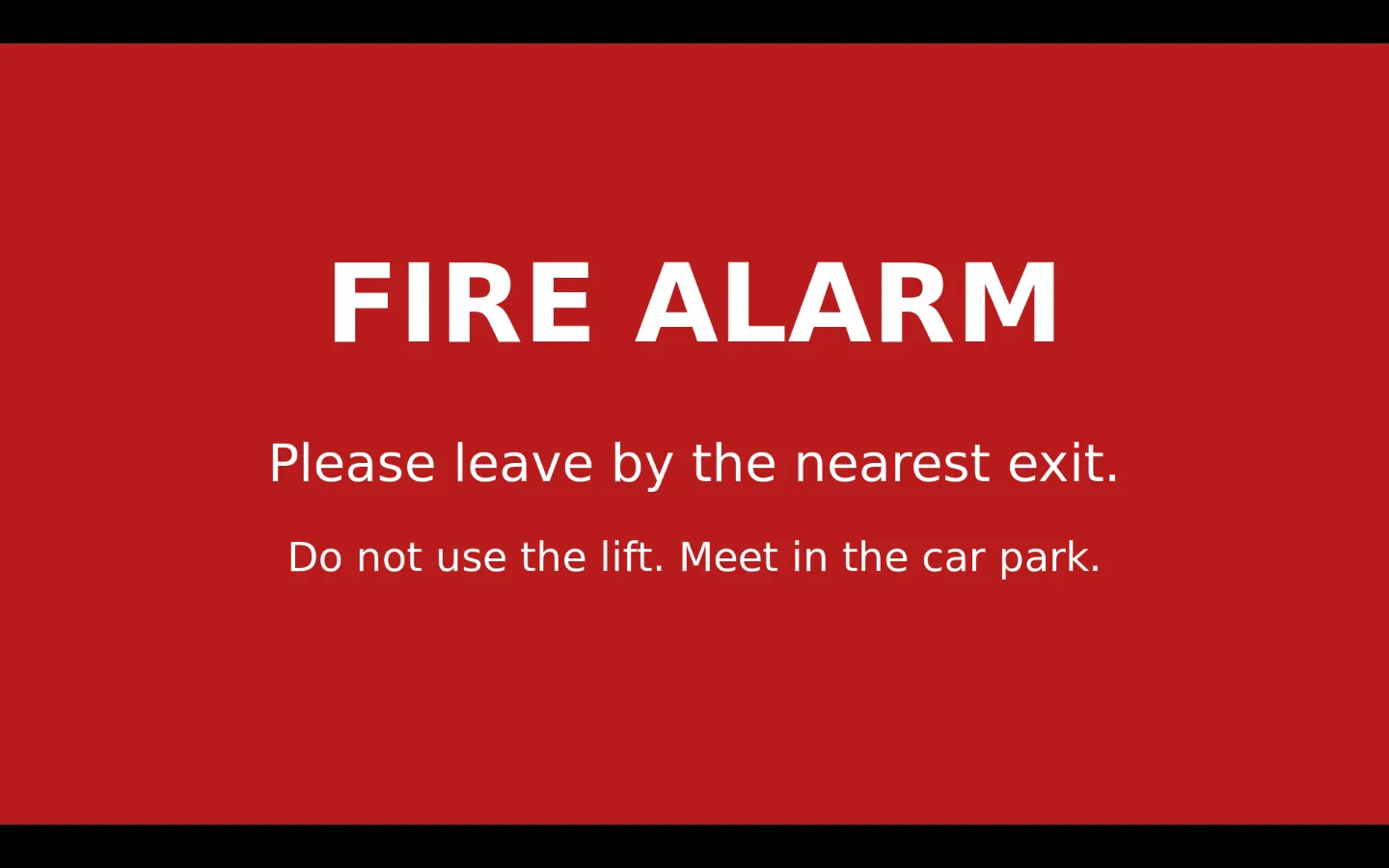
A trigger always fills the whole screen. Once the screen reports how its listening is going, a Triggers box appears under the listener settings. It counts what arrived and says in plain words what is wrong: if messages are reaching the screen but being refused, check the token and the secret; if nothing has arrived, the problem is the network between the sender and the screen.
Your server can also take the messages for screens that can't listen themselves, such as a browser tab, or for sites where the sender can reach the server but not each screen. Start the server with TRIGGER_INGRESS=1. The sender then uses the server's address: http://<server>/api/trigger?secret=<secret>&token=FIRE_ALARM, or UDP to port 7847 (change it with TRIGGER_INGRESS_UDP_PORT). The server finds the screen by its secret and passes the message on; the screen still decides. Because the message goes through the server, the screen must be online, and the screen still needs Accept HTTP or Accept UDP ticked and a shared secret. It is off unless you set it.
If your organization uses head office (corporate) playlists, head office's emergency alerts that reach your screens are listed on this page, read-only, with their codes hidden. Only your organization's admins can change them, under Emergency alerts.
FAQ
Does a trigger work if the internet is down?
Yes, if the sender can still reach the screen on your local network. The screen already holds the trigger and its playlist, so it needs nothing from ScreenTinker to show it. Make your changes while the screens are online, so they have the latest version.
Can I fire a trigger from the dashboard?
Not from the Triggers page: it only sets triggers up. The message has to come from a sender on the screen's network.
I sent the token but nothing happened.
Check, in order: the trigger is ticked for that screen and Enabled; the screen has Accept HTTP or Accept UDP ticked for the kind of message you sent, and the trigger has the same box ticked; the screen has a Shared secret and the sender uses it exactly; the token matches, capitals included. Then look at the Triggers box on the screen's Device Info tab: it says whether messages arrive and are refused, or don't arrive at all.
Try it on your own screens
Start a 14-day Pro trial on hosted ScreenTinker: up to 15 screens, every feature, no credit card.
Or host it yourself, free and open source: self-hosting guide · GitHub