Digital signage templates: fill in a form
A template is a ready-made screen: a café menu board, a guest Wi-Fi sign with a QR code, opening hours with "Open now", a happy hour offer. You fill in a short form with your own words, prices and colours, watch the preview change as you type, and get a widget you can put in any playlist.
This guide covers the Templates page: using a template, putting the result on a screen, and, for whoever runs the server, installing more templates from the library.
Before you start
- Templates is in Advanced view. It sits under Create in the sidebar, and new accounts start in Simple view. Switch with the Simple / Advanced buttons at the top of the menu. In Simple view, the Make a sign task shows the same templates under Community templates.
- Anyone who can edit the workspace can use a template. Members with view-only access can look, but cannot create a widget.
- Installing is a server administrator's job. A template installed on the server is available in every workspace on it. On screentinker.com that is done for you; on your own server it is you (see Install more templates).
The Templates page
Choose Templates in the sidebar. The page has two tabs:
- Installed: the templates you can use right now. Each card shows a picture, the version, a short description and two badges.
- Library: everything in the template catalog, installed or not. A number on the tab counts templates that are new or updated since you last looked.
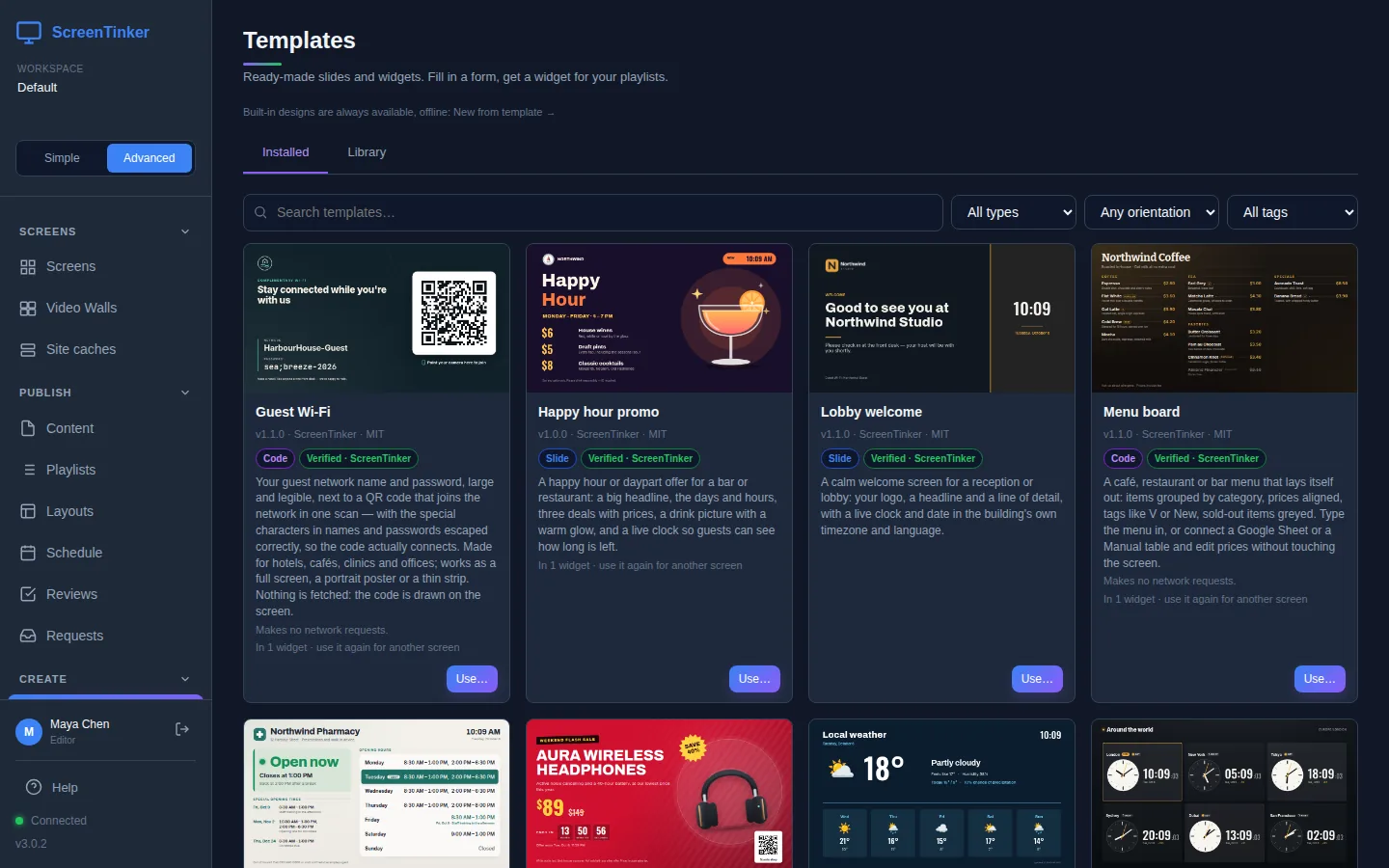
The two badges tell you what kind of template it is:
- Slide: a slide layout with spaces for your words and pictures. No code from the template's author runs anywhere.
- Code: the template brings its own small web page, which runs on your screens in a sandbox with no access to your dashboard. The card says Makes no network requests. or lists the sites it connects to.
- Verified · ScreenTinker means the template comes from a signed catalog this server trusts. Unverified import means someone imported it by hand and nobody has reviewed it.
There is also a line at the top, Built-in designs are always available, offline, with a New from template link. Those are the simpler sign designs built into ScreenTinker; this page is for the template library.
Use a template
- On the Installed tab, press Use… on the template you want.
- Change the Widget name if you like. This is the name you will see in your playlists, for example "Counter menu".
- Fill in the template's own fields. Every template has different ones: a title, menu items and prices, colours, a logo. Help text under a field explains it. For a picture, press Choose… to pick one from your content, Template image to go back to the template's own, or None.
- Watch the Preview on the right. It updates a moment after each change.
- Press Create widget.
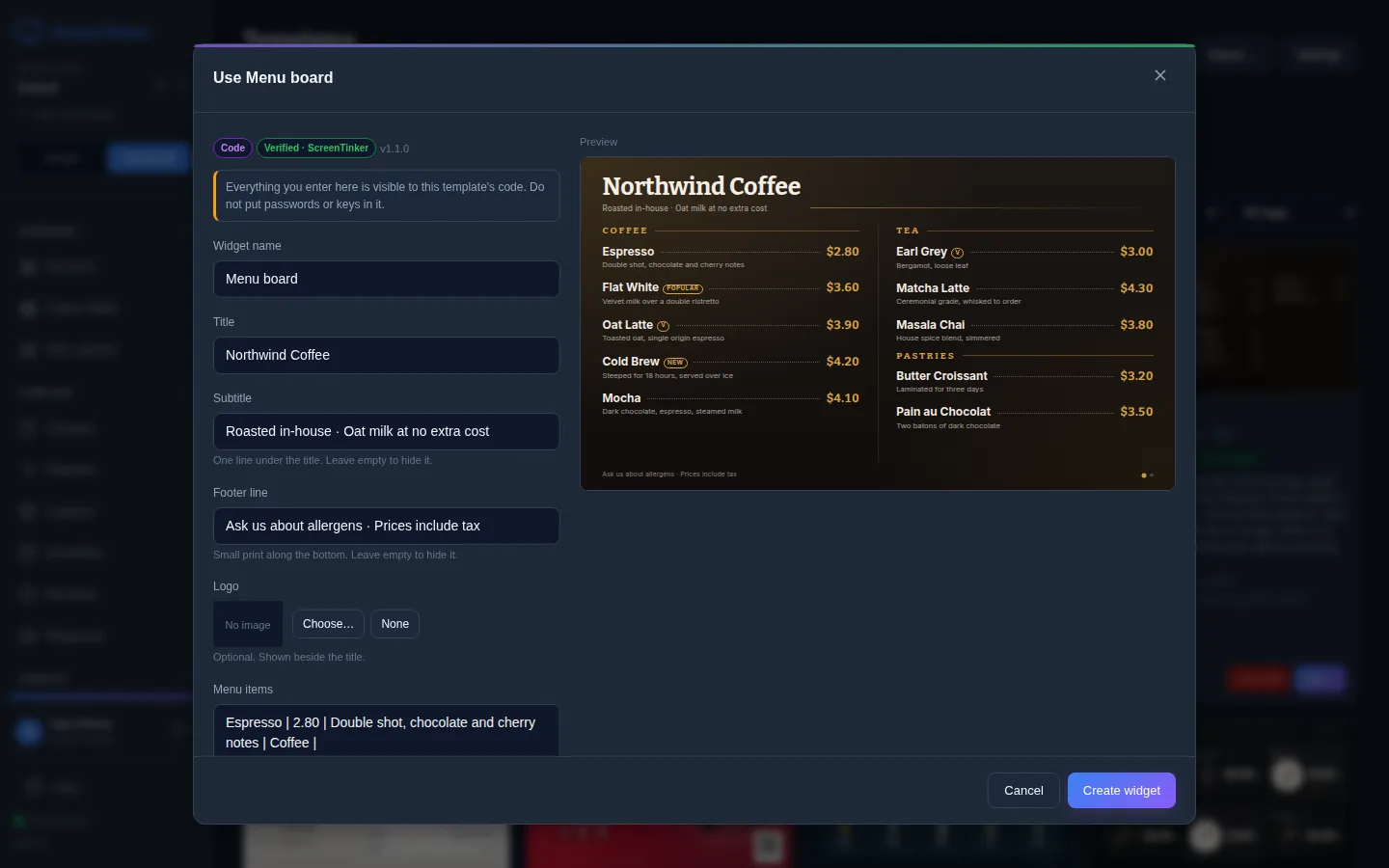
A code template can read everything you type into its form. The form says so: "Do not put passwords or keys in it." A guest Wi-Fi password you want guests to see is fine; an admin password is not.
Some templates show a time, a date or the weather. A time zone field set to The screen's own timezone follows each screen. A language field left empty uses the screen's language. A weather or menu template can read from a data source: if the field says This workspace has no data sources yet., make one under Data Sources first.
Put it on a screen
When the widget is created, the form tells you so and offers to add it to a playlist straight away:
- Pick a playlist under Choose a playlist….
- Press Add to playlist. The message says "Screens show it once you publish the playlist."
- Press Open playlist, check where the widget sits, and press Publish.
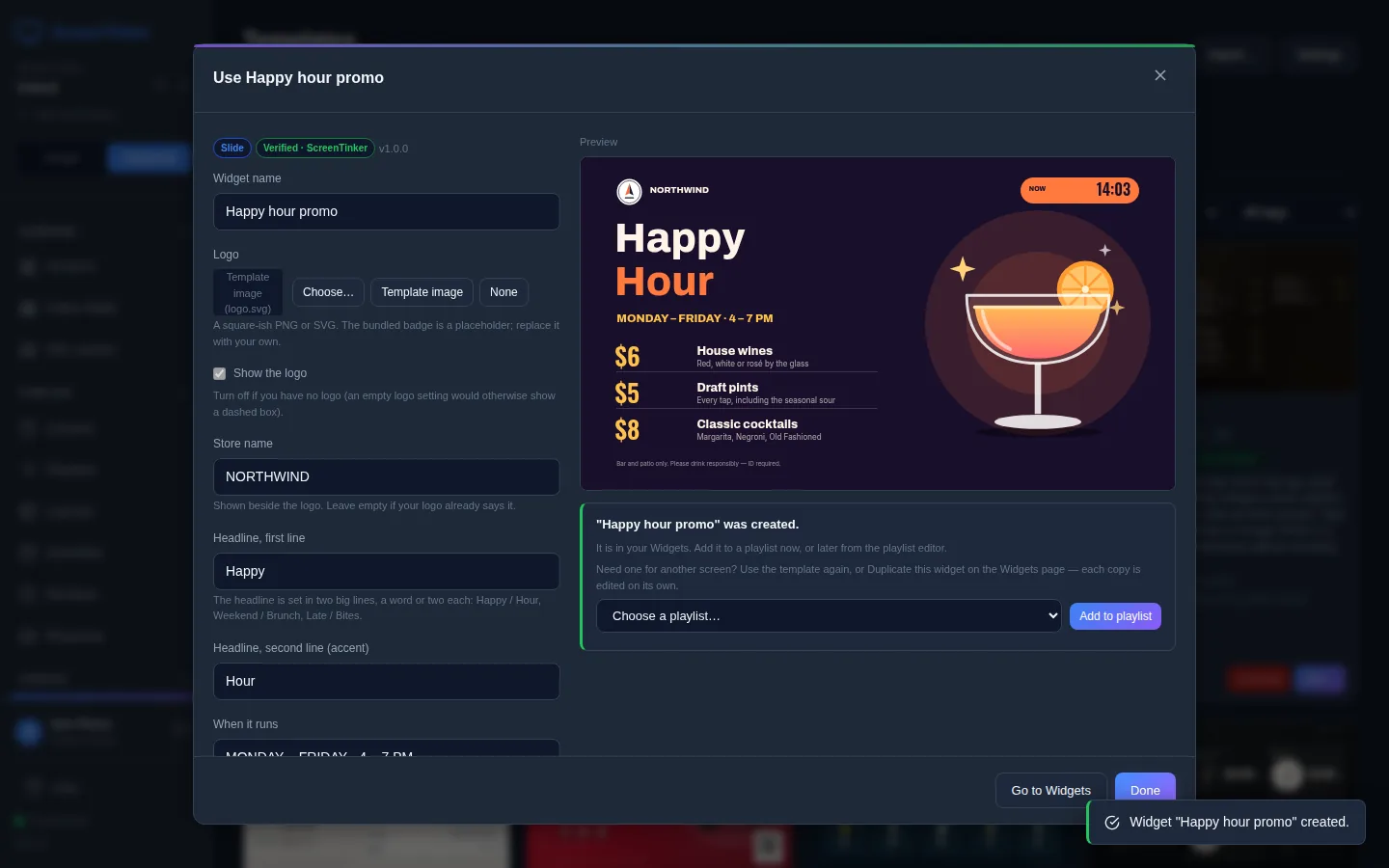
Adding the widget changes the playlist's draft. Screens keep showing the published playlist until you press Publish.
You can also skip this step, press Done, and add the widget later from the playlist editor, like any other widget.
Change it later, or make another
- To change the words or prices, open Widgets in the sidebar and press Edit on the widget. The same form opens, with your values and the preview. Press Save.
- To make another one, for a second screen or a different offer, press Use… on the template again, or duplicate the widget on the Widgets page. Each copy is edited on its own. The card on the Installed tab counts them, for example "In 2 widgets".
Install more templates
Only a server administrator can install, update or remove templates, because an installed template is available to every workspace on the server. For everyone else, the Library tab is a catalog to browse: if you find one you need, ask whoever runs your server.
An administrator sees extra controls: Import… and Settings at the top, Uninstall on each installed card, and on the Library tab an Install button and a tick box on each template you can install.
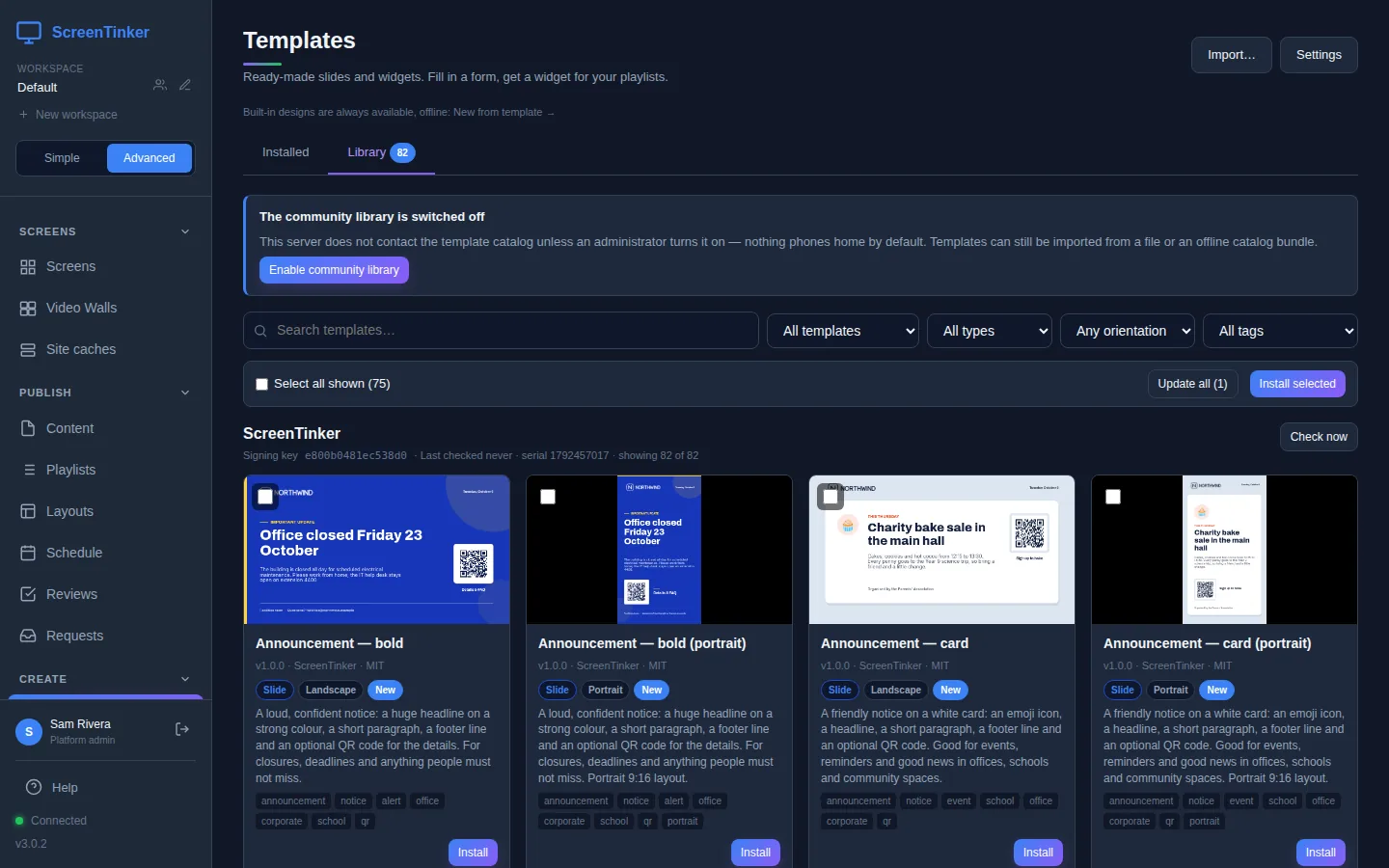
- Open the Library tab. Search or filter: by status, by type (Slide or Code), by Landscape or Portrait, or by tag.
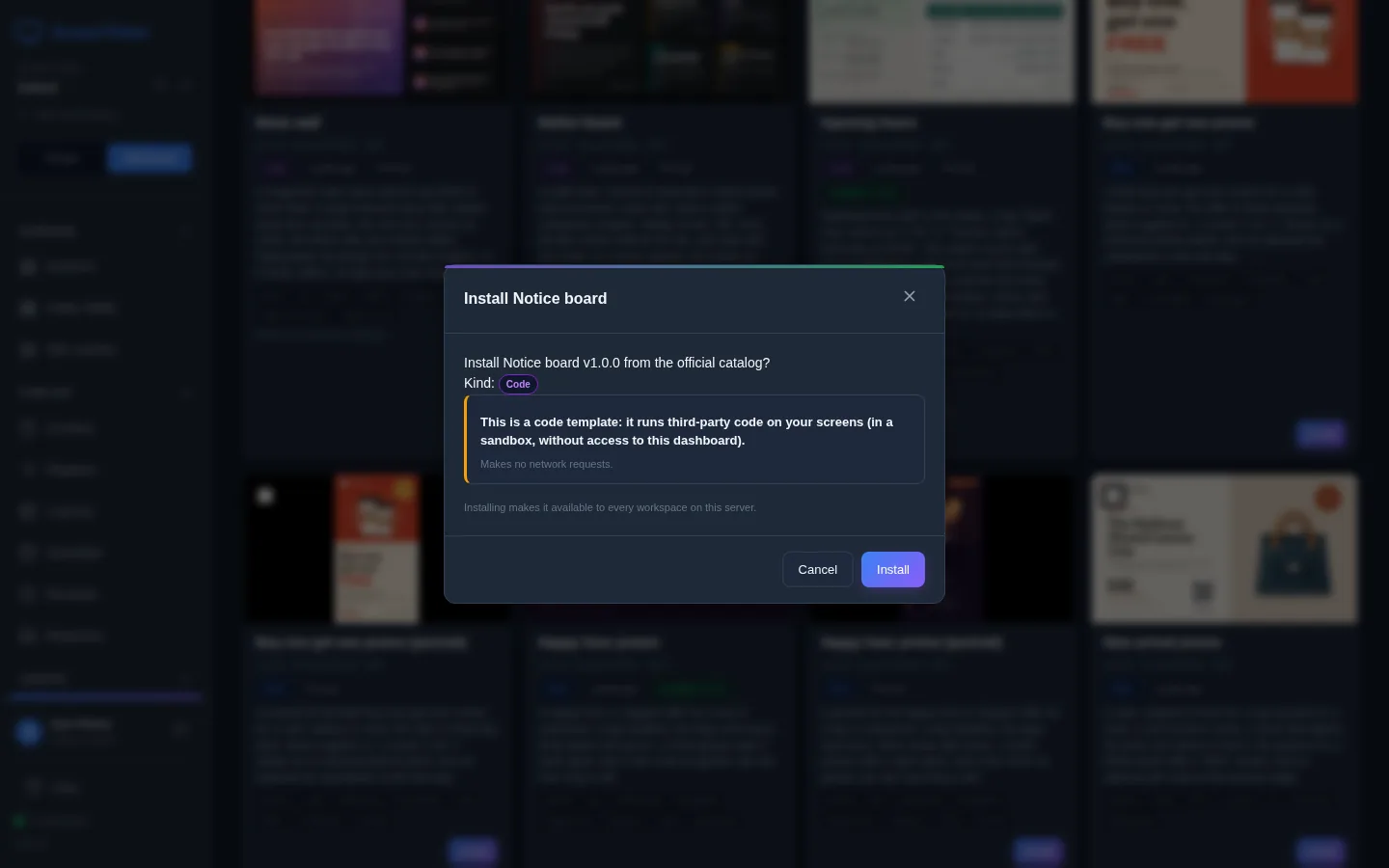
- Press Install on a template. The window names the version and the catalog, and for a code template says which sites it may contact.
- Press Install again to confirm. The template appears on the Installed tab.
To install several at once, tick them and press Install selected. When the catalog has a newer version of an installed template, its card says Update available; press Update, or Update all for every one. Updates are never installed by themselves. Widgets made from the template keep their values after an update.
Uninstall removes a template from the server. It is refused while any widget still uses it: the window lists those widgets, in every workspace, so you can delete or change them first.
The first account on a new server is its administrator, so you can install. Your server does not contact the template catalog until you allow it: the Library tab says "The community library is switched off". Press Enable community library, or tick Community library (fetch the template catalogs) in Settings. The server then downloads the signed catalog when it starts and once a day, and Check now fetches it at once.
A server with no internet access can still use the library. Download the offline catalog bundle (a .zip) on another computer, press Import…, tick This is an offline catalog bundle and choose the file. The templates then appear on the Library tab, ready to install. Import a newer bundle to get updates. Import… also takes a single .sttemplate file.
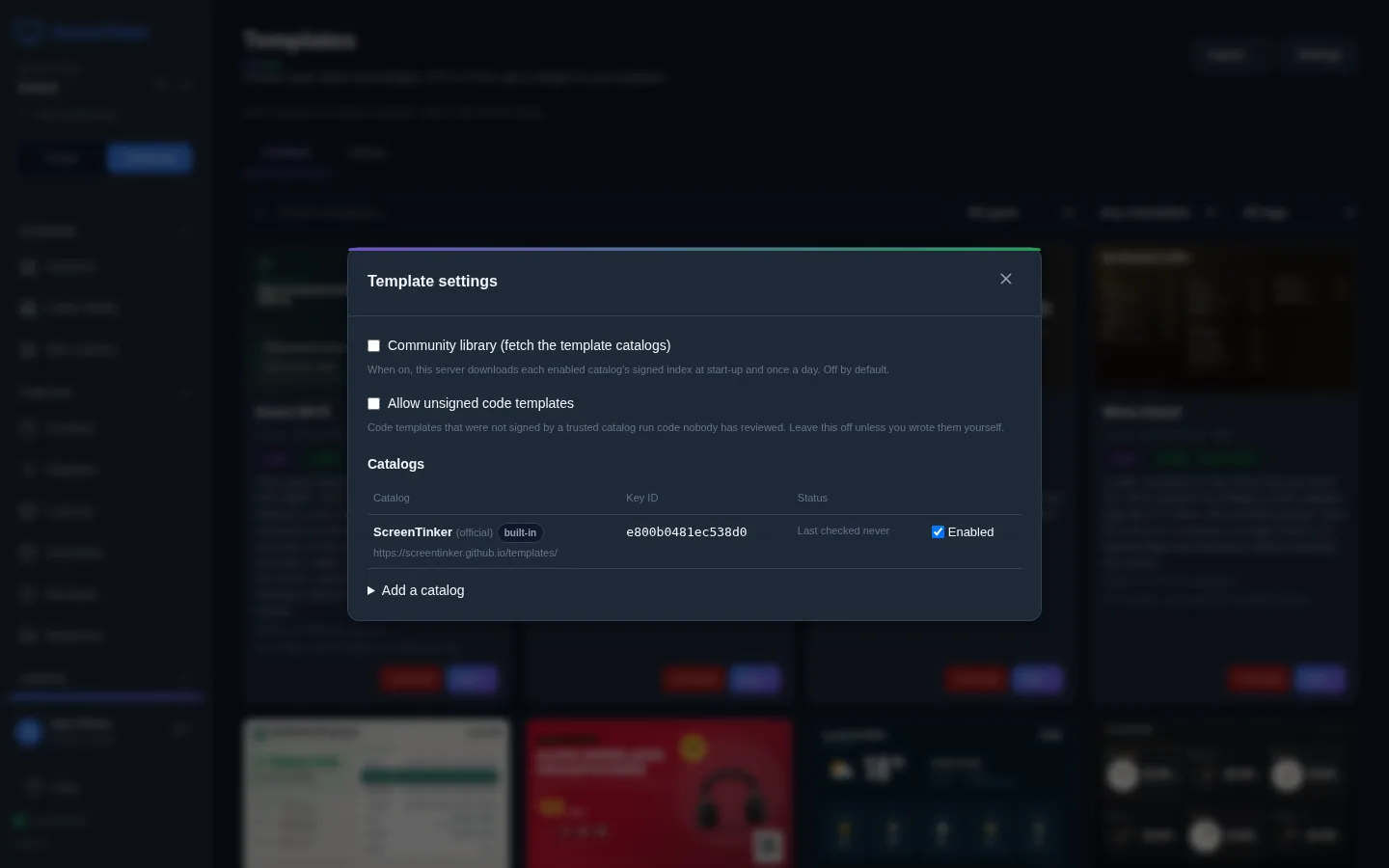
Two more settings are for special cases. Allow unsigned code templates lets you import code templates nobody has signed; leave it off unless you wrote them yourself (you must type a sentence to turn it on). Add a catalog adds a second, signed catalog, such as your company's own; only add a key from someone you trust.
FAQ
Why don't I see Install or Settings?
Only a server administrator does. On screentinker.com, use the templates on the Installed tab. On your own server, sign in with the administrator account.
A card says "Withdrawn by its catalog — no longer usable". What now?
The catalog has pulled that version, for example because it was broken. Its widgets show a black screen until an administrator installs a newer version from the Library, or you change those widgets to something else.
Do templates work when a screen is offline?
Yes. A template becomes an ordinary widget in a playlist, so screens keep showing it like the rest of the playlist.
Try it on your own screens
Start a 14-day Pro trial on hosted ScreenTinker: up to 15 screens, every feature, no credit card.
Or host it yourself, free and open source: self-hosting guide · GitHub