Social media feeds on your screens
A social wall shows what people post about you: your own Instagram posts, a hashtag your customers use, the latest videos from your YouTube channel. In ScreenTinker you collect those posts in a social feed, check them if you want to, and show them on your screens with a Social wall widget.
This guide covers which networks need what, how to create a feed, how to approve or hide posts before they reach a screen, and how to put the wall on a screen. It works with Instagram, Facebook Pages, YouTube, X, Bluesky and Mastodon.
Before you start
- Social feeds is in Advanced view. New accounts start in Simple view. Switch with the Simple / Advanced buttons at the top of the menu. Social feeds is under Create in the sidebar.
- You need to be an Editor or an Admin of the workspace to create feeds and approve posts. A Viewer can open the page and look at the posts, but can't change anything.
- Bluesky and Mastodon need no setup. Instagram, Facebook, YouTube and X need a connection first (next section).
Connections: which networks need what
Instagram, Facebook, YouTube and X only let an app read posts with a key or a token. That access belongs to your organization, so an organization owner or admin adds it once in Settings → Social connections. Everyone in your workspaces can then pick it when they build a feed, but nobody can see the token again.

- In Settings, find Social connections and open Add a connection.
- Choose the Network and give the connection a Name.
- Paste what that network needs:
- Instagram: a professional (business or creator) account, through your own Meta app. Choose the Instagram API: Instagram Login (own posts), or Facebook Login (own posts and hashtags) plus the Instagram account id. Then the Long-lived access token.
- Facebook Page: the Page id and a Page access token.
- YouTube: an API key for the YouTube Data API v3 from Google Cloud.
- X (Twitter): your own Bearer token. X charges for API access, so check your plan's read limits.
- Press Add connection, then Test on its row.
To replace a token later, choose Edit and paste the new one. Leave the field empty to keep the stored one. Instagram Login tokens renew by themselves before they expire.
Create a feed
Open Social feeds in the sidebar. Each feed is a card that lists its sources and how many posts are shown, waiting or hidden.
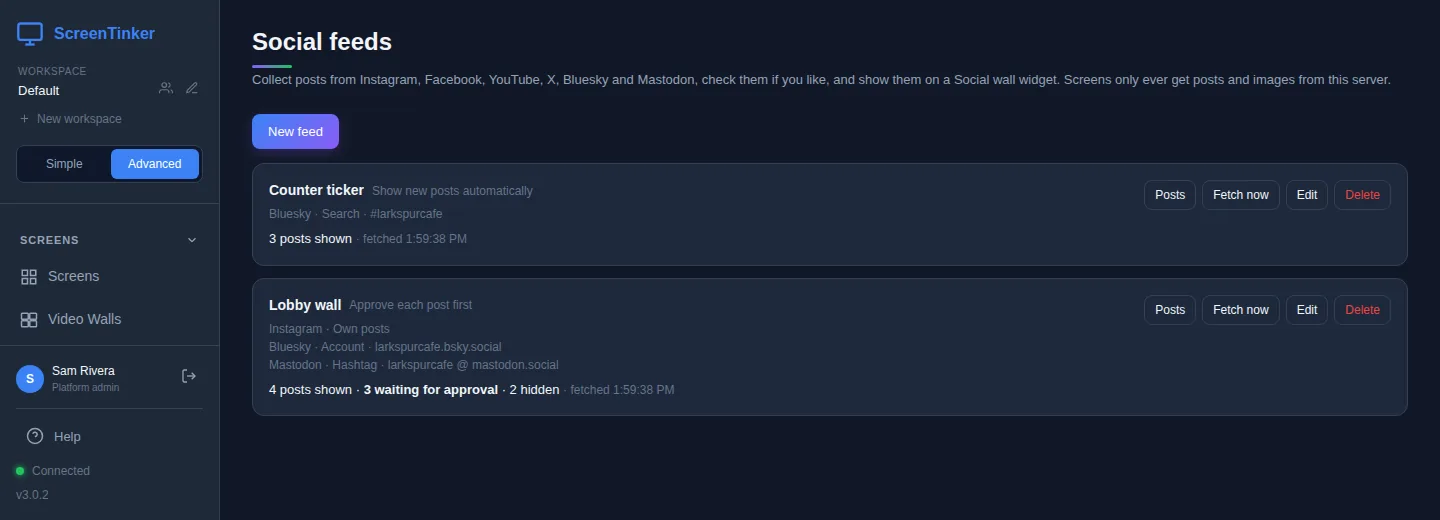
- Press New feed and give it a Name, such as "Lobby wall".
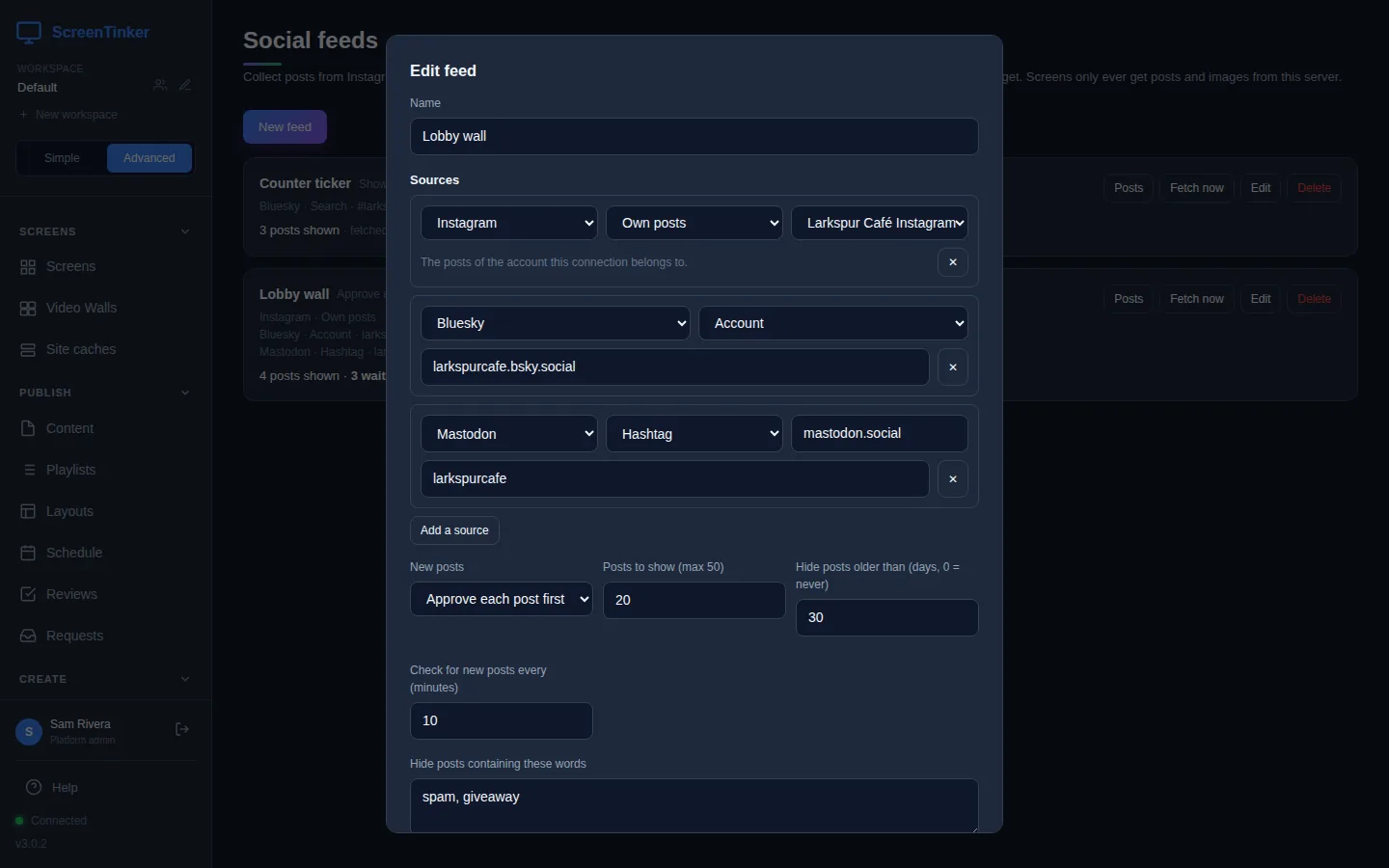
- Under Sources, pick a network, then what to read from it, then type the account, hashtag or channel. Use Add a source for more, up to 10. The choices are:
- Instagram: Own posts or Hashtag (hashtags need a Facebook Login connection).
- Facebook Page: Page posts. Leave the box empty to read the connection's own Page.
- YouTube: Channel (its @handle) or Playlist.
- X (Twitter), Bluesky: Account or Search.
- Mastodon: Account or Hashtag, plus the server, for example mastodon.social.
- New posts: Show new posts automatically, or Approve each post first if nothing should reach a screen before someone has looked at it.
- Set the limits: Posts to show (max 50), Hide posts older than (days, 0 = never) and Check for new posts every (minutes), from 5 minutes to 1,440 (a day). The default is every 10 minutes.
- Optional filters: Hide posts containing these words (separate them with commas) and Only show posts with a picture.
- Press Save. ScreenTinker fetches the feed straight away.
On the card, Fetch now checks for new posts straight away instead of waiting. If a source fails, its error shows in red on the card and the other sources keep working. Edit also has Keep this feed updated: untick it to pause the feed.
Bluesky's public service sometimes asks for a sign-in before it allows a search. Then a Bluesky Search source shows "Bluesky only lets signed-in apps search posts, so this search cannot be read." on the card. Use Account sources instead. Some Mastodon servers also turn off public hashtag pages; follow an account on a server that allows it.
Approve and hide posts
Press Posts on a feed card. The posts open under the card in three tabs: Waiting, Shown and Hidden, each with a count.
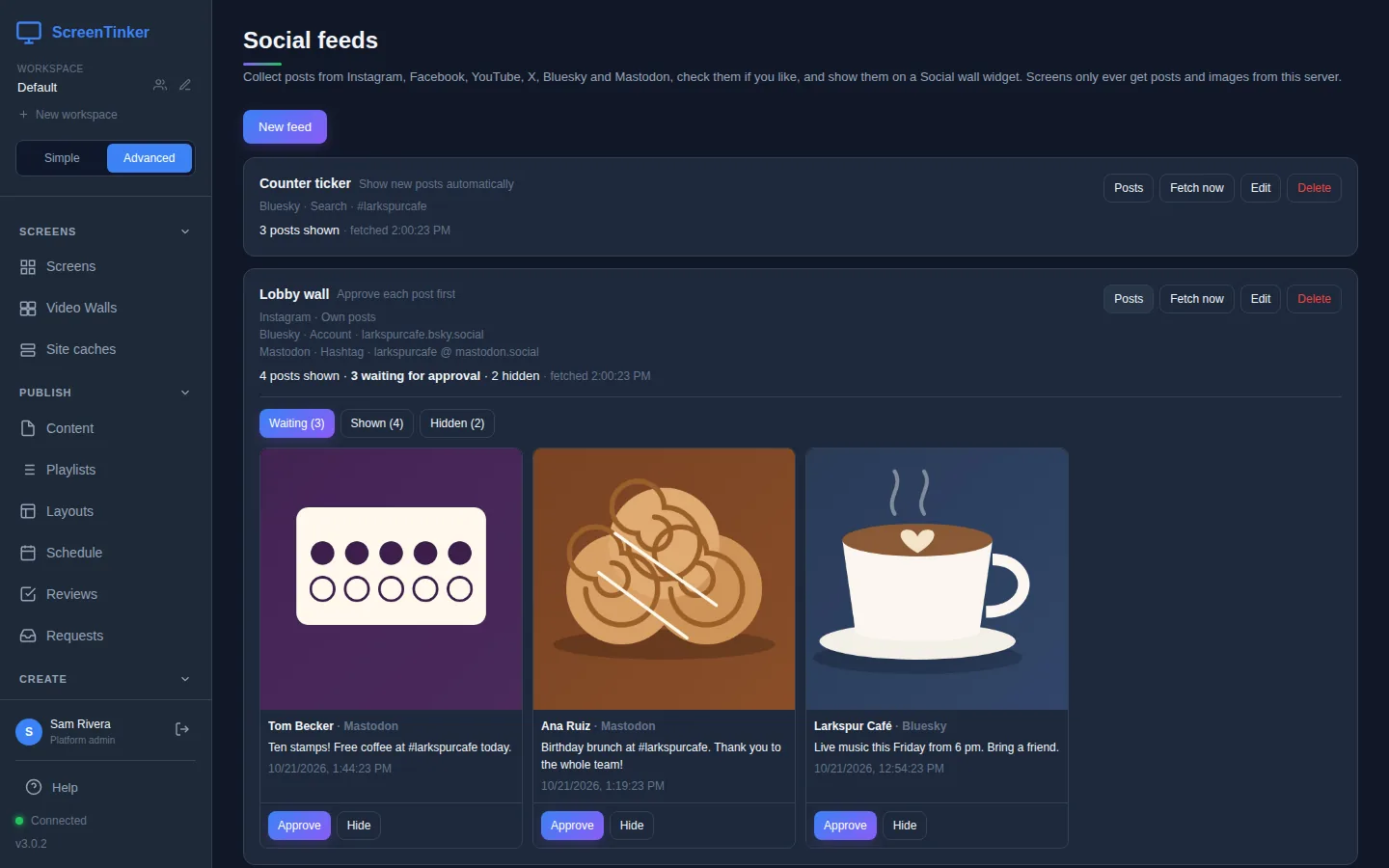
- Approve puts a waiting post on the wall. Hide takes a post off, or stops it ever appearing.
- A hidden post stays hidden. Fetching again never brings it back. Only Show again, on the Hidden tab, does.
- Edited posts come back for review. On a feed that approves each post, a post whose author changes its text or pictures goes back to Waiting.
- Deleted posts go. When the author deletes a post or makes it private, it leaves the wall on the next fetch.
- Blocked words also check the author's name and handle, ignore upper and lower case, and match whole words, so "roast" also catches #roast but not "roasted". A blocked post is hidden as soon as it arrives, and its text isn't kept: the Hidden tab says "(hidden by the blocklist — its text was not kept)".
Reposts and replies are always left out. So are Mastodon posts with a content warning or marked sensitive.
Show the feed on a screen
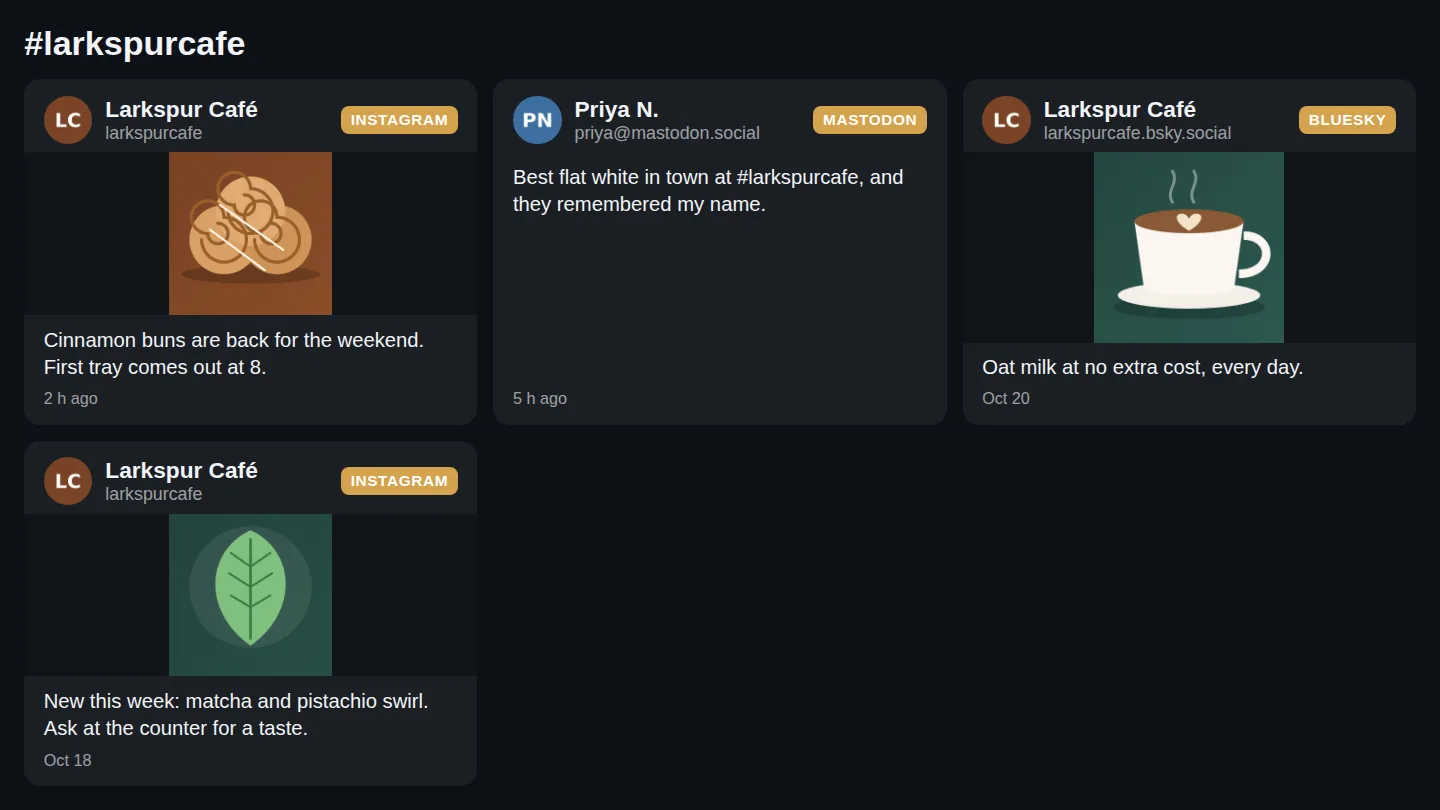
A feed on its own shows nothing. To put it on a screen, make a Social wall widget:
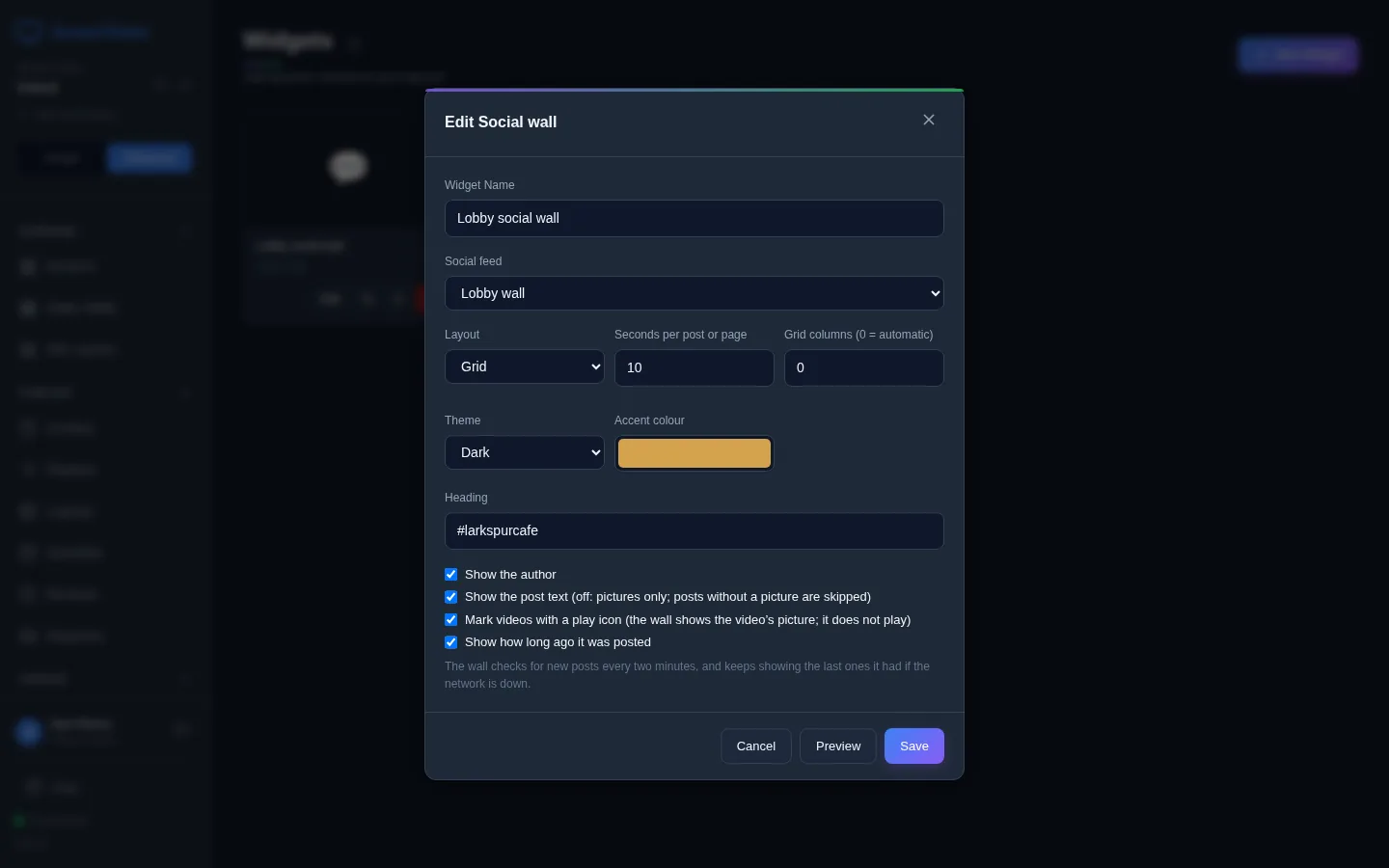
- Open Widgets in the sidebar, press New Widget and choose Social wall.
- Pick the Social feed.
- Choose a Layout: One post at a time (large, good on a portrait lobby screen), Grid (a page of cards that rotates) or Ticker (one scrolling line, for a strip zone).
- Set Seconds per post or page, the Theme, an Accent colour and an optional Heading, such as your hashtag. The tick boxes choose whether to show the author, the post text and how long ago it was posted.
- Press Save, then add the widget to a playlist or to a zone of a layout like any other widget, and publish the playlist.
Learn more about widgets, playlists and zones in Widgets, layouts and transitions.
How often the wall changes
- ScreenTinker checks each feed on its own schedule (every 10 minutes unless you change it). If every source fails, it waits longer between tries and keeps what it had.
- A screen asks for the wall's posts every two minutes. A post you approve or hide shows up, or goes, on that next check.
- Screens never talk to a social network. Your ScreenTinker server fetches the posts and keeps its own copy of the pictures. If the internet drops, a wall that is already showing keeps its last posts.
- A wall never plays videos. YouTube videos show as a picture with their title. To play a video, add it to a playlist as its own item.
Your server does the fetching, so it needs to reach the networks over the internet (HTTPS), plus the sites they keep pictures on. It refuses addresses on your own network, so it can't read a Mastodon server that only runs on your local network. The pictures are kept in your data folder. Tokens are encrypted with a key made from your server's JWT_SECRET: if you change that secret, paste every connection's token again.
FAQ
The wall says "No posts to show yet."
Nothing is approved yet, or your filters hide everything. Open Posts on the feed and look under Waiting, then check Hide posts older than and Only show posts with a picture in Edit.
I can't find Social connections in Settings.
Only an organization owner or admin sees it. Ask them to add the connection; you can then choose it in your feed.
Can I show LinkedIn, TikTok or Threads posts?
No. The networks you can use are Instagram, Facebook Pages, YouTube, X, Bluesky and Mastodon. Facebook groups and personal profiles aren't available either.
Does hiding a post delete it from Instagram or Mastodon?
No. Hiding only keeps it off your screens. The post stays on the network.
Try it on your own screens
Start a 14-day Pro trial on hosted ScreenTinker: up to 15 screens, every feature, no credit card.
Or host it yourself, free and open source: self-hosting guide · GitHub