Making slides for your screens
You don't need a design program to put a special offer on your screens. The Slides page lets you build a deck of slides yourself: a headline, a price, a photo, a clock or a QR code, each one sliding or fading in. When you publish the deck, it becomes a playlist that any screen can play.
This guide covers making a deck, adding and arranging things on a slide, how long each slide stays up, and the difference between Save and Publish. If you would rather start from a finished design, New from template at the top of the page opens ready-made signs (specials, opening hours, a sale) that come back here as an ordinary deck.
Before you start
- Slides is in Advanced view. New accounts start in Simple view, which has no sidebar. Switch with the Simple / Advanced buttons at the top of the menu.
- Upload your photos first. A slide picks its photos from your Content library; it does not upload them itself.
- Who can edit. Anyone in the workspace can open a deck. A member with the Viewer role can look but cannot save, publish or delete.
The Slides page
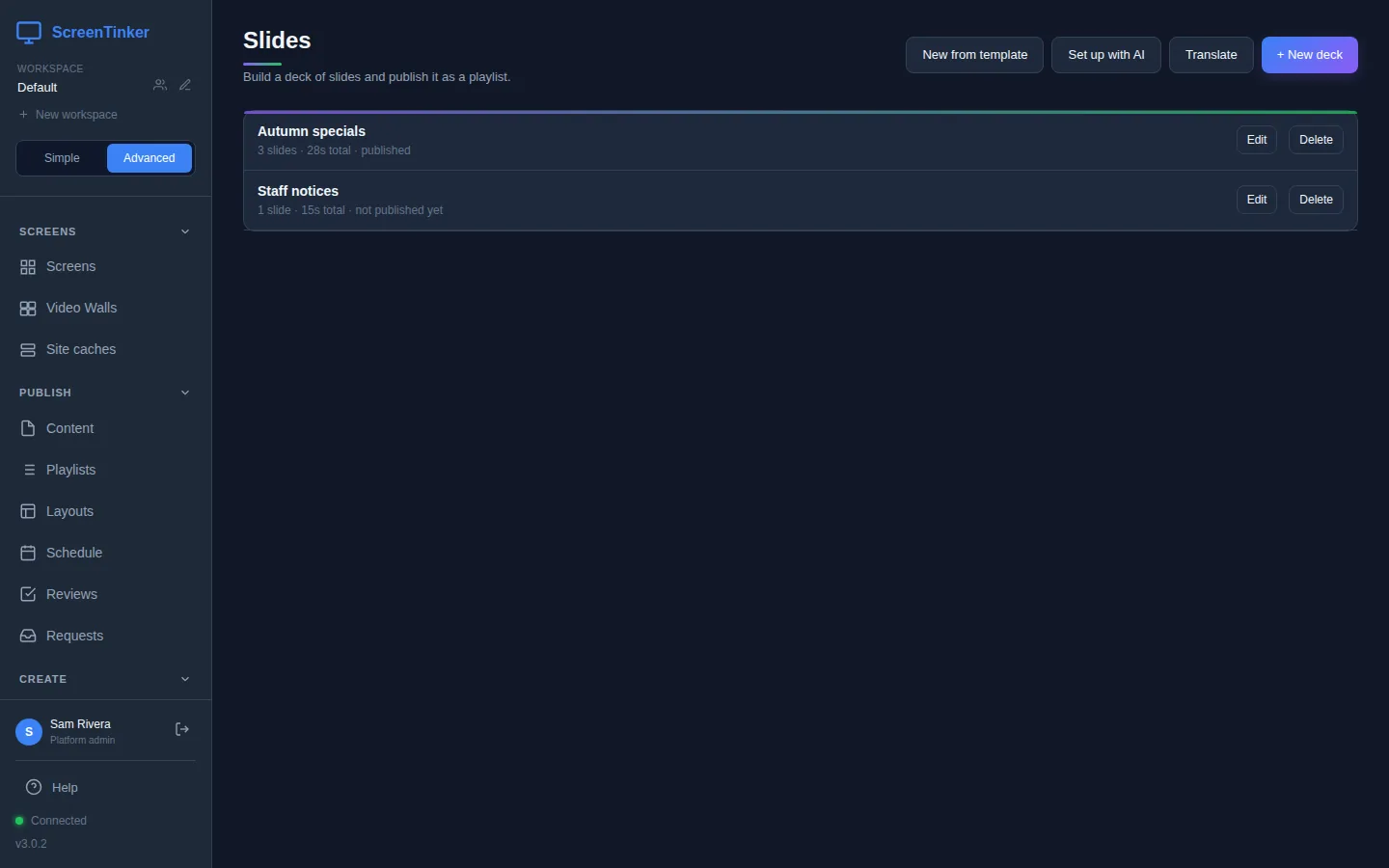
Choose Slides under Create in the sidebar. You see your decks, newest change first. Each line says how many slides the deck has, how long it runs in total, and whether it is published or not published yet.
Create a deck
- Press + New deck.
- Type a Deck Name. This also becomes the name of the playlist when you publish.
- Under Choose Template, pick Blank Slide Deck. It starts with one title slide in the 16:9 shape of a normal TV.
- Press Create Deck. The editor opens.
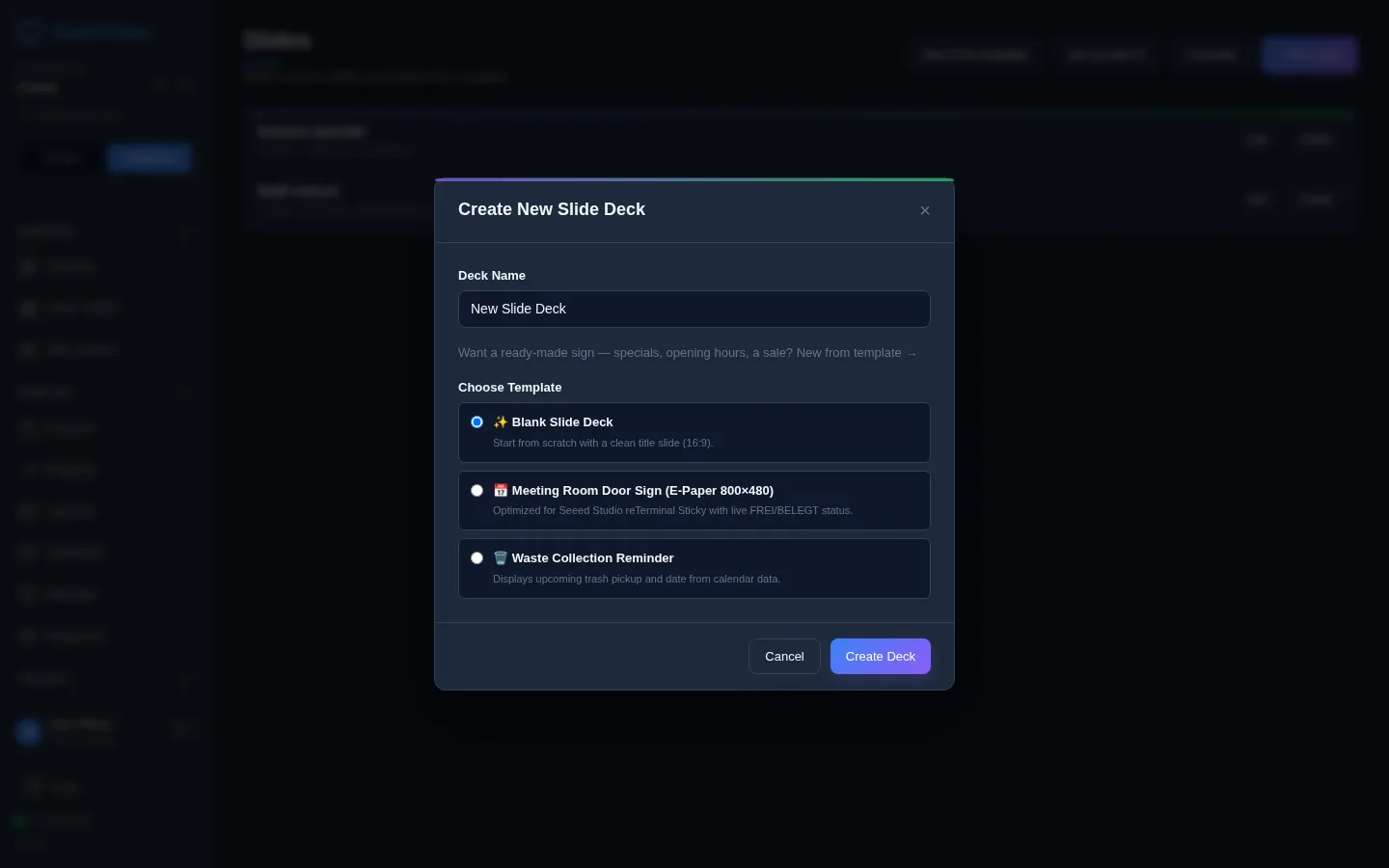
The other two templates are for special hardware: Meeting Room Door Sign is a small e-paper door sign that shows whether a room is free, and Waste Collection Reminder shows the next bin day. If you have a calendar data source, both fill their text from it. Without one, they start with sample text in your dashboard's language that you replace.
Build a slide
The editor has four parts. Along the top is the filmstrip, one thumbnail per slide. On the left is a column of buttons that add things to the slide. In the middle is the slide itself. On the right are four tabs, Content, Style, Motion and Slide, with a list of everything on the slide above them.

- Add something with the buttons on the left. Hold the pointer over one to see what it is: Headline, Text, Big number (for a price), Photo, Rule (a line), Panel (a coloured box), Clock, Date, Countdown and QR code. A slide holds up to 40 of them.
- Change the words. Double-click a headline, text or big number on the slide and type. Enter keeps it, Esc cancels. You can also type in the Content tab.
- Move and resize. Drag a thing to move it and drag its handles to resize it. Drag across an empty part of the slide to pick several at once. The Arrange bar above the slide has Undo, Redo, layer order, align and Duplicate; right-click on the slide for the same.
- Choose a photo: select a photo box and pick the picture in the Content tab. Fit decides whether it fills the box (and is cropped) or fits inside it.
- Set the look in the Style tab: position and size, font, text size, weight, alignment, colour and opacity. Sizes follow the screen, so a slide looks the same on a small TV and a 4K one.
- Add the next slide with + Add slide in the filmstrip. Click a thumbnail to work on that slide; double-click it to rename it.
A clock or date follows each screen's own time zone and language unless you fill in Time zone. A countdown needs the moment it counts to, and what it should say afterwards in Then shows, so the slide still makes sense the day after. A QR code holds a web address; keep it on a light background or phones may not read it.
How long a slide stays up, and its background
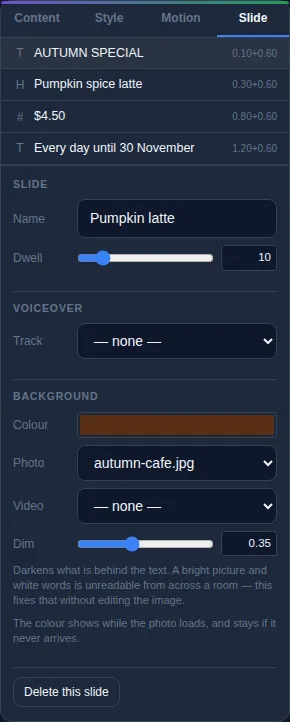
Open the Slide tab. Dwell is how many seconds the slide stays on screen before the next one. Under Background you can set a Colour, a Photo or a Video. When there is a picture behind the words, Dim darkens it so the text can be read from across the room.
The Shape list above the slide sets the shape you design on: Landscape 16:9 for most TVs, Portrait 9:16 for a screen on its side, and others. Pick the shape of the screen the deck will play on. Music next to it plays one track under the whole deck.
Entrances
Each thing on a slide can arrive with an entrance: fade, slide in, rise, zoom and others. Select it and open the Motion tab. Choose the Effect, then Delay (when it starts) and Duration (how long it takes). Press ▶ Play entrance above the slide to watch them.
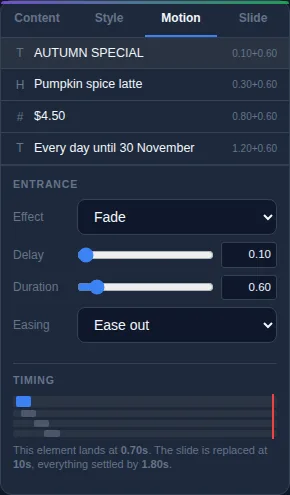
If an entrance finishes after the slide's dwell time, the text never fully appears on the screen. The editor warns you with Some motion never finishes. Raise the Dwell or shorten the delay.
Save, preview and publish
The three buttons at the top do different things:
- Save keeps your work. Nothing changes on your screens.
- Publish saves, then sends the deck to your screens. The first time, it makes a playlist with the deck's name (its description says "Published from a slide deck"), one item per slide, each shown for its dwell time. Publishing again updates the same playlist, and every screen playing it picks up the change.
- ▶ Preview opens the player in a new tab and plays the deck as a screen would. It plays the last published version, so publish first.
Publishing does not choose which screens show the deck. Find the new playlist in Playlists and put it on a screen or a group, add it to a schedule, or add it to another playlist, the same as any playlist.
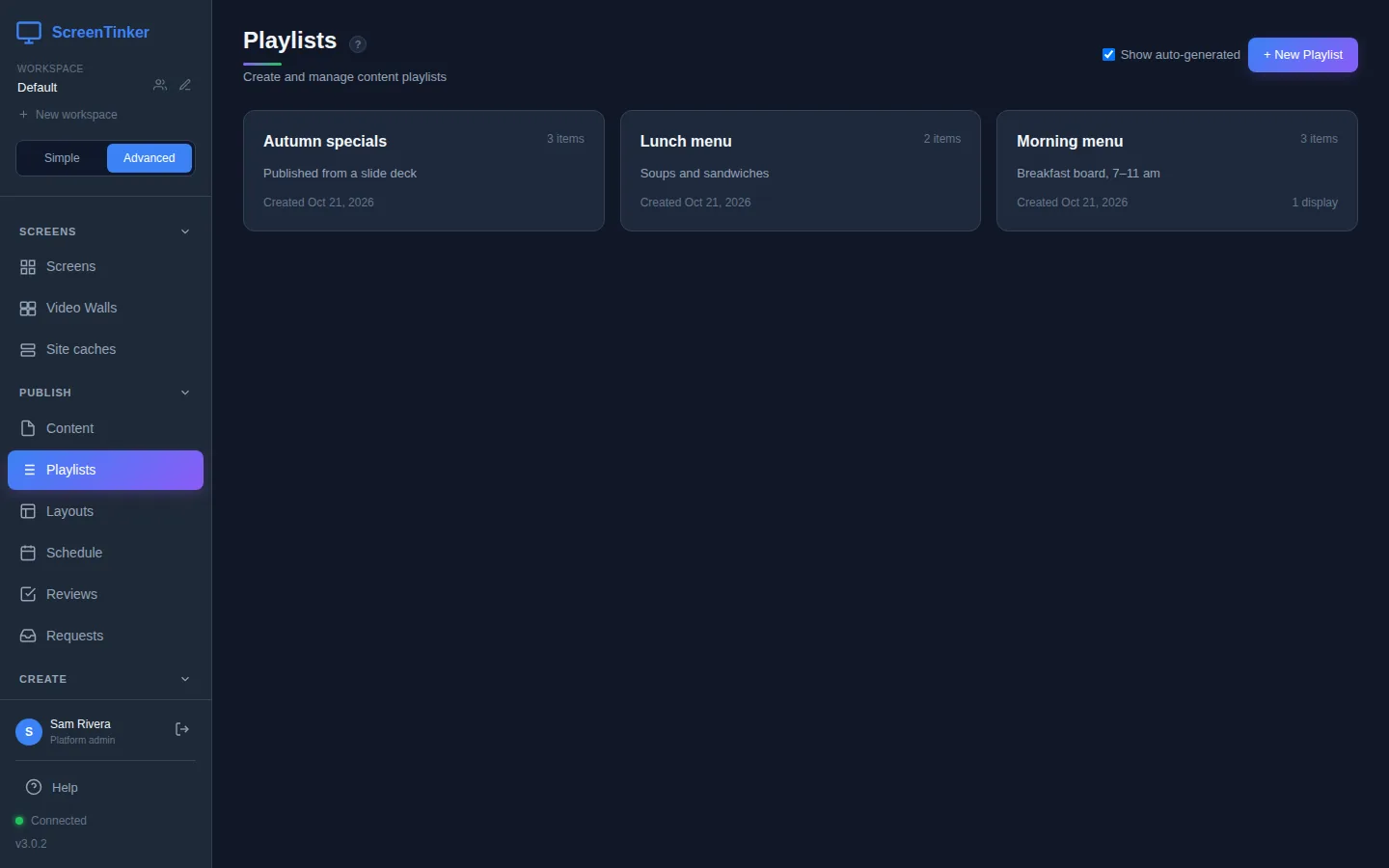
Make changes to the slides in the deck and publish again. Deleting a deck does not delete its playlist: screens that show it keep playing it until you take the playlist off them.
Before publishing, ScreenTinker may show Before you publish with things that could be hard to read, such as text with too little contrast. You can go back and fix them or choose Publish anyway. If your workspace uses content approval, the deck has a Submit for review button and goes to the screens once a reviewer approves it; see Users and roles.
Let A.I. draft a slide (optional)
Above the editor is a box where you can describe a slide, for example "autumn sale, 40% off, bold". Generate writes the whole current slide for you, words and layout; on a slide you have already worked on, it asks first, because it replaces everything there. Generate background makes only a background picture and keeps your words. Generate layers makes a background plus three separate pictures that each get an entrance. The result is not saved until you press Save, so look at it before you keep it.
These buttons need an A.I. service set up for your workspace. The gear button next to them opens AI settings. Without one, you see "AI is not configured. Set an endpoint and model in AI settings first."
The Slides page works the same. For the A.I. buttons, you point AI settings at your own A.I. service, which can run on your own network. Fonts you add with Upload a font… in the Style tab are stored on your server and sent from it to every screen that shows them. The ScreenTinker credits choice for A.I. pictures is only there if your server's operator has set it up.
FAQ
I changed a slide but the screen still shows the old one.
Press Publish. Save only keeps your work in the editor; screens get the deck when you publish it.
Preview shows an older version of my deck.
Preview plays what was last published, not what is on the canvas. Publish, then press ▶ Preview again.
I renamed my deck. Does its playlist get the new name?
Yes. When you rename a deck and save it, its playlist takes the new name too. The one exception is a playlist you renamed yourself in Playlists; it keeps the name you gave it.
Can one slide play only at lunchtime?
Yes. Each slide is an item in the deck's playlist, so you can give it its own days and hours in Playlists. See Scheduling.
Try it on your own screens
Start a 14-day Pro trial on hosted ScreenTinker: up to 15 screens, every feature, no credit card.
Or host it yourself, free and open source: self-hosting guide · GitHub