Tracked QR codes on your screens
A QR code on a screen is a quick way to send people to your menu, a sign-up form or a review page. A tracked QR code does two more things: it counts how many people scanned it, and you can change where it goes later without changing the code. The code on the screen, or on a printed sign, stays exactly the same.
This guide covers the QR codes page: making a tracked link, putting it on a slide or printing it, reading the scan counts, and switching a link off.
Before you start
- The page is in Advanced view. New accounts start in Simple view. Switch with the Simple / Advanced buttons at the top of the menu.
- Links belong to the workspace. Everyone in the workspace sees the same list. An Editor or Admin can make and change links. A Viewer can see them, their scans and their codes, but doesn't get the buttons to add, edit or delete links. See Users and roles.
- You need the address the code should open, for example your online menu. It must start with
https://orhttp://.
How a tracked link works
Choose QR codes in the Create part of the sidebar. Each tracked link has a short address made of your dashboard's address, /q/ and a 7-character code. The QR code holds that short address. When someone scans it, their phone goes to the short address first, the scan is counted, and the phone is sent on to the real page.
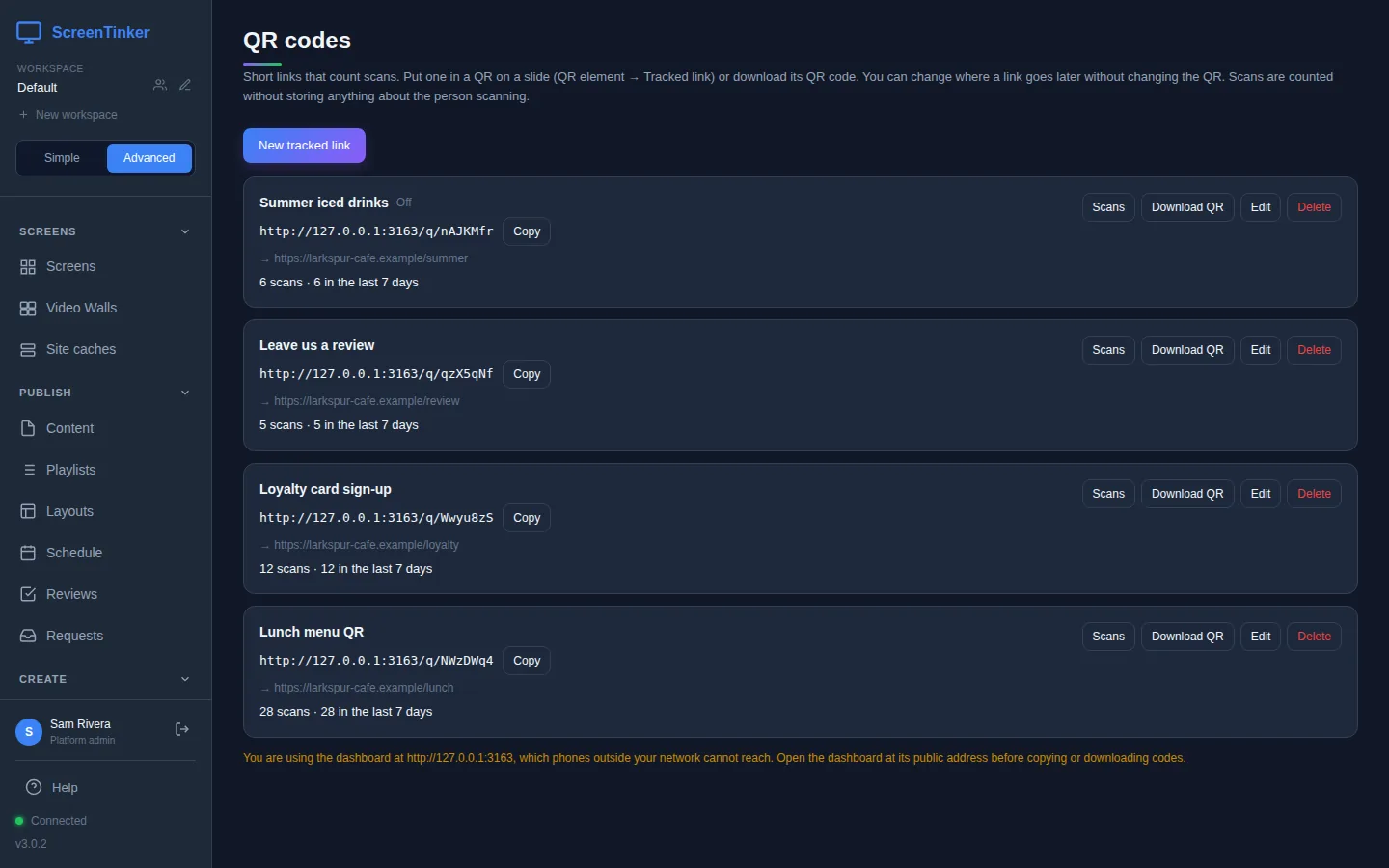
Because the code only holds the short address, you can point it somewhere else at any time. Print the lunch menu code once, and change the page behind it every season.
Make a tracked link
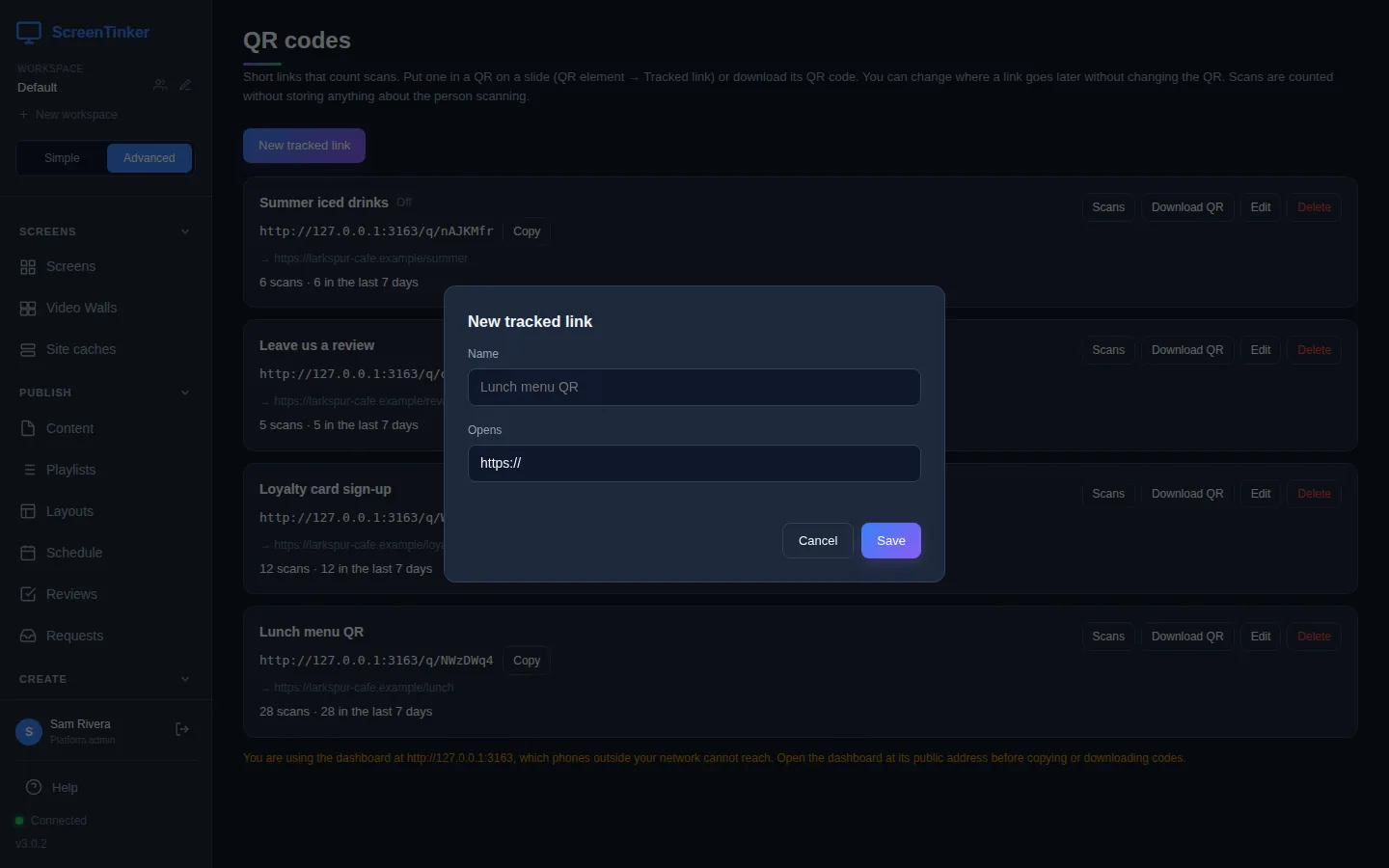
- Press New tracked link.
- Name: a name you will recognise, such as "Lunch menu QR". Only you and your team see it.
- Opens: the full address the code should open, starting with
https://. - Press Save. The link appears in the list with its short address.
Press Copy next to a short address to copy it, for example to paste into a social media post. Scans of the copied address are counted too.
Put the code on a screen or a sign
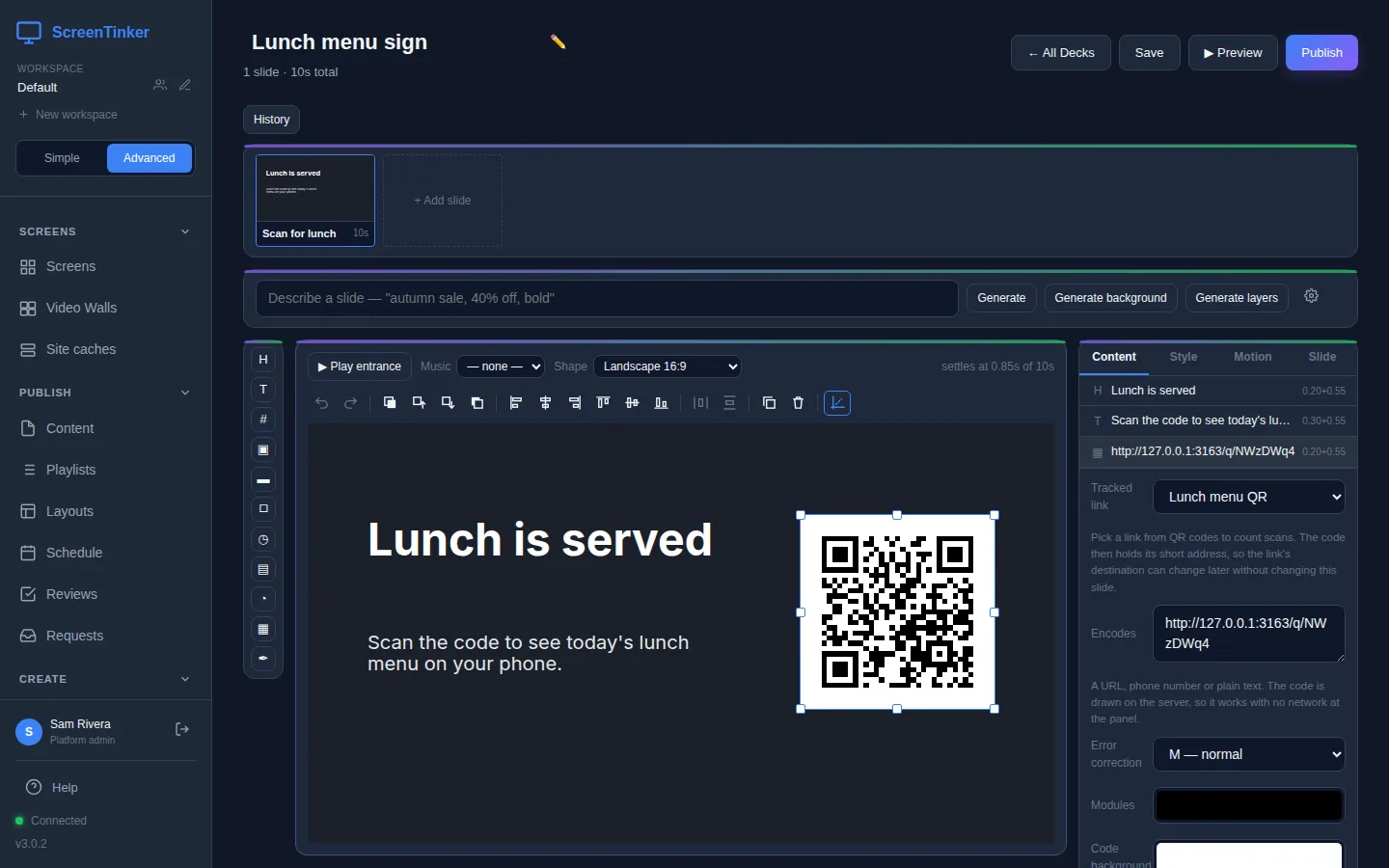
On a slide. In Slides, open your deck and add a QR code element from the toolbar on the left. Select it, and on the Content tab choose your link under Tracked link. The Encodes box fills in with the link's short address. Then press Publish on the deck: screens only get a deck once it is published.
On paper or anywhere else. Press Download QR. You get an SVG file, black on white, that you can print at any size or add to a poster, a table card or a flyer.
The short address uses the address you opened the dashboard at. Copy, download and pick links while you are on your normal dashboard address, not a test or local one, or the code will point to a place phones cannot open.
See how many people scanned
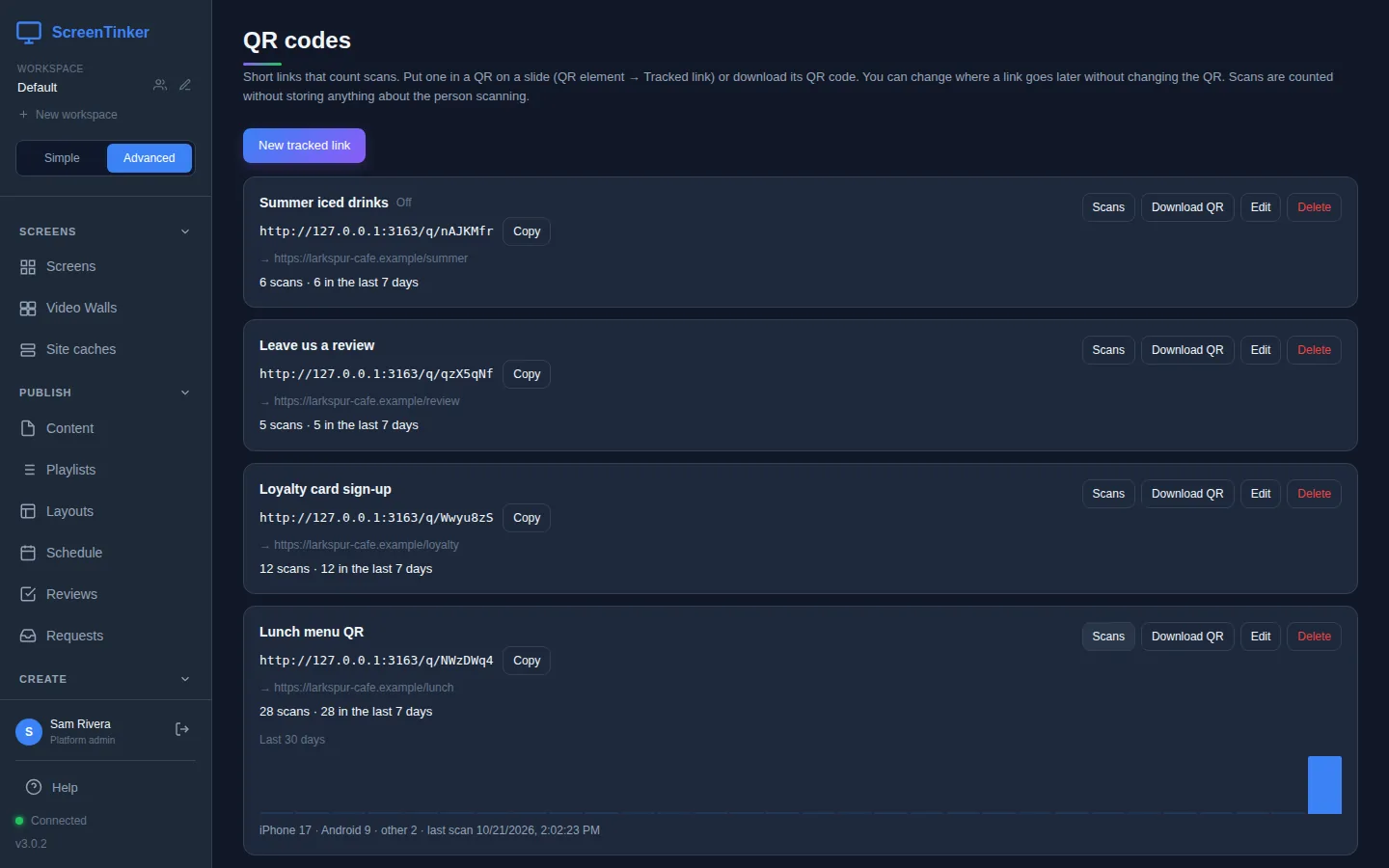
Each card shows the total, for example "28 scans · 28 in the last 7 days". Press Scans on a link for more: a bar for each of the Last 30 days (point at a bar to see its date and count), how many scans came from iPhone, Android and other devices, and when the last scan was. Press Scans again to close it.
Some scans are deliberately not counted, so the number stays close to the number of real people:
- The same phone opening the code twice within 10 seconds counts once. Camera apps often do this.
- Link previews are not counted. When someone pastes the short address into Slack, WhatsApp, iMessage or a social network, the preview those apps fetch is ignored.
A scan stores only the time and whether it came from an iPhone, an Android phone or something else. No IP address, no browser details and no cookie are saved. The days in the chart follow UTC time, so a scan late in the evening can fall on the next day.
Change where a link goes, or switch it off
Press Edit on the link. Change Opens to the new address and press Save. As the form says, this updates every QR code that uses the link: the slide, the printed table cards, everything. The short address and the code itself never change.
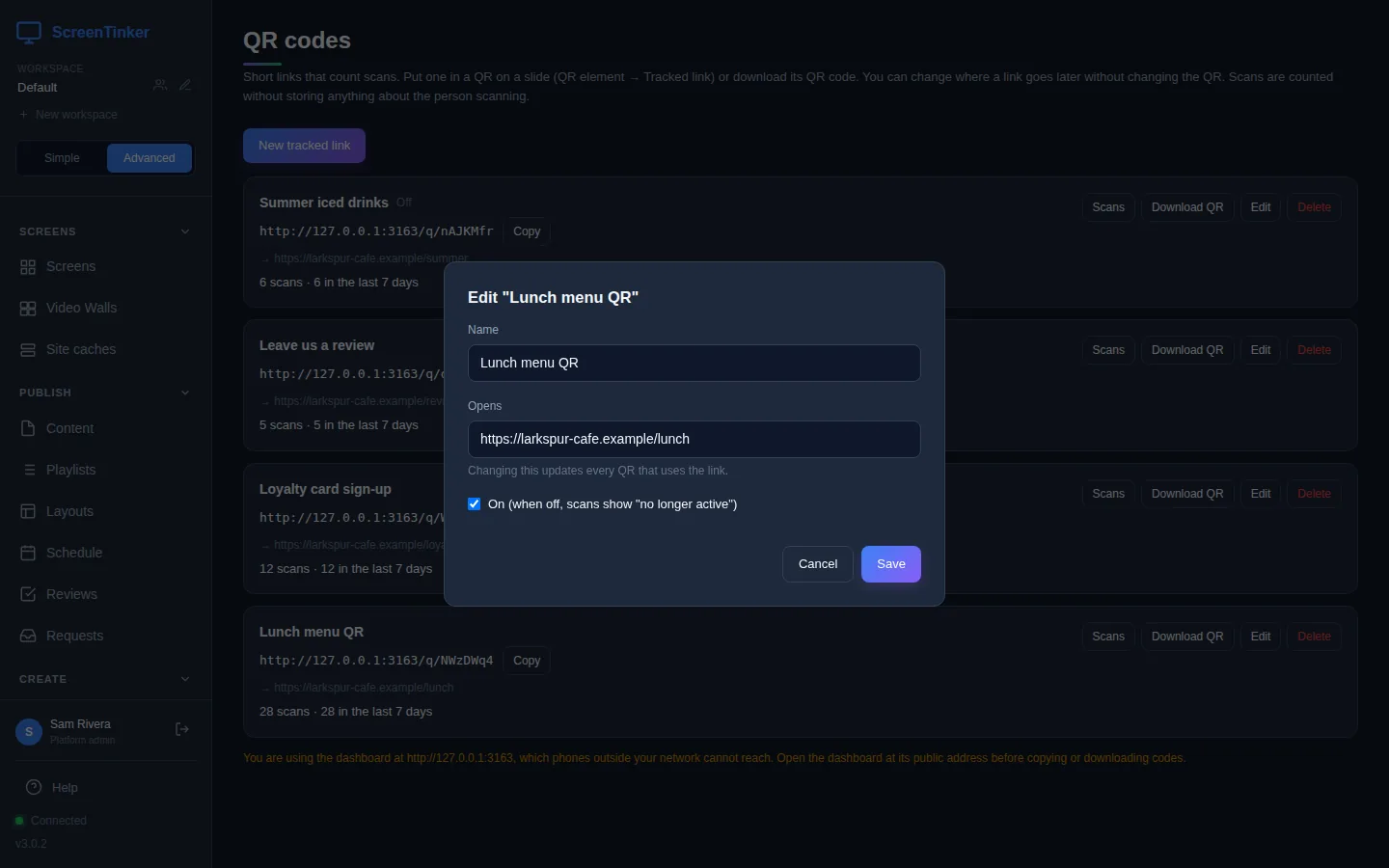
To pause a link, for example a summer offer that has ended, untick On (when off, scans show "no longer active") and save. The card is marked Off. Anyone who scans it sees a page that says "This code is no longer active", and those scans are not counted. Tick it again to bring it back, with its old scan count.
Delete removes the link and its scan history for good. Every QR code that uses it stops working, on screens and on paper. If you might need it again, switch it off instead.
Scans go to your own server, so phones must be able to reach it from outside your building, and codes stop opening while the server is down. If you open the dashboard at a local address (such as localhost, 127.0.0.1, a 192.168. address, a name ending in .local, or a private IPv6 address), the QR codes page shows an orange warning: open the dashboard at its public address before you copy or download codes, or pick a link on a slide. The slide editor warns too, under Encodes, when a code holds a private address.
Related features
- Experiments (Advanced view) can give each version of a slide its own Tracked QR code, so you can compare which version got more scans.
FAQ
I changed the address, but people still land on the old page.
Check that you pressed Save and that the card shows the new address after the arrow. The change applies to the next scan; nothing on the screen needs to be republished.
How do I stop a slide's QR code being tracked?
Choose Not tracked in the Tracked link list, then publish the deck. The code goes back to the link's own address, so it opens the same page but no longer counts scans.
Why is the scan count lower than I expected?
Repeat opens from the same phone within 10 seconds count once, and link previews are not counted at all. Scans while a link is switched off are not counted either.
Try it on your own screens
Start a 14-day Pro trial on hosted ScreenTinker: up to 15 screens, every feature, no credit card.
Or host it yourself, free and open source: self-hosting guide · GitHub