Interactive kiosk pages for touchscreens
A kiosk page is a full-screen page of big buttons that people can tap: the menu, today's bakes, the Wi-Fi password, opening hours. You build it in the dashboard, with no code, and put it on a touchscreen like any other item in a playlist.
This guide covers making a page, what each setting does, how to link several pages together, how to put a page on a screen, and the few things that do not work the way you might expect.
Before you start
- Kiosk is in Advanced view. New accounts start in Simple view. Switch with the Simple / Advanced buttons at the top of the menu.
- Anyone in the workspace can build pages, except people with the Viewer role. A Viewer can open the pages but not create, change or delete them.
- You need a screen people can touch. The page works on any screen, but without a touchscreen nobody can press the buttons.
Open Kiosk
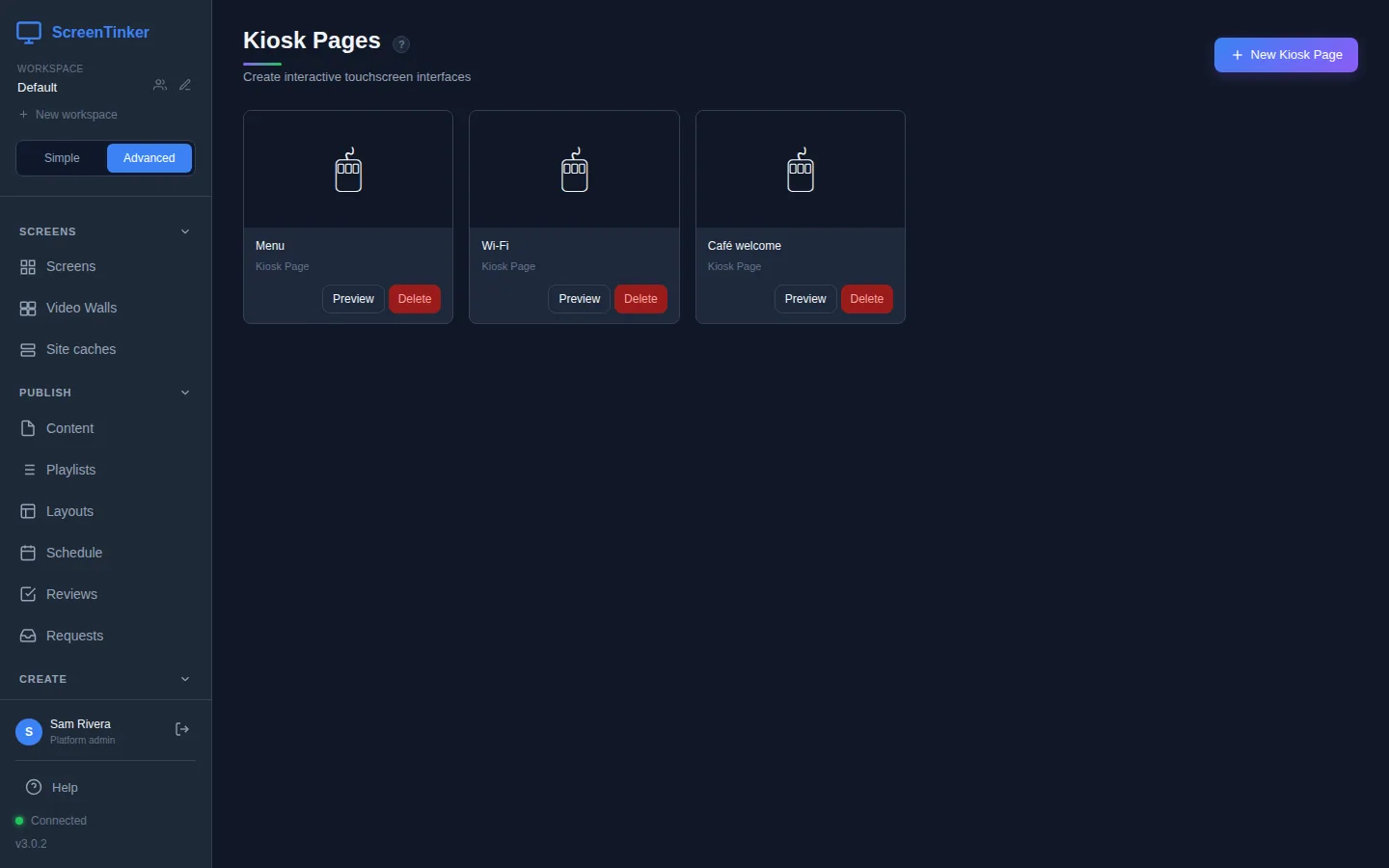
Choose Kiosk in the sidebar, under Create. The Kiosk Pages list shows every page in this workspace. Each card has Preview, which opens the finished page in a new browser tab, and Delete. Click a card to edit it.
Create a page
- Press New Kiosk Page.
- Type a name when asked, for example "Café welcome", and press OK. Choose the name with care: the editor has no way to change it later.
- The editor opens. A new page already has a title ("Welcome"), a subtitle and six example buttons (Directory, Events, Map, Contact, WiFi and Help), so you can see how it looks straight away. Change them or delete them.
Set the text, style and buttons
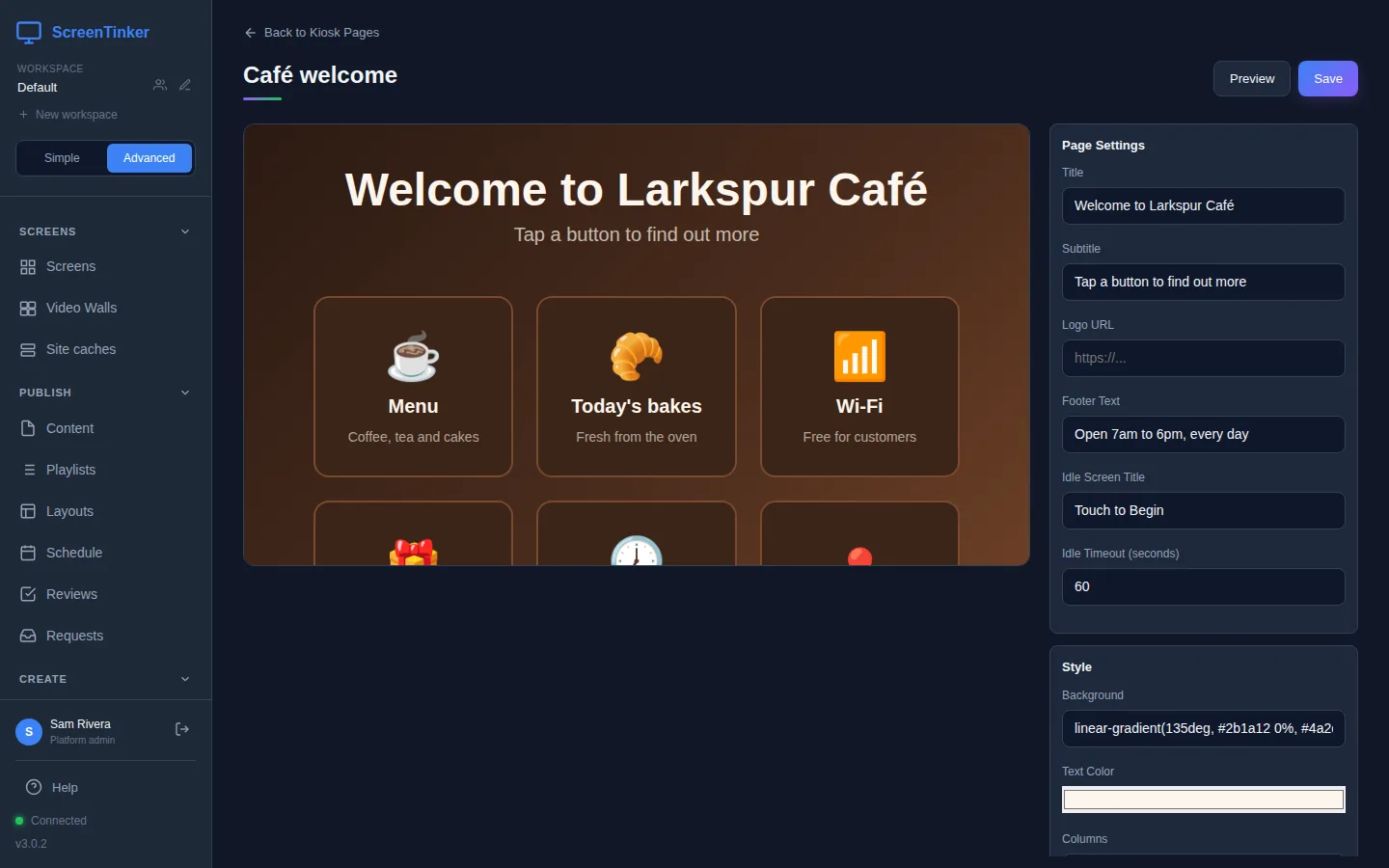
The editor shows a small preview on the left and three panels on the right. Nothing is kept until you press Save at the top. Saving also refreshes the small preview.
Page Settings
- Title and Subtitle: the big heading and the line under it.
- Logo URL: the web address of a picture to show above the title. Leave it empty for no logo.
- Footer Text: a small line at the bottom, such as your opening hours.
- Idle Screen Title and Idle Timeout (seconds): see the idle screen.
Style
- Background: a colour such as
#111827. It also accepts a colour gradient; the example page uses one. - Text Color, Button Color and Button Hover Color. The hover colour is also the colour a button turns when someone presses it.
- Columns: 2, 3 or 4 buttons per row. Fewer columns give bigger buttons, which are easier to hit on a small touchscreen.
Buttons
Press + Add to add a button. Each button has an emoji, a label, a smaller line under it (the sublabel), an action, and an address. The ✕ removes a button. New buttons are added at the end, and there is no way to move a button, so add them in the order you want them.
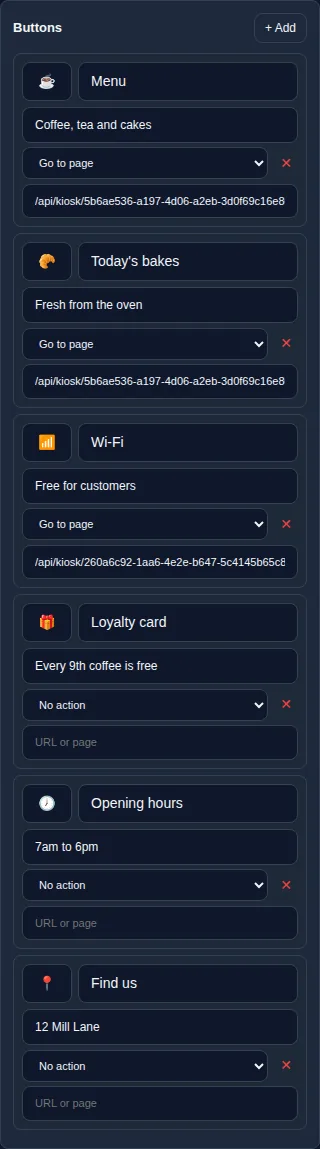
The action decides what a tap does:
- No action: the button is just a label. Good for short facts such as opening hours.
- Go to page: the screen opens the address in the box, in place of the kiosk page. Use this to link to your other kiosk pages (see link pages together).
- Open URL: opens a website full screen inside the kiosk page, with a Back bar at the top that returns to your buttons. Good for an online menu to read. Forms and sign-ins don't work there, and many websites refuse to be shown inside another page and stay blank; the bar says so. Try it on your screen first.
The idle screen
When nobody has touched the screen for the Idle Timeout (seconds) (60 unless you change it), a dark cover with the Idle Screen Title ("Touch to Begin") appears over the page. The next touch removes it. The idle screen belongs to each kiosk page: it does not take a visitor back to your first page.
Check the whole page
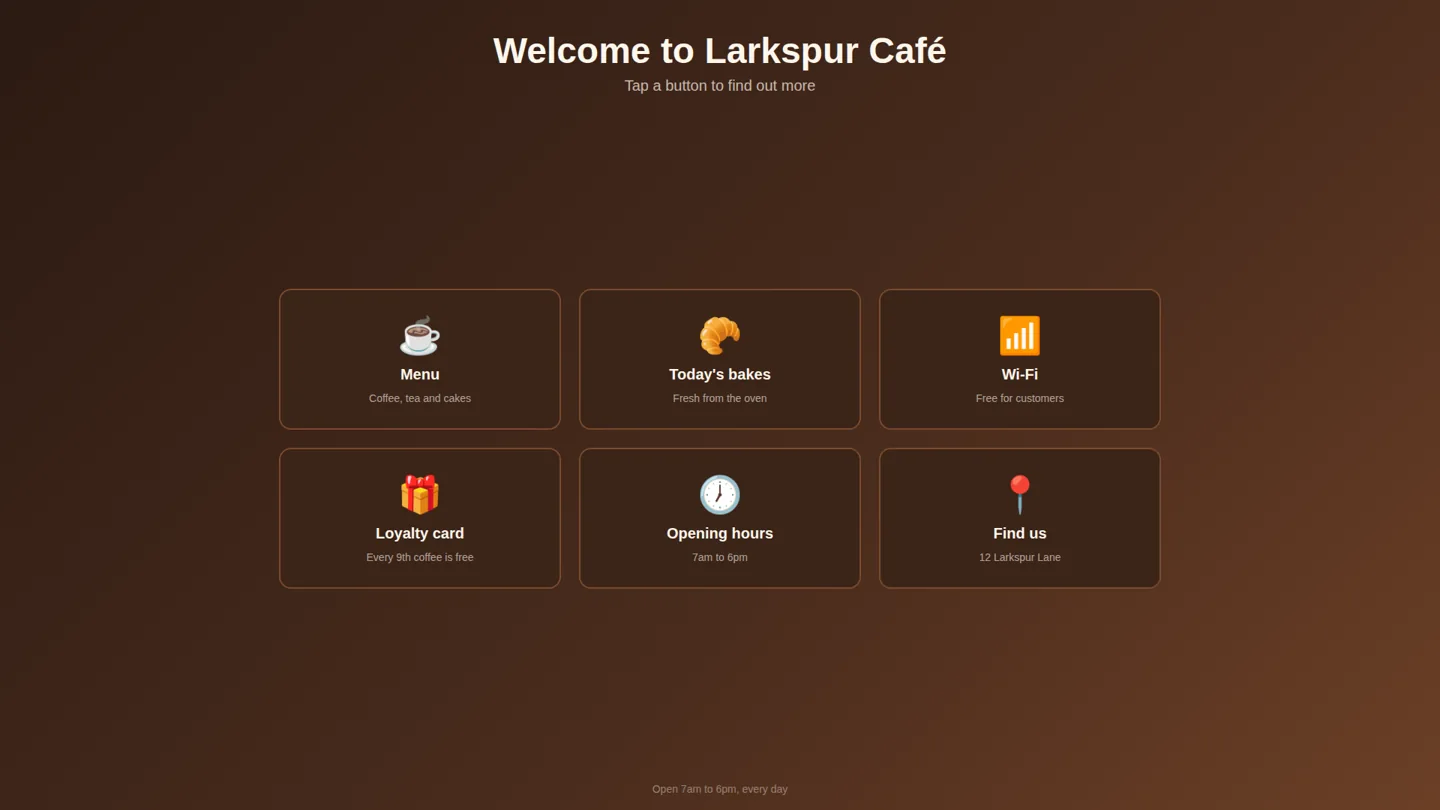
Press Preview to open the page in a new browser tab, at full size. You can click the buttons there to try them. That address works without signing in, so anyone who has it can open the page: don't put private information on a kiosk page.
Link pages together
One kiosk page is one screen of buttons. For more, make one page per topic (a "Menu" page, a "Wi-Fi" page) and link them:
- Make each page and press Save.
- Open a page with Preview and copy the address from the new tab. It ends in
/api/kiosk/, a long code, and/render. - On your first page, set a button to Go to page and paste that address. You can also type just the part from
/api/kiosk/onwards. - On every other page, add a "Back" button set to Go to page with the first page's address. There is no other way back, and the idle screen does not go back by itself.
Go to page can open an ordinary website too, but many websites refuse to be shown inside another page and stay blank. Try it on your screen before you rely on it.
Put a page on a screen
- Open the playlist the touchscreen plays in Playlists (or open the screen in Screens and go to its Playlist tab).
- Choose + Add Content (on a screen's page, Add Content) and open the Kiosk tab.
- Press Add next to your first page. It goes into the playlist as a web page widget called "Kiosk:" and the page's name.
- Press Publish. Screens keep showing the last published playlist until you do.
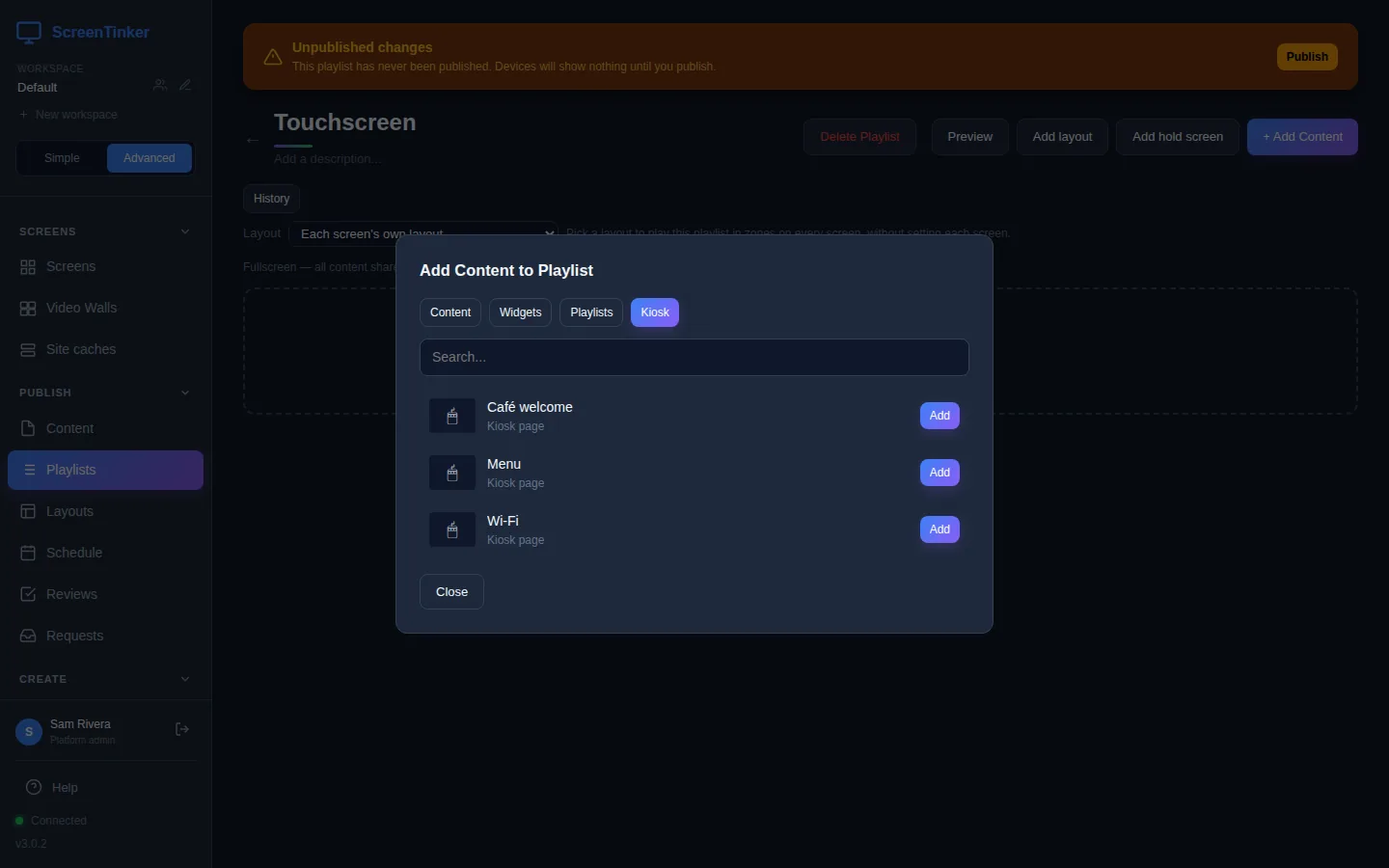
Add only your first page. The others open from its buttons.
A kiosk page is an item like any other: it plays for its Duration and then the playlist moves on, even if someone is using it. When you add a kiosk page, its Duration is set to 43200 seconds (12 hours), so it stays up while people use it, and the other items in the playlist only get a turn after that. When the kiosk page is the only item in the playlist, it stays on the screen. So give the touchscreen a playlist with just the kiosk page in it.
Changing a page that is already on a screen
Press Save after your changes. Saving sends the new version to every screen that plays the page; you don't need to publish the playlist again. If a screen still shows the old version, open it in Screens, go to Device Info and press Reload Player. Not every player has that button; if yours does not, restart the player.
You can't delete a kiosk page while a playlist or schedule still plays it. Delete then says "This page is still in use:" and names them. Take its "Kiosk:" item out of each playlist and Publish, then delete the page.
Kiosk pages work the same way. Your server sends the page to the screen, so a touchscreen needs to reach your server, as it already does for everything else it plays. The same goes for a Logo URL: the screen must be able to reach the picture's address.
FAQ
A button does nothing when I tap it on the screen.
Check its action: a button set to No action is only a label. If it is Open URL or Go to page, check the address and press Save. If the screen opens a blank page, that website does not allow being shown inside another page; link to a different page instead. If the screen still shows your old buttons, reload the player, as described in changing a page.
The screen goes back to my other content after a few seconds.
The kiosk page is sharing a playlist with other items, so it plays for its Duration and moves on. Check the kiosk item's Duration in the playlist: a kiosk page added a while ago, or one you changed, may say 10 seconds. Set it to 43200 (12 hours), or give the touchscreen a playlist that holds only the kiosk page.
Is this the same as "Interactive (walk-up kiosk)"?
No. That is a setting on a Web page widget, for letting visitors use a whole website and wiping what they did when they leave. A kiosk page is a simpler page of buttons that you build here.
Can I rename a kiosk page?
Not in the editor. Make a new page with the new name, copy the settings and buttons across, and swap it into your playlist.
Try it on your own screens
Start a 14-day Pro trial on hosted ScreenTinker: up to 15 screens, every feature, no credit card.
Or host it yourself, free and open source: self-hosting guide · GitHub