Head office playlists for every store
When you run several cafés, shops or offices, head office often wants the same brand content on every screen, and each store wants a corner for its own offers. A corporate playlist does both. Head office makes it, decides where it plays, and stores can't change it. Inside it you can leave a local slot that each store fills with its own pictures, within limits you set.
This guide covers turning the feature on, making a corporate playlist with a slot, choosing where it plays, what a store manager sees and does, and how head office checks the stores. Emergency alerts live on the same page and get a short section at the end.
Before you start
- Who can set it up. Only the organization's owners and admins can turn it on, choose where a corporate playlist plays, and run emergency alerts. You can also let the editors of the head office workspace make corporate playlists. Store users don't need anything special.
- One workspace per store works best. Head office's playlists live in their own workspace, and each store is usually a workspace too, so a store's people only see their own screens. Stores can also be groups inside one workspace, but then everyone who can edit that workspace can change every group's slot content. See Users, roles and workspaces for making workspaces and inviting people.
- The page is in Advanced view. New accounts start in Simple view, which has no sidebar. Switch with the Simple / Advanced buttons at the top of the menu.
One page, two names
The page is in the sidebar under Publish, but only for people who have something to do there. It has a different name depending on who you are:
- Corporate, for the people who make head office's playlists: organization owners and admins, and head office editors if you allowed them. They see four tabs: Playlists, Where it plays, Store slots and Emergency alerts.
- Head office, for everyone in a store whose screens play a head office playlist. They see what head office plays on their screens and the slots they can fill.
Everyone else doesn't see it at all. An organization that never turns the feature on never sees it either.
Turn it on
- Open Settings and find the Corporate content section. Only organization owners and admins see it.
- Under Head office workspace, pick the workspace that will hold head office's playlists, or press Create a Head office workspace.
- Tick Use corporate playlists.
- Under Who can edit corporate playlists, choose Organization owners and admins, or …and editors in the head office workspace.
- Leave Store triggers on head office's screens on Don't show store triggers (default) unless you have a reason to change it (see emergency alerts).
- Press Save. The page reloads and Corporate appears in the sidebar.
Unticking Use corporate playlists later is the off switch. Every store screen goes back to its own playlist straight away, and your corporate playlists and where they play are kept for when you turn it on again.
Make a corporate playlist
Open Corporate. If you were in a store's workspace, the page moves you to the head office workspace and a bar at the top says "You are editing in Head office", with a button to go back. That matters because uploads and content pickers use the workspace you are in: pictures for head office's playlists belong in the head office workspace.
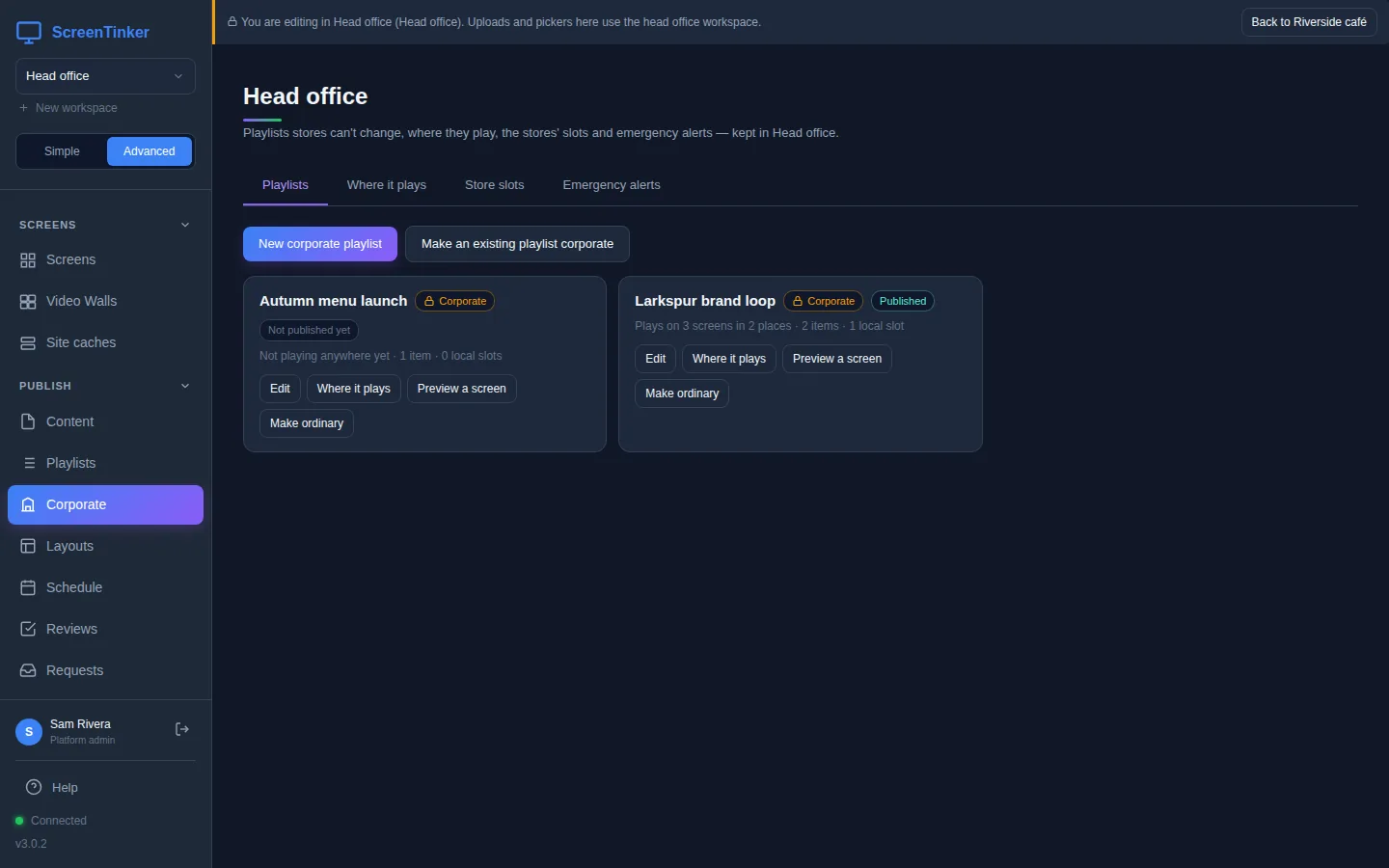
- Press New corporate playlist, type a Name (and a Description if you like) and press Create. Or press Make an existing playlist corporate to turn a playlist that is already in the head office workspace into one. Smart, generated and slide-deck playlists can't become corporate.
- The normal playlist editor opens, with a Corporate banner. Add your brand content with + Add Content, as in any playlist (see Content and playlists).
- To give stores a place for their own content, press + Add local slot (next section).
- Press Publish. Like every playlist, your changes are a draft until you do. Once the playlist plays somewhere, the button says how many screens it goes to, for example Publish to 3 screens.
A corporate playlist can hold ordinary playlists inside it, smart ones too, but it can't be a smart playlist itself, and it can't be put inside another playlist. Make ordinary on its card turns it back into a normal playlist, once it isn't playing anywhere as head office's playlist.
Leave a slot for the stores
A local slot is a place in the playlist's running order that each store fills itself. Stores can only change what is inside their slot; your items and their order stay as you set them.
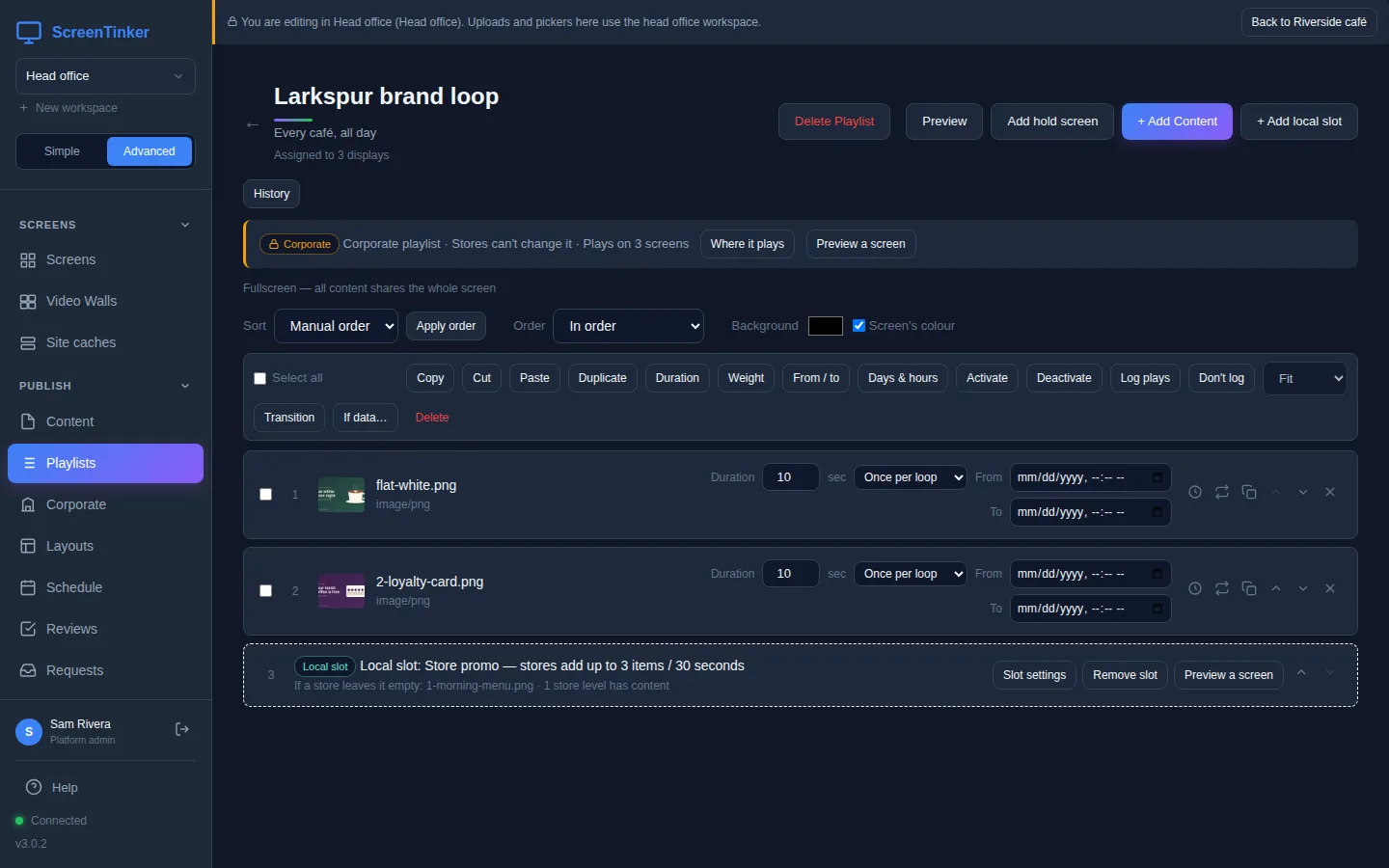
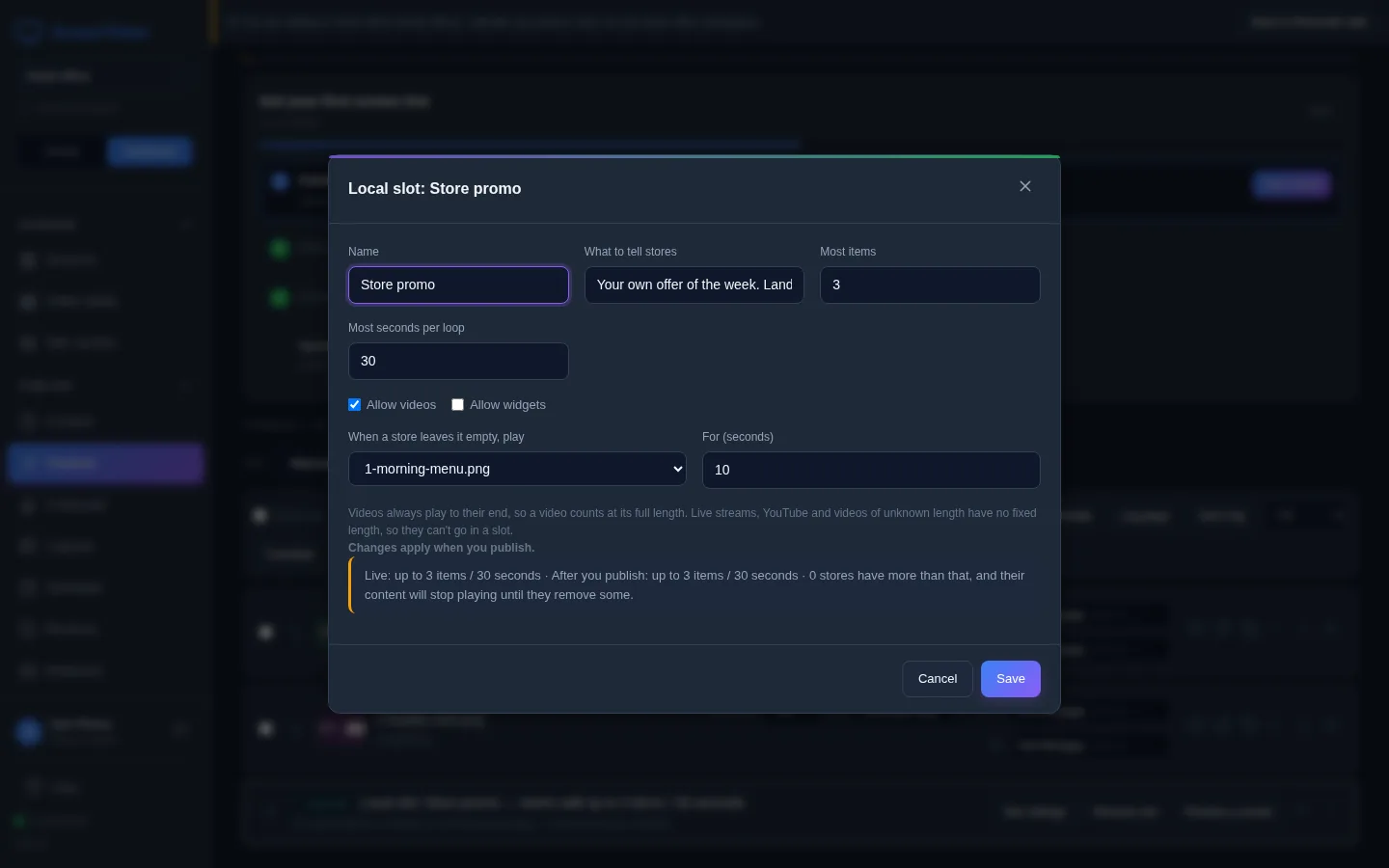
Press + Add local slot, or Slot settings on an existing slot, and fill in:
- Name (stores see it) and What to tell stores, for example "Your own offer of the week. Landscape, 1920×1080."
- Most items and Most seconds per loop. Leave them empty for no limit.
- Allow videos and Allow widgets.
- When a store leaves it empty, play: a picture or widget of yours, and For (seconds). Choose Nothing — skip the slot to skip it instead.
Only things with a known length fit in a slot: pictures, widgets, slides, and videos whose length the server has measured. Live streams and YouTube can't go in, and a video always plays to its end, so it counts at its full length.
Slot changes apply when you Publish. If a store already has more than the new limit, its content stops playing (your fallback plays instead) until the store removes some. The slot window tells you how many stores are over before you save, and those stores see a notice on their Head office page.
Choose where it plays
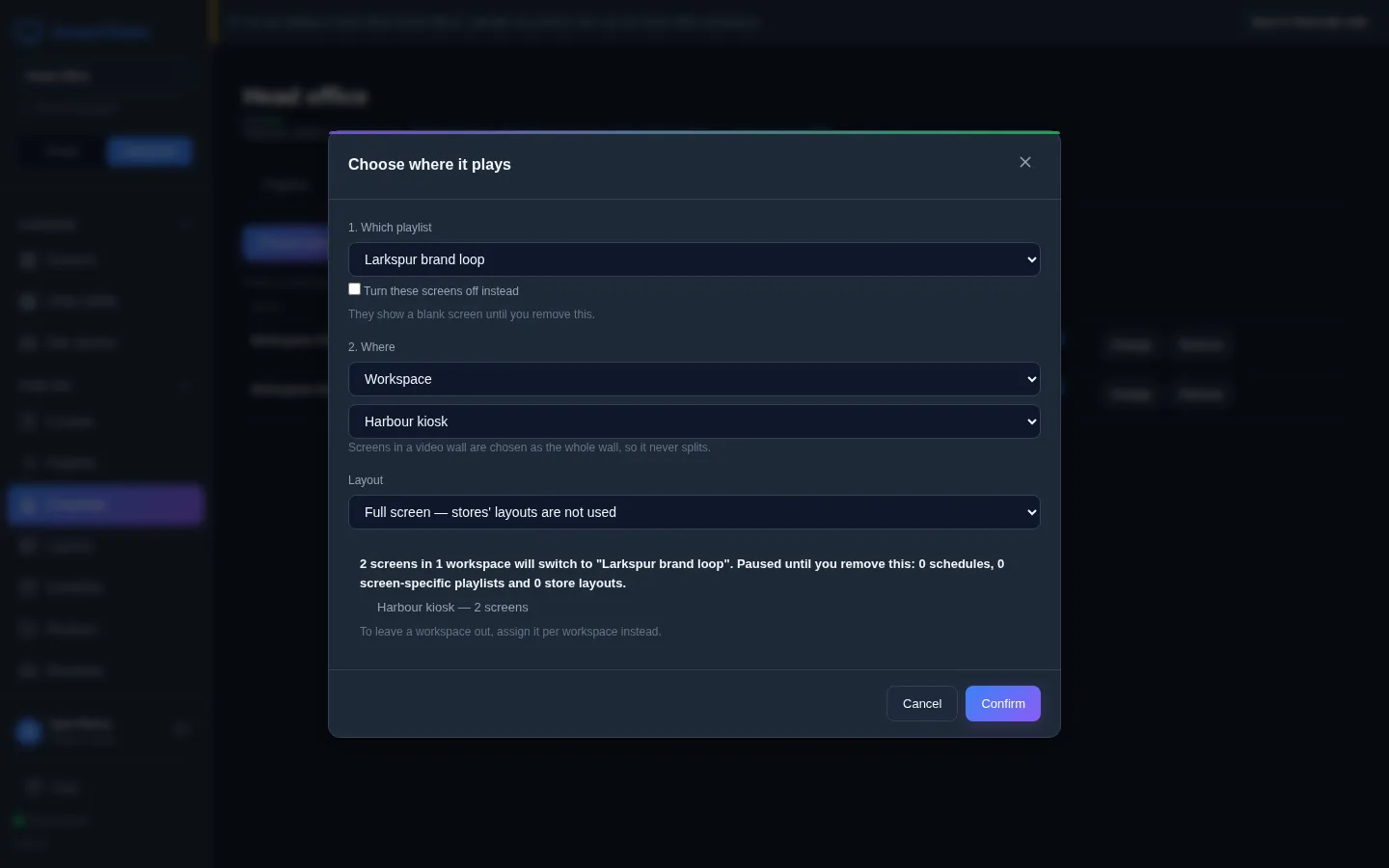
- Open the Where it plays tab and press Choose where it plays.
- 1. Which playlist: pick a corporate playlist. One that was never published shows "Publish first" and can't be picked.
- 2. Where: Whole organization, a Workspace, a Group, a Video wall or one Screen, then which one. A screen that is part of a video wall can only be chosen as the whole wall.
- Layout: Full screen — stores' layouts are not used, or one of your layouts.
- Read the preview under the form: how many screens in which workspaces will switch, and how many of the stores' schedules, screen-specific playlists and layouts will pause. Then press Confirm.
Each row of the table then has an On box, Change and Remove. Unticking On or pressing Remove sends those screens back to the store's own playlist, schedules and layouts at once; you are asked first.
- The most specific choice wins. A screen's own entry beats its video wall's or group's, which beats its workspace's, which beats the whole organization's. To leave one store out of an organization-wide playlist, assign per workspace instead.
- Prefer workspaces, groups and video walls over single screens. A screen that is unpaired and paired again counts as a new screen, and would lose a single-screen entry.
- Turn these screens off instead shows a blank screen on those screens until you remove the entry.
- Head office's playlist outranks the store's schedules. While it plays, the store's schedules for those screens show as paused (see Scheduling).
Preview a screen (on a playlist card, in the editor, and on screen rows) shows exactly what one screen will play, item by item: Corporate, the store's slot content, or your fallback, and how long the loop is.
What a store manager sees
In a store whose screens play a head office playlist, the sidebar shows Head office. The page has two parts:
- What head office plays here: the playlist, marked Set by head office, and how many of your screens play it. A notice says when head office started playing something new and how many of your schedules are paused.
- Your slots: each slot head office left you, with its limits and what head office says about it.
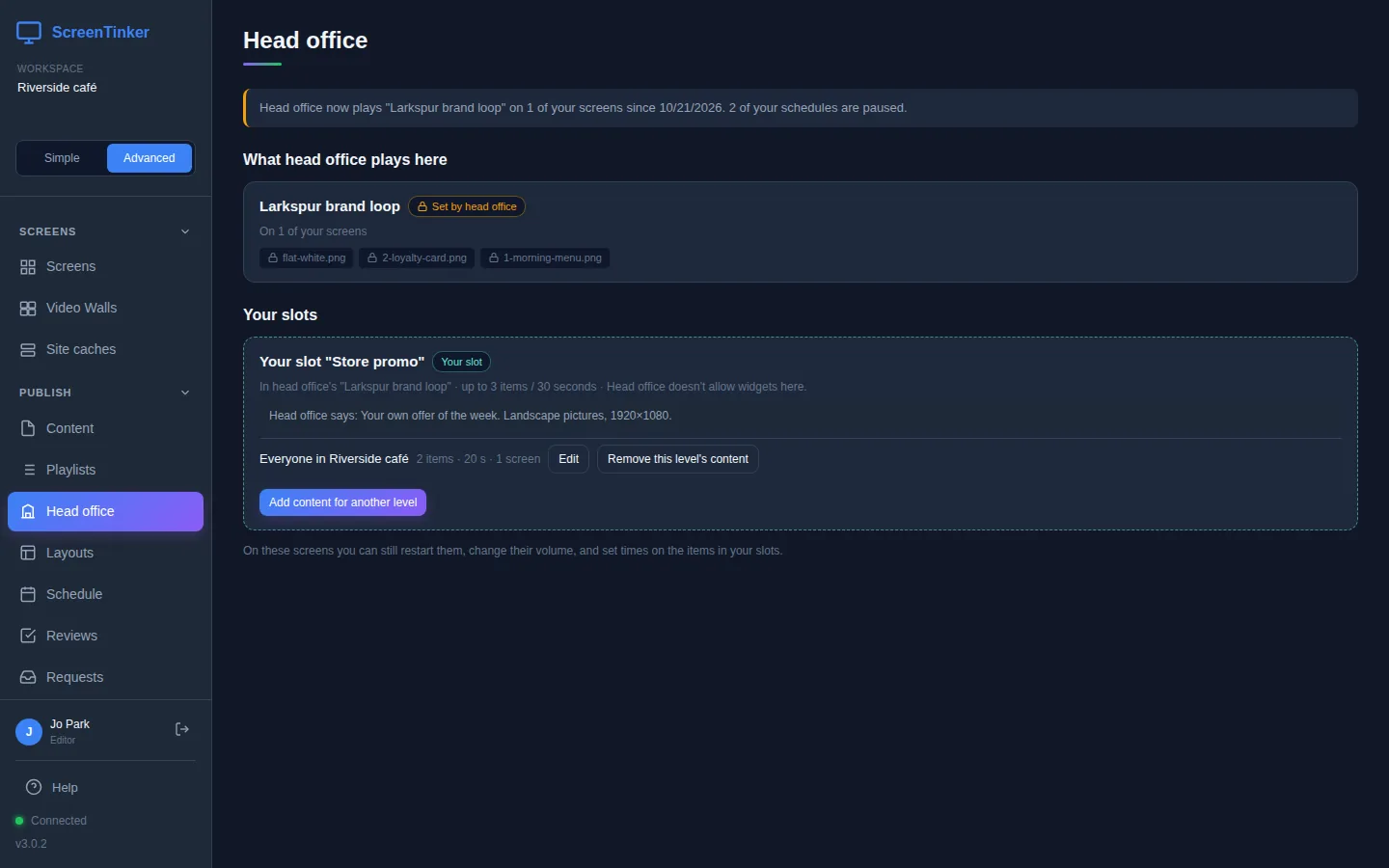
- Press Fill this slot (or Add content for another level once it has content).
- Under Who it is for, choose Everyone in your workspace (the usual choice), or one group, video wall or screen. A group or screen with its own content stops following the workspace's.
- Press Open the slot editor. It is the normal playlist editor with head office's limits at the top, for example "2 of 3 items" and "20 of 30 seconds per loop". Items set to play only at certain times count too.
- Add your pictures with + Add Content. Use Days & hours on an item to show it only at some times. Preview with head office's loop shows your content in place.
- Press Publish. Nothing reaches the screens before that, and Publish stays off while you are over the limit.
An empty slot shows head office's fallback, or is skipped. On head office's screens a store can still restart them, change their volume and set times on the items in its slots. Things that would change head office's playlist are locked, and the dashboard says why when you try. Store members with view-only access see the buttons on this page too, but the server refuses their changes.
Check on the stores
The Store slots tab lists every slot in every store's workspace with its state: Filled, Some screens filled, Using fallback, Skipped or Not playing: over the limit, and what each store put in it. Tick Only problems to hide the stores that are fine, or press Export CSV.
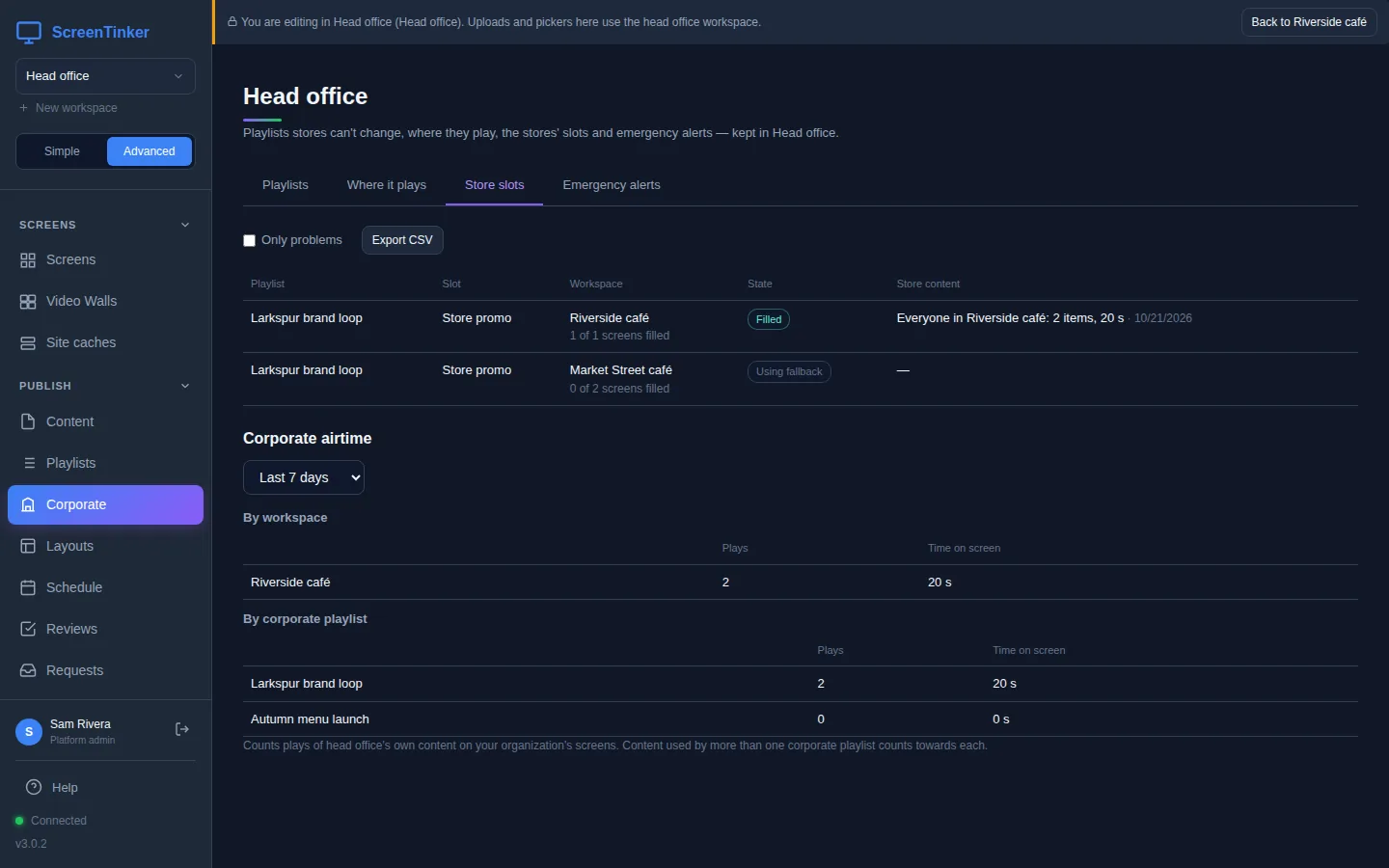
Corporate airtime under it counts how often head office's own content played, by workspace and by corporate playlist, over the last 7, 30 or 90 days.
Emergency alerts
The Emergency alerts tab (owners and admins only) holds alerts that take over screens, such as an evacuation notice. They work only after the Emergency alerts switch in Settings → Corporate content is on, and only on screens that have triggers turned on. Samsung Tizen screens can't receive triggers.
- New emergency alert: a name, a published head office Playlist to show, an Alert code, how it Ends, and Where it applies.
- Activate now shows it on every covered screen that is online, for up to an hour; offline screens get it when they reconnect while it is still on. End now stops it.
- Who it reaches lists the screens that can't receive it, and why. Run it before a drill.
- Download installer sheet gives a store's installer what an alarm system needs to set the alert off on each screen over the store's own network.
By default a store's own triggers don't show on screens that play head office's playlist, so no store can cover it. That also hides a store's own safety notices on those screens, which is why ScreenTinker lists the affected triggers and asks you to tick I've checked these before you put screens under head office. Use an emergency alert for anything that must reach those screens.
The feature is the same, with no plan needed. The first account on the server is its platform admin and can manage every organization's head office. An organization can have up to 25 workspaces unless you set MAX_WORKSPACES_PER_ORG. If an upgrade's safety check fails, the page says corporate playlists are unavailable and points you to the server log. Before you go back to a version without corporate playlists, remove every row on Where it plays and every local slot (then publish), or the older version can misbehave.
FAQ
I'm an admin but I don't see Corporate in the sidebar.
Check that you are in Advanced view, and that a head office workspace is chosen in Settings → Corporate content. Only organization owners and admins see that section.
A store says its content isn't playing.
Open Store slots. "Not playing: over the limit" means the store has more than the slot allows, perhaps after you lowered a limit or a video got longer; the store has to remove something and publish. Also check that the store pressed Publish in the slot editor.
Can a store skip or reorder head office's items?
No. A store can only change the content inside its own slot, and set times on those items. Head office's items, their order and the layout stay as head office published them.
Try it on your own screens
Start a 14-day Pro trial on hosted ScreenTinker: up to 15 screens, every feature, no credit card.
Or host it yourself, free and open source: self-hosting guide · GitHub