Emergency alerts on your screens
When the weather service issues a tornado watch or a flood warning for your area, your screens can show it straight away, without anyone touching the dashboard. You connect ScreenTinker to an official alert feed once. While a warning for your area is live, your screens show it instead of their playlist. When it ends, they go back by themselves.
This guide covers where the alerts come from, how to add a feed, how to narrow it to your area and your screens, how to test it before a real emergency, and what the screens show. Alert feeds use CAP (the Common Alerting Protocol), the format weather services and civil protection agencies publish in.
Before you start
- The page is in Advanced view. New accounts start in Simple view. Switch with the Simple / Advanced buttons at the top of the menu.
- Only a workspace Admin can add or change feeds. Everyone in the workspace can see the page and its alerts. Editors and Viewers don't get the buttons to add, edit, check or delete feeds; a note at the top says "Only a workspace admin can change this. You can look at it."
- It works on every plan, on screentinker.com and on your own server.
The Emergency feeds page
Choose Emergency feeds under Automate in the sidebar. Each feed is a card. It shows the feed's address, which alerts it lets through, which screens it reaches, what they show, and when it was last Checked. A feed with a live alert has a red edge and says how many alerts are on screens now, with each one listed below.
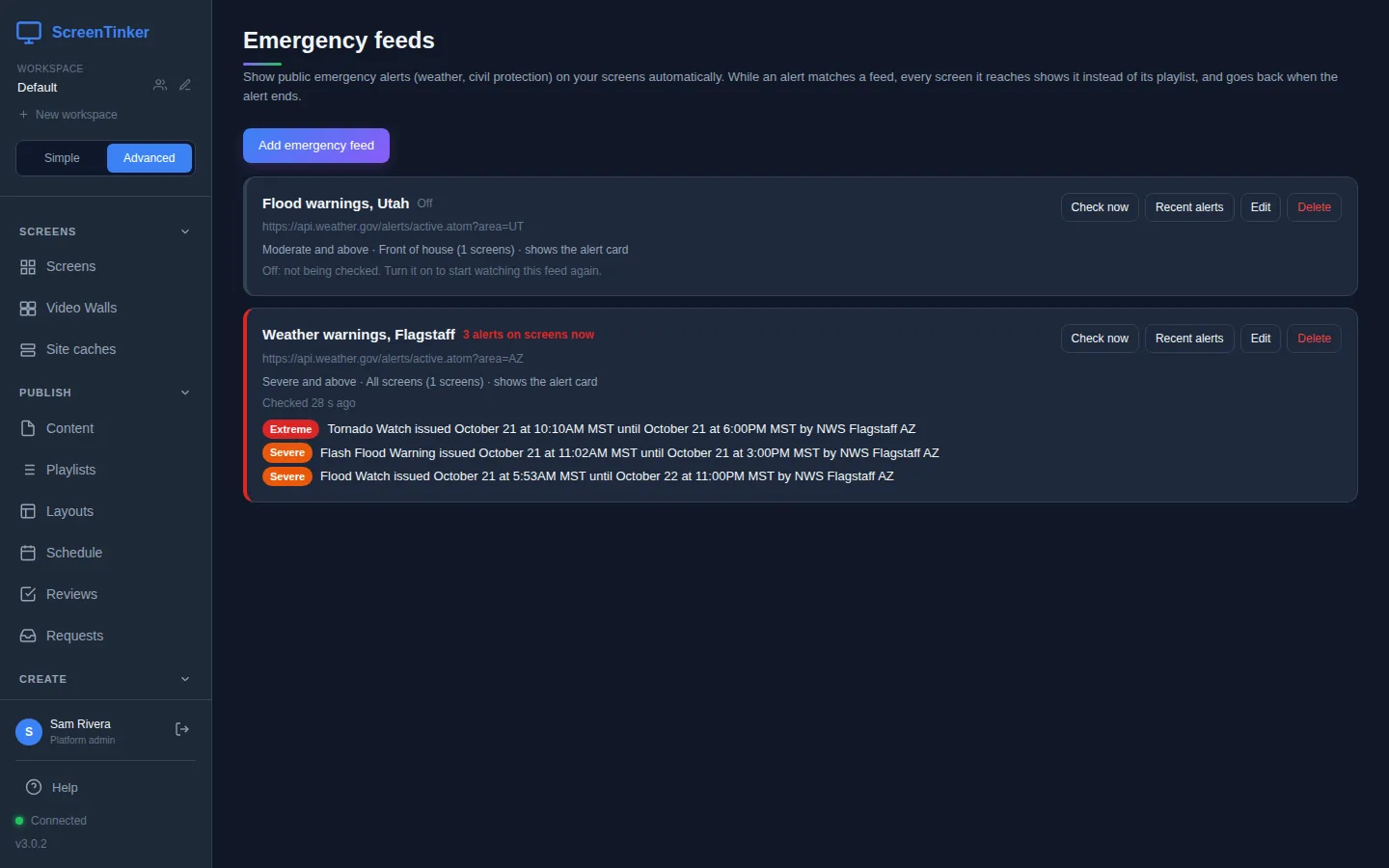
The buttons on each card:
- Check now fetches the feed at once instead of waiting for the next check.
- Recent alerts lists what the feed has carried in the last week (see below).
- Edit opens the feed's settings. Delete removes it, and its alerts leave the screens.
Add a feed
- Press Add emergency feed.
- Name: something you will recognise, like "Weather warnings, Flagstaff".
- Source: where the alerts come from. Pick one:
- US National Weather Service, by state: type the two-letter state, for example
AZ. - US National Weather Service, by zone or county code: type a forecast zone or county code, for example
WIZ066, for a smaller area. - Europe, MeteoAlarm, by country: choose your country from the list.
- Another CAP feed (address): paste the address of any other agency's CAP feed.
- US National Weather Service, by state: type the two-letter state, for example
- Show alerts that are: how serious an alert must be to take over your screens. Severe or worse is the default. The other choices are Extreme only, Moderate or worse, Minor or worse and Any severity, including unrated.
- Check the feed: every minute, every 2 minutes (the default), every 5 minutes or every 10 minutes.
- Narrow it down with the optional filters, choose the screens and what they show, then press Test feed and Save.
The feed is checked as soon as you save it. Untick On to keep a feed without it reaching any screen.
Only your area, only your screens
A whole state or country has warnings most days that don't concern you. Three settings keep the screens for what matters:
- Only these alert types (optional): a comma-separated list, such as
Tornado Warning, Flash Flood Warning. Write them exactly as the feed names them; Test feed shows you the names. Leave it empty for every type. - Only these areas (optional): place names or area codes, separated by commas, such as
Coconino, Yavapai. An alert gets through when its area mentions any of them. Codes (UGC, SAME or NUTS) must match exactly. - Show on: All screens in this workspace (including screens you add later), Screens in these groups or These screens, then tick the groups or screens. Screens in a video wall show the alert across the whole wall.
What screens show is either The alert card (headline, area, what to do, until when), made from the alert itself, or one of your playlists, for example your own "Shelter in place" slides.
Screens play the published version of that playlist. If it has never been published, or it is empty, they show the alert card instead, so a warning never comes up as a blank screen.
Test it before you need it
Test feed fetches the feed now, without saving, and tells you what your settings would do: how many alerts the feed has, and how many would be on screens right now. Each alert is marked would show, filtered out (by your severity, type or area settings) or not current (not started yet, expired, or only a test message).
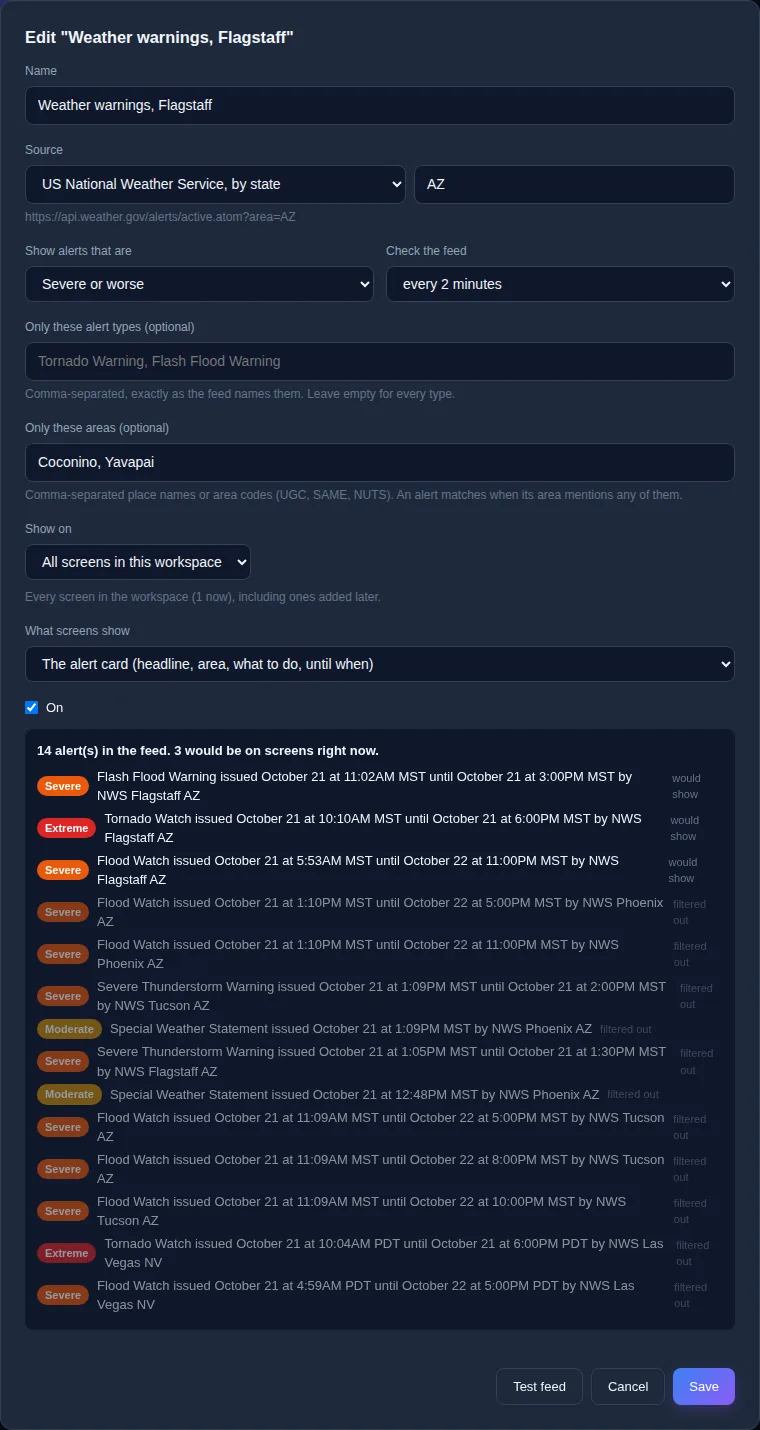
On a quiet day the feed may have no alerts at all. That is normal. Try Any severity, including unrated, or a bigger area, to see that the feed answers, then set it back before you save.
What the screens show
As soon as a matching alert is live, every screen the feed reaches drops what it is playing and shows the alert. It does not wait for the current slide or video to finish. The alert card fills the screen: a coloured band with the severity in words, the type of alert, the headline, the area, what to do, and until when (in the screen's local time). If several alerts are live, they take turns, 15 seconds each.
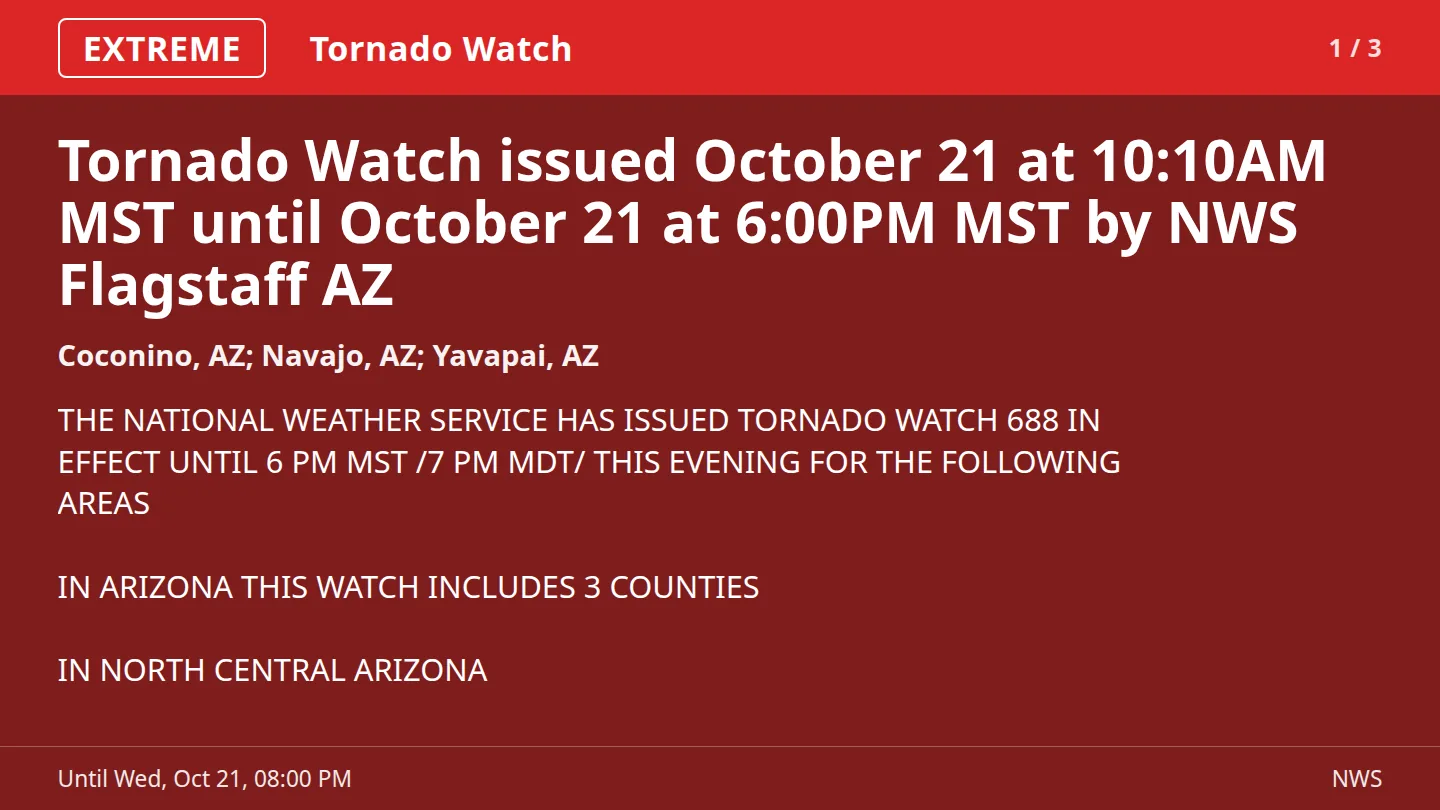
The words on the card are the agency's own, in the language the feed publishes. When the alert expires, or the agency cancels or replaces it, the screens go back to their normal playlist on their own.
When a check fails, the card on the Emergency feeds page shows the error, and alerts already on screens stay there until their own end time. A slow agency server never takes a warning off your screens early.
Emergency feeds take over from schedules and from a screen's own playlist. If several of your feeds have live alerts for the same screen, the one with the most severe alert wins. If your organization uses head office (corporate) playlists, an emergency alert that head office activates outranks your feeds.
Recent alerts
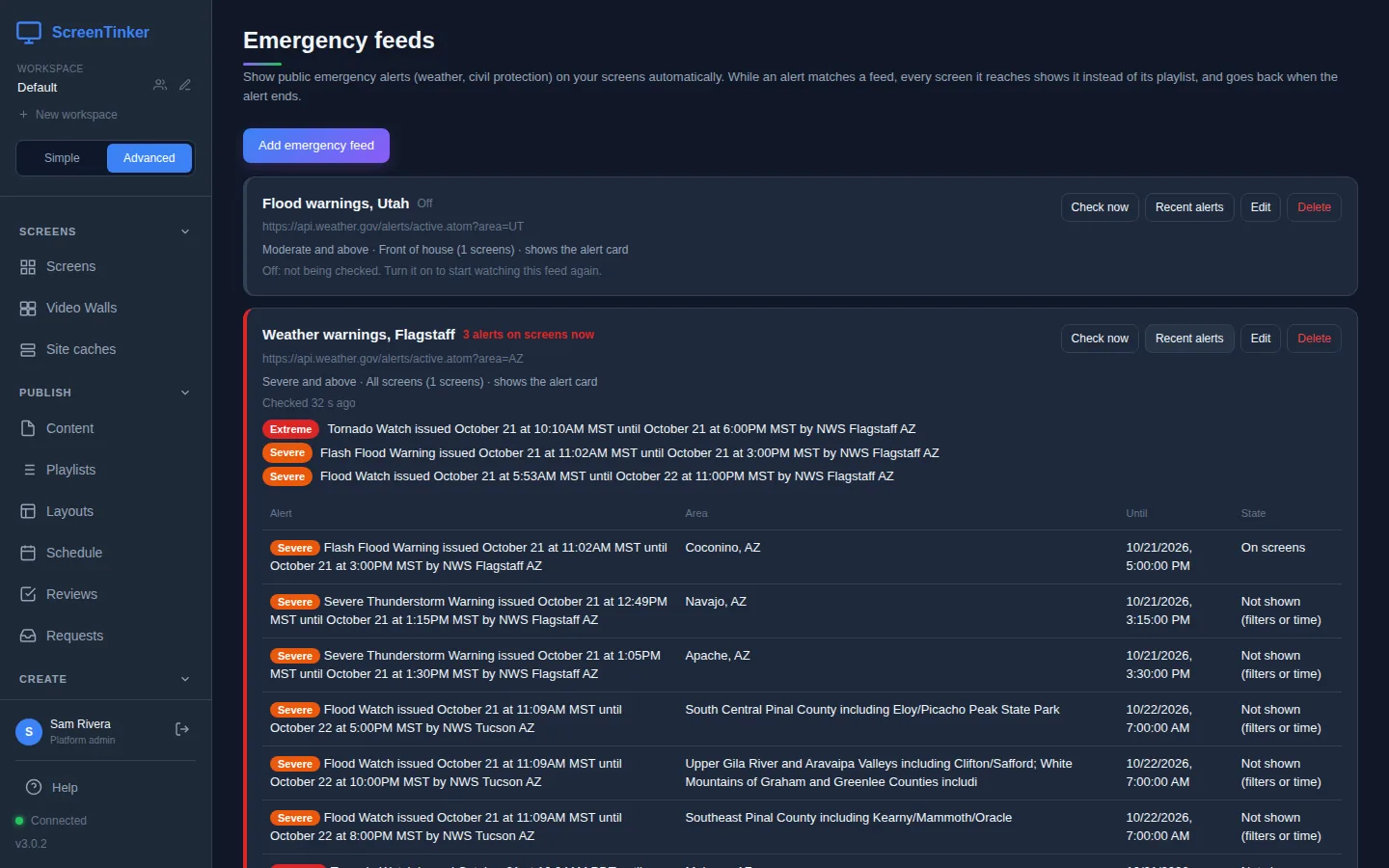
Recent alerts on a feed's card opens a table of what the feed has carried in the last week, with the Area, when it runs Until, and its State: On screens, Not shown (filters or time), Cancelled or replaced or No longer in the feed. Use it to answer "why didn't that warning show?" the morning after.
Your server fetches the feed itself, so it needs internet access to the agency (api.weather.gov, feeds.meteoalarm.org, or the address you entered). Your screens don't. A feed on your own private network is refused unless the server's OUTBOUND_ALLOW_HOSTS setting names that host, or OUTBOUND_ALLOW_PRIVATE=true is set.
FAQ
Can I show my own emergency message, like a fire evacuation?
Emergency feeds only show alerts that an agency publishes. To let your own systems, such as a fire panel, raise an alert on your screens, use Automation under Automate. If your organization uses head office (corporate) playlists, head office can also activate its own emergency alerts.
My feed shows "Checked" but nothing appears on screen.
That usually means there is no live alert that passes your filters. Open the feed with Edit and press Test feed: each alert says whether it would show or was filtered out. Also check that On is ticked and that Show on includes the screen.
Where do I find my zone or county code?
The US National Weather Service lists its forecast zone and county codes on its website. If you're not sure, use US National Weather Service, by state and put your county's name in Only these areas (optional).
Is this a replacement for official warning systems?
No. Your screens show an alert at the next check after the agency publishes it, so up to the time you chose under Check the feed. Treat it as an extra way to reach people in your building, alongside sirens, phone alerts and radio.
Try it on your own screens
Start a 14-day Pro trial on hosted ScreenTinker: up to 15 screens, every feature, no credit card.
Or host it yourself, free and open source: self-hosting guide · GitHub