Content requests: let people send you posters
People who don't have an account often want something on your screens: the book club's poster, a school bake sale, a staff notice. A request form is a link you share with them. They send the file, pick where it should show and for which days, and you approve or decline it. Nothing they send reaches a screen until someone in your workspace presses Approve.
This guide covers making a request form, sharing its link, what the people sending a request see, and how to approve or decline what comes in. It works the same on screentinker.com and on your own server, on every plan.
Before you start
- The Requests page is in Advanced view. New accounts start in Simple view. Switch with the Simple / Advanced buttons at the top of the menu. Simple view has a shorter version, Requests from others.
- You need to be an Admin or an Editor of the workspace to make forms and to approve or decline. Viewers can see the inbox and the forms, but not change them.
- The screens need a playlist. A request is added to a playlist. If you point a form at a screen or a group, it must already have a playlist, and that playlist must have been published at least once.
Make a request form
- Choose Requests in the sidebar (under Publish), then the Request forms tab, and press New request form.
- Title and Introduction (shown on the form): what people see at the top of the page. Plain text only.
- Where requests can go: one row for each place people may choose. In Choose a screen, group or playlist, pick what is behind it. In Name people will see, give it a friendly name, such as "Counter screen" or "Lunch menu slides". People sending a request only ever see these names. Use Add a place for more rows.
- Who can use the link: choose one (see who can use the link).
- Extra questions: Audience and Notes can each be Hidden, Optional or Required.
- File rules: tick Images, Videos or both, and set Largest file (MB), Minimum width (px), Minimum height (px), Shape (for example 16:9 for a landscape TV) and Longest video (seconds, 0 = any). A file that breaks a rule is turned away before it reaches your library, with a message that says why.
- Timing and limits: Days of notice needed, Longest run (days), Seconds an image shows (videos play for their own length), Requests per day, and Save files in folder, the library folder the files go into.
- Press Save.
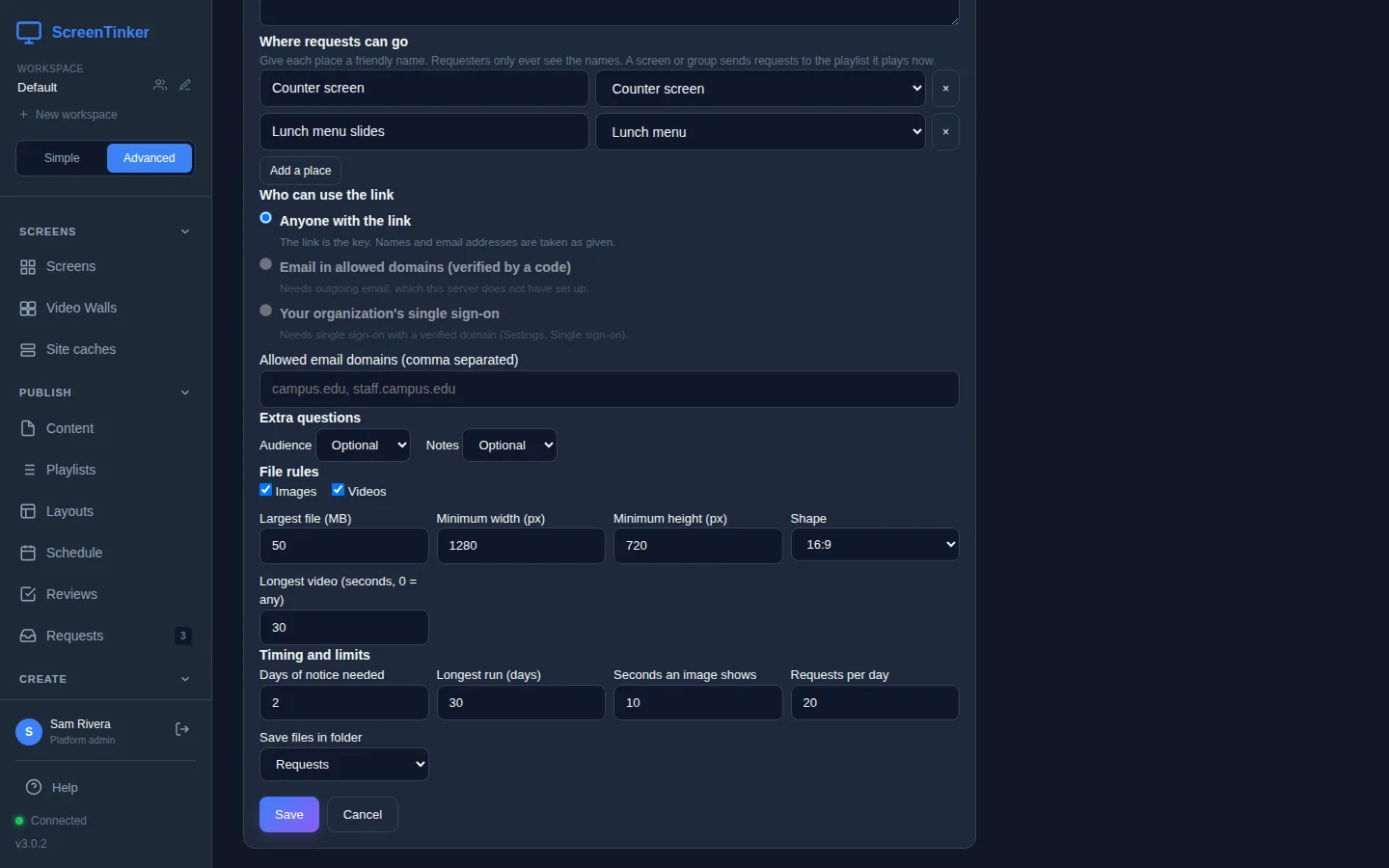
When you pick a screen or a group, the form remembers the playlist it plays at that moment, and requests go into that playlist. If you later give the screen a different playlist, edit the form and save it again. Smart playlists, playlists that fill a zone of a layout and head-office playlists can't take requests.
Who can use the link
- Anyone with the link: whoever has the link can send a request. Names and email addresses are taken as given, so treat the link like a key.
- Email in allowed domains (verified by a code): people enter an address in one of the domains you list under Allowed email domains (comma separated), then type a six-digit code sent to it. The match is exact: list
staff.example.orgas well asexample.orgif you want both. - Your organization's single sign-on: people sign in with your organization's own accounts. No ScreenTinker account is created for them. This needs single sign-on set up with a verified domain (Settings, Single sign-on).
An option the server can't offer is greyed out, with a note saying what it needs.
Share the link
Every form appears as a card on the Request forms tab, with its link, the places and the playlists behind them, and how many requests are waiting. Press Copy link and send it by email or chat, or put it on your intranet.
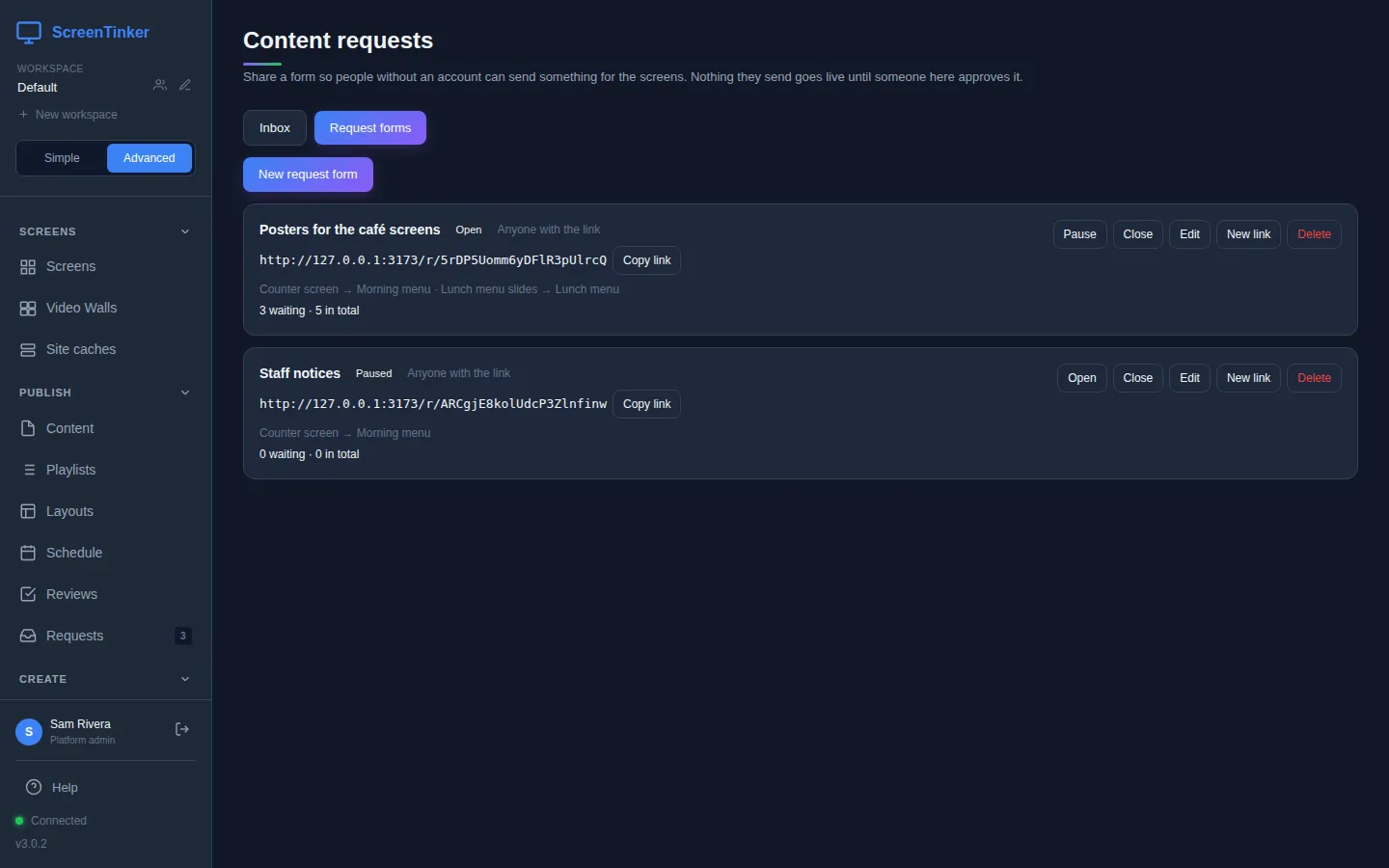
- Pause stops new requests for a while; the page tells visitors the form is paused. Close shuts it. Open takes requests again.
- New link replaces the link. The old one stops working straight away, so share the new one again. Use it if a link was passed around further than you wanted.
- Delete removes the form. Requests already sent keep their status links, and anything already approved keeps playing until its last day.
What the people sending a request see
The link opens a simple page with your form's title and introduction. First they fill in About you (their name and email address, or the code or sign-in your form asks for). Then, under Your request, they say What is it?, tick Where should it show?, pick the First day and Last day, answer any extra questions, choose the File, and press Send request.
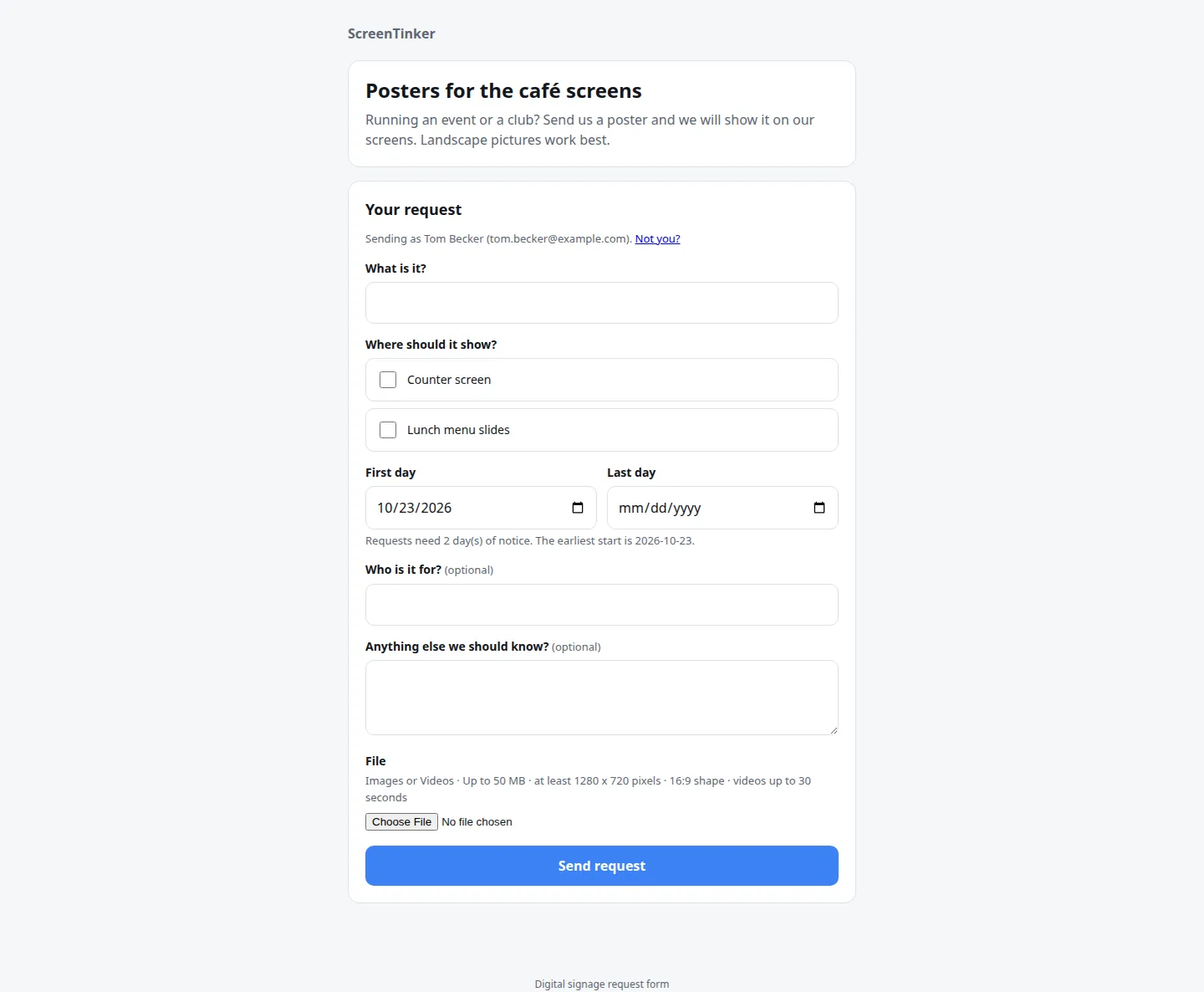
When it's sent, they get a reference number and Your status link. That link is the only way back to the request: it shows whether it is waiting, approved, on the screens, finished or declined (with your reason), and while it is still waiting they can Withdraw this request. If your workspace has its own branding, the page shows your name, logo and colour instead of ScreenTinker's.
Approve or decline a request
The Requests item in the sidebar shows a number when requests are waiting. Open it to see the Inbox. The list shows Waiting requests; use the menu above it to see Approved, not yet live, Published, Declined, Withdrawn or All.
- Pick a request. You see the file, who sent it and whether their email was verified, the dates, their answers, and under Where it would show, each place with its playlist and how many screens play it right now.
- Press Approve and publish. The file is added to each chosen playlist with a schedule from its first day to its last day, and the playlist is published. It appears on the screens on the first day and disappears after the last.
- Or press Decline, write why (the person who sent it will see this), and press Decline in the box.
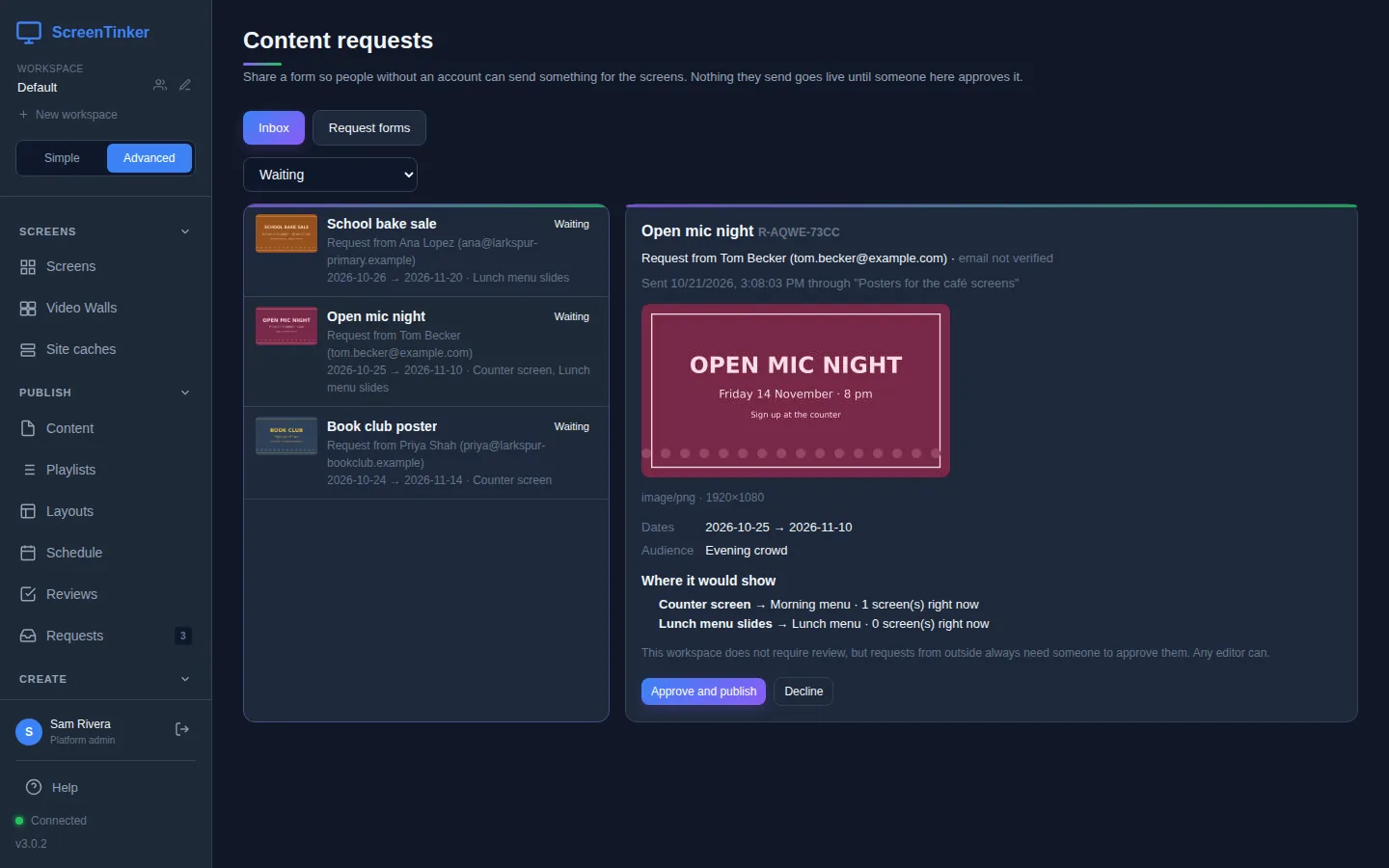
Approving publishes the playlist. If someone is half-way through editing it, that would publish their unfinished work too, so ScreenTinker stops and says which playlist it is. Publish or discard those changes in Playlists, then approve again. If one place fails and the others go live, press Publish to the remaining screens once it is fixed.
Who may approve. If your workspace has content approval turned on, only its assigned reviewers can approve or decline requests; everyone else sees "Waiting for a reviewer." If approval is off, any Admin or Editor can. Either way, a request always waits for someone to decide. Requests also appear under Reviews, labelled "Request from" and the sender's name. To set up reviewers, see Make changes wait for approval.
In Simple view: Requests from others
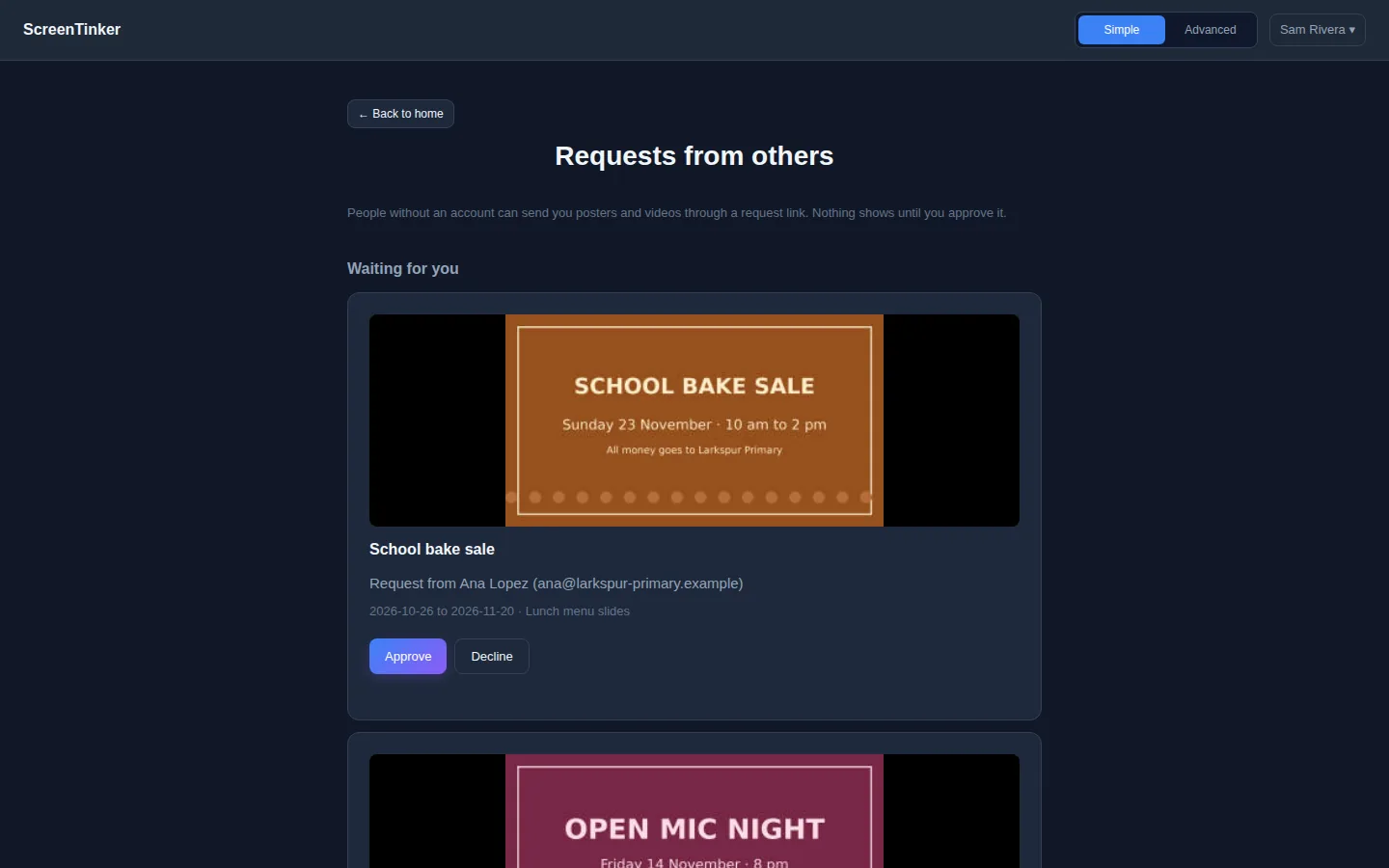
On the Simple view home page, choose Requests from others. Under Waiting for you, each request has a big Approve and Decline (Decline asks you to Tell them why, then Send). Under Your request links, Share the link copies a form's link.
Make a request link walks you through a new form in three steps: give the link a name, tick the screens people can choose, and press Make the link. It makes an Anyone with the link form with the standard rules (images and videos, no notice needed, runs of up to 60 days, images shown for 10 seconds, 20 requests a day). Switch to Advanced view to change those.
Emails
When your server can send email, the Admins and Editors (or the reviewers, when approval is on) get an email when a new request arrives, and the sender gets an email when you approve or decline it. People whose address was verified by a code or by single sign-on also get a "received" email. On a form for Anyone with the link nobody checked the address, so ScreenTinker doesn't send it a receipt; the sender relies on the status link until you decide.
Email codes and all of these emails need outgoing email set up on your server. Without it, Email in allowed domains (verified by a code) is greyed out and nobody is emailed, but forms, the inbox and status links work as normal. Largest file (MB) can't go above your server's upload limit (500 MB unless you changed MAX_FILE_SIZE). The link you copy uses the address you opened the dashboard on, so open the dashboard on the address the public can reach before you press Copy link.
FAQ
Can a request reach a screen without anyone approving it?
No. Every request waits in the inbox until someone presses Approve and publish, even in a workspace where content approval is switched off.
What happens after the last day?
The item stops showing on each screen at the end of its last day, in the screen's own time. Once that day has ended everywhere in the world, the file is also switched off in the library and the playlist is published without it.
Someone is sending too many requests. What can I do?
Lower Requests per day, Pause the form, or press New link so the old link stops working. One email address can send at most 5 requests a day to one form, and one network at most 10.
Why can't I pick one of my groups?
A group can only take requests if it has a playlist, so a group without one is greyed out in the list and says "no playlist yet". Give the group a playlist first, or pick the playlist itself. If Save says a screen or group has no playlist, the same fix applies.
Try it on your own screens
Start a 14-day Pro trial on hosted ScreenTinker: up to 15 screens, every feature, no credit card.
Or host it yourself, free and open source: self-hosting guide · GitHub